I think many issues may cause this error message. Recently I also got this issue all of sudden.
Some people suggest to Repair SharePoint under Control Panel, restarting search servers, reinstall Search Service Application, change the service account, or recreate entirely the search service application and components.
My question is, why it worked before?
Then I noticed the post from Joel Plaut. Joel mentioned that we could change "memoryLimitMegabytes" settings in "noderunner.exe.config" to reduce the memory consumption, that rang the bell in my mind.
I got this problem in Development environment (SP1 + CU201406). Apart from a separate SQL Server instance, the farm contains 2 virtual machines, and each have 8GB RAM. Since I started "Microsoft SharePoint Foundation Web Application" on both servers, the hardware resource is far below the minimum requirement from MSDN.
So, I kept all web applications running on one machine, and moved most of the other services, such as "Search Services" and "Distributed Cache service" to the other VM.
After restarting "Search Host Controller Service", Bing! The problem is fixed!
Showing posts with label Hyper V. Show all posts
Showing posts with label Hyper V. Show all posts
Friday, June 20, 2014


Friday, December 13, 2013
Hyper-V + SSD + "Data Deduplication" on Windows Server 2012
As a SharePoint developer or administrator, we all have a number ( >10 ) of virtual machines for test and development environment. If your VMs are hosted on Windows Server 2012 and stored on SSD ...... don't forget to enable "Data Deduplication"!
Why? Please check the screenshot below. 340GB vhdx files are "shrinked" to 54GB!
 |
 |
This feature is really impressive. I strongly recommend it to all SharePoint gurus!
Please let me know if you have different thoughts.
Friday, March 15, 2013
How to setup sharepoint 2013 on-premises learning environment
Compare to SharePoint 2010, the new version 2013 needs much more hardware resources to build a decent on-premises learning environment. Below is how I set up my learning environment.
To help to understand the security stuff, we need dedicated servers for different purpose. AutoSPInstaller is perfect for proper SharePoint installation.
All the servers are running in Hyper-V virtual machine.
0. Host machine
Windows Server 2012 Datacenter edition. MS Office 2013.
1. Domain controller, AD, CA and DNS server
Windows Server 2008 or 2012, 1GB RAM.
Need to create all service accounts and computer alias names.
2. Database server
MS SQL Server 2008 or 2012, developer edition. SSRS.
4GB RAM.
Need to limit the SQL server instance RAM to 2.5GB.
3. SharePoint 2013, workflow manager, SP designer and Visual Studio 2012
8GB RAM.
I disabled Distributed Cache service to save memory.
4. Office Web Apps server
2GB RAM. It's not allowed to install it with SharePoint server, so we have to give it a separate virtual machine.
So, if have only one physical machine, 16GB RAM is barely enough, and 24GB or 32GB RAM is more comfortable.
[Update 2013-03-27]
It' better to set up a dedicated Workflow server, with 3GB RAM.
Sunday, September 30, 2012
SQLIO performance test
I always love SQLIO for disk access performance test. Recently with the arrival of a Intel 520 SSD, I started to feel curious about its performance improvement.
Below is how I test it.
The command:
SQLIO -kR -t1 -s30 -f64 -b2 -i64 -BN i:\testfile.dat >> test.txt
Parameters description:
sqlio v1.5.SG
1 thread reading for 30 secs from file C:\RamDisk\Temp\testfile.dat
using 2KB IOs over 128KB stripes with 64 IOs per run
buffering set to not use file nor disk caches (as is SQL Server)
size of file C:\RamDisk\Temp\testfile.dat needs to be: 8388608 bytes
Test result.
Conclusions:
Below is how I test it.
The command:
SQLIO -kR -t1 -s30 -f64 -b2 -i64 -BN i:\testfile.dat >> test.txt
Parameters description:
sqlio v1.5.SG
1 thread reading for 30 secs from file C:\RamDisk\Temp\testfile.dat
using 2KB IOs over 128KB stripes with 64 IOs per run
buffering set to not use file nor disk caches (as is SQL Server)
size of file C:\RamDisk\Temp\testfile.dat needs to be: 8388608 bytes
Test result.
| Disk | NCQ | Environment | IOs/sec | MBs/sec | Comments |
|---|---|---|---|---|---|
| Seagate 7200RPM | No | Host, Windows server 2008 R2 | 484 | 0.94 | ST3750640NS |
| WD 7200 RPM | Yes | Host | 7,504 | 14.65 | WD1002FBYS |
| WD VelociRaptor 10k RPM | Yes | Host | 13,782 | 26.91 | WD1500ADFD |
| SSD Intel 520 | N/A | Guest, Windows server 2008 R2 | 7,747 | 15.13 | Hyper-V 2.0 |
| SSD Intel 520 | N/A | Guest, Windows server 2000 | 20,244 | 39.54 | Hyper-V 2.0 |
| SSD Intel 520 | N/A | Host | 12,646 | 24.70 | Hyper-V 2.0 |
| RAM DISK | N/A | Guest, Windows Server 2000 | 20,622 | 40.27 | Dataram RAMDisk v4.0 |
| RAM DISK | N/A | Host | 106,945 | 208.87 | Dataram RAMDisk v4.0 |
Conclusions:
- When NCQ is enabled for traditional hard disk, SQLIO is not reliable any more;
- RAM DISK is still much faster than SSD
- Windows server 2000 is much faster than windows server 2008 R2 :-)
- Putting the whole guest OS into RAM Disk doesn't help.
Wednesday, July 27, 2011
Hyper V - General access denied error (0x80070005)

Got this error all of sudden when trying to create a new virtual machine. In terms of here, this problem is caused by Intel IPMI driver, but I doubt it. I don't remember installed any Intel driver on the server recently.
Anyway, this seems like caused by permission issue. After quite a while investigation, this post seems like explained the cause and how to fix it. However, since I don't need to create new virtual machines frequently, I prefer "quick fix" as described below.
I noticed that the virtual machine folder was created, but only contains an empty "Virtual Machines" sub folder.
Right click this folder, and go to the "Properties" -> "Security", select "Virtual Machines" user group, then click "Edit" button, then select "Virtual Machines" user group again, we can see that this user group doesn't have any rights over the new folder.

Grant all rights to "Virtual Machines", then click "OK" button.

Back to the Hyper-V configuration wizard window, click "Finish" button.

The same error popped up again; "Failed to create external configuration store at ....". Close the error message window, then click "Cancel" button.

Back to the virtual machine list, a empty virtual machine item is created.

Go to its settings window.

Give it a proper name, then click "Apply" window.

It seems OK now. Then configure the other parts.

Create a new virtual hard disk, then specify DVD drive and network drive.
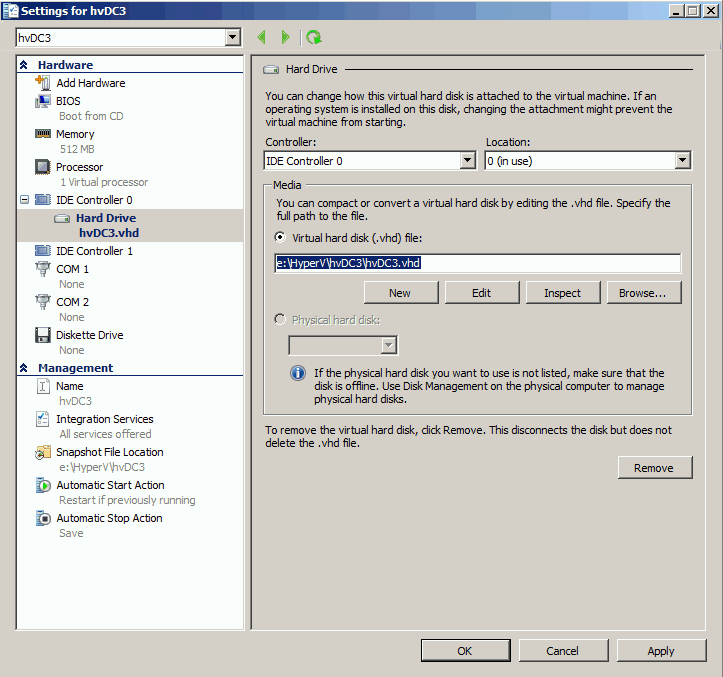
Below is the final settings.

Done.
This solution is far from perfect, but hopefully is good enough in most of cases.
[update - 20130528]
I think all the pain are caused by a special system and hidden group called NT VIRTUAL MACHINE\Virtual Machines. Please check here for details.
Saturday, February 19, 2011
Hyper V dynamic memory - performance tune - don't forget to upgrade the integration service
After installing windows 2008 R2 sp1 RTM, I can't wait to change the memory mode from "static" to "dynamic". Previously, one of my virtual machine was allocated 2048 MB RAM, so I specified "1024 MB" to the "Startup RAM", and the "Maximum RAM" is set to "6144 MB" (physical memory on the host machine is 8 GB). However, I was quite surprised to see that the guest machine became very slow, then hard disk indicator light was going crazy, and its disk queue increased to 50 immediately after rebooting!
Here explains what happened. Guest OS needs to notify host OS when it needs more or less memory, and the only way of the communication is through "integration components (service)".
So, what we need to do is quite easy: Upgrade "integration components (service)" to SP1 from the guest OS.
Enjoy it!
PS: May need to shut down all virtual machines, then reboot the three Hyper-V windows services on the host machine after the upgrading.
Update (6, March, 2011):
From here, I realized that dynamic memory may not work well because normally developers would choose "SQL Server developer edition". This is described as below:
"Only certain version and editions of SQL Server have the capability to recognised hot-add memory -Only Enterprise and DataCenter editions for SQL Server 2005 and later."
Here explains what happened. Guest OS needs to notify host OS when it needs more or less memory, and the only way of the communication is through "integration components (service)".
So, what we need to do is quite easy: Upgrade "integration components (service)" to SP1 from the guest OS.
Enjoy it!
PS: May need to shut down all virtual machines, then reboot the three Hyper-V windows services on the host machine after the upgrading.
Update (6, March, 2011):
From here, I realized that dynamic memory may not work well because normally developers would choose "SQL Server developer edition". This is described as below:
"Only certain version and editions of SQL Server have the capability to recognised hot-add memory -Only Enterprise and DataCenter editions for SQL Server 2005 and later."
Subscribe to:
Posts (Atom)