Thanks for the post from Andrew Connell, we got basic concept of workflow 2013 debugging.
As more and more enterprises migrating their SharePoint to Office 365, we cannot rely on "workflow history list" on debugging.
What's the solution?
So far, the only choice is "replication". Replicating the Online Site collection to On-Premise Dev environment, then test it there through Fiddler.
As Andrew Connell mentioned, we need to build the On-Premise Dev environment carefully, but it's possible to replicate the whole site through third-party migration tool, such as ShareGate, then debug from there.
ShareGate is still expensive (although it's possible the cheapest one comparing to other competent). But it should be all right for medium to large enterprise. It's not such a big number comparing to Office 365 subscription fee of the whole company, anyway.
Showing posts with label SharePoint 2016. Show all posts
Showing posts with label SharePoint 2016. Show all posts
Monday, July 2, 2018


The confusion when a user just moved from Shared Folder to SharePoint
Traditionally, how a user write a document?

One option is to map a SharePoint document library to local network mapped folder:
For SharePoint On-Premise:

For SharePoint Online:

Then users can save the document to that Shared Drive directly, just like what they did with "Shared Folder".
That works, but then we lost most of the benefit from SharePoint.
"SharePoint" means team work. So if a user wants to write a document, below are the steps.
SharePoint cannot do that by itself.
PS: Thanks for the reminding from my colleague Andrew Warland, nowadays, users can save the document to SharePoint sites with the help from the latest MS Office. That saves a lot of trouble.
It's still better to think more for other team members at the very beginning.

- Launch a MS Office Program, such as MS Word;
- Give the document a topic;
- Put content into it;
- Save.

One option is to map a SharePoint document library to local network mapped folder:
For SharePoint On-Premise:

For SharePoint Online:

Then users can save the document to that Shared Drive directly, just like what they did with "Shared Folder".
That works, but then we lost most of the benefit from SharePoint.
"SharePoint" means team work. So if a user wants to write a document, below are the steps.
- Ask themselves the question: Where should I store this document, so other users can find it easily?
- Who should have rights to view it, and who should be able to modify it?
- What kind of metadata should this document has? So users can get the basic information without opening it, such as "due date, document owner, project name, etc.".
- Go to the SharePoint document library in web browser (IE 11 is recommended at the moment), then click "new" button.
SharePoint cannot do that by itself.
PS: Thanks for the reminding from my colleague Andrew Warland, nowadays, users can save the document to SharePoint sites with the help from the latest MS Office. That saves a lot of trouble.
It's still better to think more for other team members at the very beginning.

Friday, February 16, 2018
SharePoint 2016 patch installation failure caused by Custom Tiles
During the installation of the latest patch, The Configuration Wizard throw out an error as below:
--------------
Failed to upgrade SharePoint Products.
An exception of type Microsoft.SharePoint.PostSetupConfiguration.PostSetupConfigurationTaskException was thrown. Additional exception information:
Feature upgrade action 'CustomUpgradeAction.AddSwitchField' threw an exception upgrading Feature 'CustomTiles' (Id: 15/'68642d38-a556-4384-888c-082844fbf224') in WebApplication 'SharePoint - 80': List |0
Feature upgrade incomplete for Feature 'CustomTiles' (Id: 15/'68642d38-a556-4384-888c-082844fbf224') in WebApplication 'SharePoint - 80'. Exception: List |0
Feature upgrade action 'CustomUpgradeAction.AddSwitchField' threw an exception upgrading Feature 'CustomTiles' (Id: 15/'68642d38-a556-4384-888c-082844fbf224') in WebApplication 'SharePoint - SPTest': List |0
Feature upgrade incomplete for Feature 'CustomTiles' (Id: 15/'68642d38-a556-4384-888c-082844fbf224') in WebApplication 'SharePoint - SPTest'. Exception: List |0
Upgrade completed with errors. Review the upgrade log file located in C:\Program Files\Common Files\microsoft shared\Web Server Extensions\16\LOGS\Upgrade-20180216-083525-624-c026758ad0924bb8ae1431288b75f172.log. The number of errors and warnings is listed
Microsoft.SharePoint.PostSetupConfiguration.PostSetupConfigurationTaskException: Exception of type 'Microsoft.SharePoint.PostSetupConfiguration.PostSetupConfigurationTaskException' was thrown.
at Microsoft.SharePoint.PostSetupConfiguration.UpgradeTask.Run()
at Microsoft.SharePoint.PostSetupConfiguration.TaskThread.ExecuteTask()
--------------
Google quickly leads me to this link, which says:
"CustomTiles is a standard SharePoint Feature. It's neither missing nor faulty. It seems that the feature upgrade code has a bug though. The upgrade doesn't work if the hidden CustomTiles lists have never been created. These lists get created when you enable the feature. So what you have to do is enabling the CustomTiles feature on every web application in your farm.
You can do so using Powershell: Enable-SPFeature -Identity CustomTiles -Url UrlOfYourWebApplication -Force
After enabling the feature (which creates the hidden list) the upgrade worked for us without any errors. If you want to know more about CustomTiles before enabling the feature see this TechNet article: https://technet.microsoft.com/en-us/library/mt790697(v=office.16).aspx "
Now things are easy to handle. I wrote some PowerShell script to resolve it:
# resolve the "Custom Tiles" error
$WebApplicationUrlObjects = @(Get-SPWebApplication -IncludeCentralAdministration | Select Url)
foreach ($url in $WebApplicationUrlObjects){
Enable-SPFeature -Identity CustomTiles -Url $url.Url -Force
}
# upgrade content database schema
Get-SPWebApplication -IncludeCentralAdministration | Get-SPContentDatabase | ?{$_.NeedsUpgrade –eq $true} | Upgrade-SPContentDatabase -Confirm:$false
This script needs to be run between the installation of the new patch and "SharePoint 2016 Products Configuration Wizard".
--------------
Failed to upgrade SharePoint Products.
An exception of type Microsoft.SharePoint.PostSetupConfiguration.PostSetupConfigurationTaskException was thrown. Additional exception information:
Feature upgrade action 'CustomUpgradeAction.AddSwitchField' threw an exception upgrading Feature 'CustomTiles' (Id: 15/'68642d38-a556-4384-888c-082844fbf224') in WebApplication 'SharePoint - 80': List |0
Feature upgrade incomplete for Feature 'CustomTiles' (Id: 15/'68642d38-a556-4384-888c-082844fbf224') in WebApplication 'SharePoint - 80'. Exception: List |0
Feature upgrade action 'CustomUpgradeAction.AddSwitchField' threw an exception upgrading Feature 'CustomTiles' (Id: 15/'68642d38-a556-4384-888c-082844fbf224') in WebApplication 'SharePoint - SPTest': List |0
Feature upgrade incomplete for Feature 'CustomTiles' (Id: 15/'68642d38-a556-4384-888c-082844fbf224') in WebApplication 'SharePoint - SPTest'. Exception: List |0
Upgrade completed with errors. Review the upgrade log file located in C:\Program Files\Common Files\microsoft shared\Web Server Extensions\16\LOGS\Upgrade-20180216-083525-624-c026758ad0924bb8ae1431288b75f172.log. The number of errors and warnings is listed
Microsoft.SharePoint.PostSetupConfiguration.PostSetupConfigurationTaskException: Exception of type 'Microsoft.SharePoint.PostSetupConfiguration.PostSetupConfigurationTaskException' was thrown.
at Microsoft.SharePoint.PostSetupConfiguration.UpgradeTask.Run()
at Microsoft.SharePoint.PostSetupConfiguration.TaskThread.ExecuteTask()
--------------
Google quickly leads me to this link, which says:
"CustomTiles is a standard SharePoint Feature. It's neither missing nor faulty. It seems that the feature upgrade code has a bug though. The upgrade doesn't work if the hidden CustomTiles lists have never been created. These lists get created when you enable the feature. So what you have to do is enabling the CustomTiles feature on every web application in your farm.
You can do so using Powershell: Enable-SPFeature -Identity CustomTiles -Url UrlOfYourWebApplication -Force
After enabling the feature (which creates the hidden list) the upgrade worked for us without any errors. If you want to know more about CustomTiles before enabling the feature see this TechNet article: https://technet.microsoft.com/en-us/library/mt790697(v=office.16).aspx "
Now things are easy to handle. I wrote some PowerShell script to resolve it:
# resolve the "Custom Tiles" error
$WebApplicationUrlObjects = @(Get-SPWebApplication -IncludeCentralAdministration | Select Url)
foreach ($url in $WebApplicationUrlObjects){
Enable-SPFeature -Identity CustomTiles -Url $url.Url -Force
}
# upgrade content database schema
Get-SPWebApplication -IncludeCentralAdministration | Get-SPContentDatabase | ?{$_.NeedsUpgrade –eq $true} | Upgrade-SPContentDatabase -Confirm:$false
Wednesday, October 18, 2017
Change DocumentID prefix through PowerShell script
Four and a half years ago, I submitted a post about how to change DocumentID prefix manually for a single document.
Eventually I realised it's convenient to use site collection path name as the DocumentID prefix. However, if users want to change the site collection name, then we have to refresh the DocumentID for all documents.
Here is about how to do that through PowerShell for multiple site collections.
$ver = $host | select version
if ($ver.Version.Major -gt 1) {$Host.Runspace.ThreadOptions = "ReuseThread"}
Add-PSSnapin Microsoft.SharePoint.PowerShell -ErrorAction SilentlyContinue
Add-PSSnapin Microsoft.Office.DocumentManagement -ErrorAction SilentlyContinue
Set-StrictMode -Version Latest
$ErrorActionPreference="Continue"
# https://gallery.technet.microsoft.com/scriptcenter/Write-Log-PowerShell-999c32d0
# Write-Log -Message 'Log message'
# Write-Log -Message 'Restarting Server.'
# Write-Log -Message 'Folder does not exist.' -Level Error
$Global:LogFile = "E:\DailyBackup\Log\ResetDocumentID." + (Get-Date).ToString("yyyyMMdd-HHmmss") + ".txt"
function Write-Log{
[CmdletBinding()]
Param
(
[Parameter(Mandatory=$true, ValueFromPipelineByPropertyName=$true)]
[ValidateNotNullOrEmpty()]
[Alias("LogContent")]
[string]$Message,
[Parameter(Mandatory=$false)]
[ValidateSet("Error","Warn","Info","HighLight")]
[string]$Level="Info"
)
Begin{
$VerbosePreference = 'Continue'
}
Process{
#if (!(Test-Path $LogFile)) {
# Write-Verbose "Creating $LogFile."
# $NewLogFile = New-Item $LogFile -Force -ItemType File
#}
$FormattedDate = Get-Date -Format "yyyy-MM-dd HH:mm:ss"
switch ($Level) {
'Error' {
$LevelText = 'ERROR:'
$MessageColor = [System.ConsoleColor]::Red
}
'Warn' {
$LevelText = 'WARNING:'
$MessageColor = [System.ConsoleColor]::Yellow
}
'Info' {
$LevelText = 'INFO:'
$MessageColor = [System.ConsoleColor]::DarkGreen
}
'HighLight' {
$LevelText = 'HIGHLIGHT:'
$MessageColor = [System.ConsoleColor]::Green
}
}
Write-Host $Message -f $MessageColor
$MessageContent = "$FormattedDate $LevelText $Message"
$MessageContent | Out-File -FilePath $Global:LogFile -Append
#$opts = @{ForegroundColor=$MessageColor; BackgroundColor="black"; object=$MessageContent}
#Write-Log $opts
}
End{
}
}
function GetWebAppUrlFromSiteUrl([string]$SiteUrl){
#Write-Log -Message "GetWebAppUrlFromSiteUrl(), start......SiteUrl=$SiteUrl" -Level HighLight
$site = Get-SPSite -Identity $SiteUrl
$WebAppUrl = $site.WebApplication.GetResponseUri([Microsoft.SharePoint.Administration.SPUrlZone]::Default).AbsoluteUri
if ($WebAppUrl.EndsWith("/","CurrentCultureIgnoreCase")){
$WebAppUrl = $WebAppUrl.Substring(0, $WebAppUrl.Length - 1)
}
$site.Dispose()
#Write-Log -Message "GetWebAppUrlFromSiteUrl(), complete. WebAppUrl=$WebAppUrl" -Level HighLight
return $WebAppUrl
}
function GetSiteNameFromSiteUrl([string]$SiteUrl){
# Write-Log -Message "GetSiteNameFromSiteUrl(), start......SiteUrl=$SiteUrl"
if ($SiteUrl.EndsWith("/","CurrentCultureIgnoreCase")){
$SiteUrl = $SiteUrl.Substring(0, $SiteUrl.Length - 1)
}
$iPos = $SiteUrl.LastIndexOf('/')
$SiteUrl = $SiteUrl.Substring($iPos + 1)
# Write-Log -Message "GetSiteNameFromSiteUrl(), complete. SiteUrl=$SiteUrl"
return $SiteUrl
}
function StartTimerJob([string]$WebAppUrl, [string]$JobName){
Write-Log -Message "StartTimerJob(), start......WebAppUrl=$WebAppUrl, JobName=$JobName"
$job = Get-SPTimerJob -WebApplication $WebAppUrl $JobName
if (!$job){
Write-Log -Message "StartTimerJob(), No valid timer job found, WebAppUrl=$WebAppUrl, JobName=$JobName" -Level Error
return
}
$startTime = $job.LastRunTime
Start-SPTimerJob $job
while (($startTime) -eq $job.LastRunTime)
{
Write-Host -NoNewLine "."
Start-Sleep -Seconds 2
}
Write-Log "Timer Job '$JobName' has completed on $WebAppUrl."
# Write-Log -Message "StartTimerJob(), complete. SiteUrl=$SiteUrl"
return
}
# https://blogs.perficient.com/microsoft/2015/01/set-up-document-id-prefix-in-sharepoint-2013-programmatically/
function ResetDocumentID([string]$startSPSiteUrl){
Write-Log -Message "ResetDocumentID(), startSPSiteUrl=$startSPSiteUrl"
$SiteUrlPrevious = ""
$SiteUrl = ""
$WebAppUrl = ""
$WebAppUrlPrevious = ""
$rootweb = $null
$SiteCount = 0
$i = 0
$sites = @(Get-SPSite -Limit ALL | ?{$_.ServerRelativeUrl -notmatch "Office_Viewing_Service_Cache" `
-and $_.Url.Startswith($startSPSiteUrl, "CurrentCultureIgnoreCase") `
-and $_.Url -notmatch "SearchCenter" `
-and $_.Url -notmatch "IPForm " `
-and $_.Url -notmatch "SPTest" `
-and $_.Url -notmatch "mysite"})
$SiteCount = $sites.count
if ($SiteCount -eq 0){
Write-Log -Message "No valid SPSite found, startSPSiteUrl=$startSPSiteUrl" -Level Error
return
}
else{
Write-Log -Message "sites.count=$SiteCount"
}
$progressBarTitle = "ResetDocumentID(), Scan SPSites, SiteCount=$SiteCount, startSPSiteUrl=$startSPSiteUrl"
foreach ($site in $sites){
$i++
Write-Progress -Activity $progressBarTitle -PercentComplete (($i/$SiteCount)*100) -Status "Working"
$SiteUrl = $site.Url
$WebApplicationUrl =
Write-Log "ResetDocumentID(), SiteUrl=$SiteUrl"
if ($site.ReadOnly){
Write-Log "ResetDocumentID(), Site($SiteUrl) is read-only. Skip." -Level Warn
Continue
}
$WebAppUrl = GetWebAppUrlFromSiteUrl $SiteUrl
if ($WebAppUrl.EndsWith(".local","CurrentCultureIgnoreCase") -eq $false){
Write-Log -Message "ResetDocumentID(), skip web application: WebAppUrl=$WebAppUrl"
continue
}
Try{
$SiteName = GetSiteNameFromSiteUrl $SiteUrl
Write-Log "ResetDocumentID(), DocumentID=$SiteName"
[Microsoft.Office.DocumentManagement.DocumentID]::EnableAssignment($site,$false) #First disable, then enable DocID assignment
[Microsoft.Office.DocumentManagement.DocumentID]::EnableAssignment($site,$true)
$rootweb=$site.rootweb
$rootweb.properties["docid_msft_hier_siteprefix"]= $SiteName # This is the property holding the Document ID Prefix which we use to ensure uniqueness
$rootweb.properties.Update()
$rootweb.Update()
[Microsoft.Office.DocumentManagement.DocumentID]::EnableAssignment($site,$true,$true,$true) # now we can force all Document IDs to be reissued
}
Catch [system.exception]{
$strTmp = [string]::Format("ResetDocumentID(), startSPSiteUrl={0}, SiteUrl={1}, ex.Message={2}", $startSPSiteUrl, $SiteUrl, $Error[0].Exception.Message)
Write-Log $strTmp -Level Error
Write-Log $_.Exception -Level Error
}
Finally{
if ($rootweb){
$rootweb.Dispose()
}
if ($site){
$site.Dispose()
}
}
if ([string]::IsNullOrEmpty($SiteUrlPrevious)){
$SiteUrlPrevious = $SiteUrl
$WebAppUrlPrevious = $WebAppUrl
}
if ($WebAppUrl.Equals($WebAppUrlPrevious, [StringComparison]::InvariantCultureIgnoreCase) -eq $false){
StartTimerJob $WebAppUrl "DocIdEnable"
StartTimerJob $WebAppUrl "DocIdAssignment"
$WebAppUrlPrevious = $WebAppUrl
}
Write-Log -Message "ResetDocumentID(), completed"
}
StartTimerJob $WebAppUrl "DocIdEnable"
StartTimerJob $WebAppUrl "DocIdAssignment"
}
cls
# $_SiteNameSuffix = '2016DEV'
# $_SiteNameSuffix = '2013DEV'
$_SiteNameSuffix = ''
# $_SiteUrl = ""
$_SiteUrl = "http://team$_SiteNameSuffix.SharePointServer.local/sites/SiteCollectionName"
ResetDocumentID $_SiteUrl
Write-Log -Message "Finished! Press enter key to exit."
#Read-Host
Eventually I realised it's convenient to use site collection path name as the DocumentID prefix. However, if users want to change the site collection name, then we have to refresh the DocumentID for all documents.
Here is about how to do that through PowerShell for multiple site collections.
$ver = $host | select version
if ($ver.Version.Major -gt 1) {$Host.Runspace.ThreadOptions = "ReuseThread"}
Add-PSSnapin Microsoft.SharePoint.PowerShell -ErrorAction SilentlyContinue
Add-PSSnapin Microsoft.Office.DocumentManagement -ErrorAction SilentlyContinue
Set-StrictMode -Version Latest
$ErrorActionPreference="Continue"
# https://gallery.technet.microsoft.com/scriptcenter/Write-Log-PowerShell-999c32d0
# Write-Log -Message 'Log message'
# Write-Log -Message 'Restarting Server.'
# Write-Log -Message 'Folder does not exist.' -Level Error
$Global:LogFile = "E:\DailyBackup\Log\ResetDocumentID." + (Get-Date).ToString("yyyyMMdd-HHmmss") + ".txt"
function Write-Log{
[CmdletBinding()]
Param
(
[Parameter(Mandatory=$true, ValueFromPipelineByPropertyName=$true)]
[ValidateNotNullOrEmpty()]
[Alias("LogContent")]
[string]$Message,
[Parameter(Mandatory=$false)]
[ValidateSet("Error","Warn","Info","HighLight")]
[string]$Level="Info"
)
Begin{
$VerbosePreference = 'Continue'
}
Process{
#if (!(Test-Path $LogFile)) {
# Write-Verbose "Creating $LogFile."
# $NewLogFile = New-Item $LogFile -Force -ItemType File
#}
$FormattedDate = Get-Date -Format "yyyy-MM-dd HH:mm:ss"
switch ($Level) {
'Error' {
$LevelText = 'ERROR:'
$MessageColor = [System.ConsoleColor]::Red
}
'Warn' {
$LevelText = 'WARNING:'
$MessageColor = [System.ConsoleColor]::Yellow
}
'Info' {
$LevelText = 'INFO:'
$MessageColor = [System.ConsoleColor]::DarkGreen
}
'HighLight' {
$LevelText = 'HIGHLIGHT:'
$MessageColor = [System.ConsoleColor]::Green
}
}
Write-Host $Message -f $MessageColor
$MessageContent = "$FormattedDate $LevelText $Message"
$MessageContent | Out-File -FilePath $Global:LogFile -Append
#$opts = @{ForegroundColor=$MessageColor; BackgroundColor="black"; object=$MessageContent}
#Write-Log $opts
}
End{
}
}
function GetWebAppUrlFromSiteUrl([string]$SiteUrl){
#Write-Log -Message "GetWebAppUrlFromSiteUrl(), start......SiteUrl=$SiteUrl" -Level HighLight
$site = Get-SPSite -Identity $SiteUrl
$WebAppUrl = $site.WebApplication.GetResponseUri([Microsoft.SharePoint.Administration.SPUrlZone]::Default).AbsoluteUri
if ($WebAppUrl.EndsWith("/","CurrentCultureIgnoreCase")){
$WebAppUrl = $WebAppUrl.Substring(0, $WebAppUrl.Length - 1)
}
$site.Dispose()
#Write-Log -Message "GetWebAppUrlFromSiteUrl(), complete. WebAppUrl=$WebAppUrl" -Level HighLight
return $WebAppUrl
}
function GetSiteNameFromSiteUrl([string]$SiteUrl){
# Write-Log -Message "GetSiteNameFromSiteUrl(), start......SiteUrl=$SiteUrl"
if ($SiteUrl.EndsWith("/","CurrentCultureIgnoreCase")){
$SiteUrl = $SiteUrl.Substring(0, $SiteUrl.Length - 1)
}
$iPos = $SiteUrl.LastIndexOf('/')
$SiteUrl = $SiteUrl.Substring($iPos + 1)
# Write-Log -Message "GetSiteNameFromSiteUrl(), complete. SiteUrl=$SiteUrl"
return $SiteUrl
}
function StartTimerJob([string]$WebAppUrl, [string]$JobName){
Write-Log -Message "StartTimerJob(), start......WebAppUrl=$WebAppUrl, JobName=$JobName"
$job = Get-SPTimerJob -WebApplication $WebAppUrl $JobName
if (!$job){
Write-Log -Message "StartTimerJob(), No valid timer job found, WebAppUrl=$WebAppUrl, JobName=$JobName" -Level Error
return
}
$startTime = $job.LastRunTime
Start-SPTimerJob $job
while (($startTime) -eq $job.LastRunTime)
{
Write-Host -NoNewLine "."
Start-Sleep -Seconds 2
}
Write-Log "Timer Job '$JobName' has completed on $WebAppUrl."
# Write-Log -Message "StartTimerJob(), complete. SiteUrl=$SiteUrl"
return
}
# https://blogs.perficient.com/microsoft/2015/01/set-up-document-id-prefix-in-sharepoint-2013-programmatically/
function ResetDocumentID([string]$startSPSiteUrl){
Write-Log -Message "ResetDocumentID(), startSPSiteUrl=$startSPSiteUrl"
$SiteUrlPrevious = ""
$SiteUrl = ""
$WebAppUrl = ""
$WebAppUrlPrevious = ""
$rootweb = $null
$SiteCount = 0
$i = 0
$sites = @(Get-SPSite -Limit ALL | ?{$_.ServerRelativeUrl -notmatch "Office_Viewing_Service_Cache" `
-and $_.Url.Startswith($startSPSiteUrl, "CurrentCultureIgnoreCase") `
-and $_.Url -notmatch "SearchCenter" `
-and $_.Url -notmatch "IPForm " `
-and $_.Url -notmatch "SPTest" `
-and $_.Url -notmatch "mysite"})
$SiteCount = $sites.count
if ($SiteCount -eq 0){
Write-Log -Message "No valid SPSite found, startSPSiteUrl=$startSPSiteUrl" -Level Error
return
}
else{
Write-Log -Message "sites.count=$SiteCount"
}
$progressBarTitle = "ResetDocumentID(), Scan SPSites, SiteCount=$SiteCount, startSPSiteUrl=$startSPSiteUrl"
foreach ($site in $sites){
$i++
Write-Progress -Activity $progressBarTitle -PercentComplete (($i/$SiteCount)*100) -Status "Working"
$SiteUrl = $site.Url
$WebApplicationUrl =
Write-Log "ResetDocumentID(), SiteUrl=$SiteUrl"
if ($site.ReadOnly){
Write-Log "ResetDocumentID(), Site($SiteUrl) is read-only. Skip." -Level Warn
Continue
}
$WebAppUrl = GetWebAppUrlFromSiteUrl $SiteUrl
if ($WebAppUrl.EndsWith(".local","CurrentCultureIgnoreCase") -eq $false){
Write-Log -Message "ResetDocumentID(), skip web application: WebAppUrl=$WebAppUrl"
continue
}
Try{
$SiteName = GetSiteNameFromSiteUrl $SiteUrl
Write-Log "ResetDocumentID(), DocumentID=$SiteName"
[Microsoft.Office.DocumentManagement.DocumentID]::EnableAssignment($site,$false) #First disable, then enable DocID assignment
[Microsoft.Office.DocumentManagement.DocumentID]::EnableAssignment($site,$true)
$rootweb=$site.rootweb
$rootweb.properties["docid_msft_hier_siteprefix"]= $SiteName # This is the property holding the Document ID Prefix which we use to ensure uniqueness
$rootweb.properties.Update()
$rootweb.Update()
[Microsoft.Office.DocumentManagement.DocumentID]::EnableAssignment($site,$true,$true,$true) # now we can force all Document IDs to be reissued
}
Catch [system.exception]{
$strTmp = [string]::Format("ResetDocumentID(), startSPSiteUrl={0}, SiteUrl={1}, ex.Message={2}", $startSPSiteUrl, $SiteUrl, $Error[0].Exception.Message)
Write-Log $strTmp -Level Error
Write-Log $_.Exception -Level Error
}
Finally{
if ($rootweb){
$rootweb.Dispose()
}
if ($site){
$site.Dispose()
}
}
if ([string]::IsNullOrEmpty($SiteUrlPrevious)){
$SiteUrlPrevious = $SiteUrl
$WebAppUrlPrevious = $WebAppUrl
}
if ($WebAppUrl.Equals($WebAppUrlPrevious, [StringComparison]::InvariantCultureIgnoreCase) -eq $false){
StartTimerJob $WebAppUrl "DocIdEnable"
StartTimerJob $WebAppUrl "DocIdAssignment"
$WebAppUrlPrevious = $WebAppUrl
}
Write-Log -Message "ResetDocumentID(), completed"
}
StartTimerJob $WebAppUrl "DocIdEnable"
StartTimerJob $WebAppUrl "DocIdAssignment"
}
cls
# $_SiteNameSuffix = '2016DEV'
# $_SiteNameSuffix = '2013DEV'
$_SiteNameSuffix = ''
# $_SiteUrl = ""
$_SiteUrl = "http://team$_SiteNameSuffix.SharePointServer.local/sites/SiteCollectionName"
ResetDocumentID $_SiteUrl
Write-Log -Message "Finished! Press enter key to exit."
#Read-Host
Wednesday, May 31, 2017
Pause workflow instances between 8pm to 6am
Servers are busy at midnight. Data backup, data synchronization, report building ...... keep the storage system and network busy, and databases may get locked up from time to time..
That's bad to those SharePoint workflows being triggered at night. Sometimes they would simply stop working and throw out errors.
Below is how I resolve this problem in Workflow 2010 and 2013.

That's bad to those SharePoint workflows being triggered at night. Sometimes they would simply stop working and throw out errors.
Below is how I resolve this problem in Workflow 2010 and 2013.

Thursday, May 18, 2017
MIM 2016 - Trouble Shooting - All users are filtered?
After the installation and configuration of MIM 2016 following this link, I noticed that no users can be synced from AD to SharePoint User Profile store. The Synchronization Service Manager shows the screenshot below.

All users fall into "Connectors without Flow Updates", and got filtered during syncing.
To fix that is easy: add a join rule for "user"("Data Source Object Type").

I am quite surprised that this is not added to the Step By Step Installation User Guide.

All users fall into "Connectors without Flow Updates", and got filtered during syncing.
To fix that is easy: add a join rule for "user"("Data Source Object Type").

I am quite surprised that this is not added to the Step By Step Installation User Guide.
MIM 2016 - ADMA - AD Replication error 8453: "Replication access was denied"
I am pretty sure that the ADMA service account "_SPSyncUp" have been granted "Replicating Directory Changes" permission of the AD, because it had been used by SharePoint built-in "User Profile Sync Service" for years.
But, the AD Replication error 8453 still appeared.
The error log in Windows Event Viewer doesn't help much. Below is the error message:
The management agent "ADMA" failed on run profile "FullImport" because of connectivity issues.
The management agent "ADMA" failed on run profile "FullImport" because a partition specified in the configuration could not be located.
It turns out that MIM 2016 asks for more access rights than SharePoint built-in "User Profile Sync Service". As the screenshot below shows, we have to grant "Replicating Directory Changes" permission of the AD configuration partition to ADMA service account.
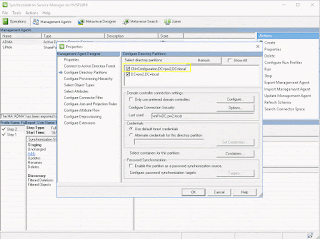


But, the AD Replication error 8453 still appeared.
The error log in Windows Event Viewer doesn't help much. Below is the error message:
The management agent "ADMA" failed on run profile "FullImport" because of connectivity issues.
The management agent "ADMA" failed on run profile "FullImport" because a partition specified in the configuration could not be located.
The DCDIAG Replication test (DCDIAG /TEST:NCSecDesc) reports that everything is OK.
So, what is wrong?

That can be done through "adsiedit.msc".


Monday, May 1, 2017
Simple Email Reminder through SharePoint Workflow 2013
For SharePoint reminder, my first thoughts is "scheduled PowerShell script". Three years ago, I posted how to do that. But that needs SharePoint administrator to get involved.
Can business users do it by themselves? Yes, they can, but the workflow is a bit complicated.
Thanks for the "Loop" functionality from SharePoint Workflow 2013, we get much simpler solution.
But it's not as simple as it should be, due to lack of "DateTime" relevant functions.
Anyway, only one workflow and one list is needed.
1. Workflow.


3. Three calculated fields "CurrentDay, CurrentHour, CurrentMinute" are created here.
But normally we only need one of them.


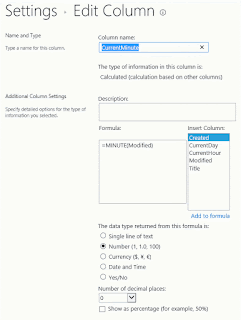
[update, 2017-06-06]
The other way is to do it through OverDue Task. Two emails will be sent out, and can only be sent to the same SharePoint user group (or same user).
But normally that's fine.
Since it's much easier to configure, I believe it's a better solution.

Can business users do it by themselves? Yes, they can, but the workflow is a bit complicated.
Thanks for the "Loop" functionality from SharePoint Workflow 2013, we get much simpler solution.
But it's not as simple as it should be, due to lack of "DateTime" relevant functions.
Anyway, only one workflow and one list is needed.
1. Workflow.

2. Three variables are needed in the workflow. ("create" is automatically created by Designer)

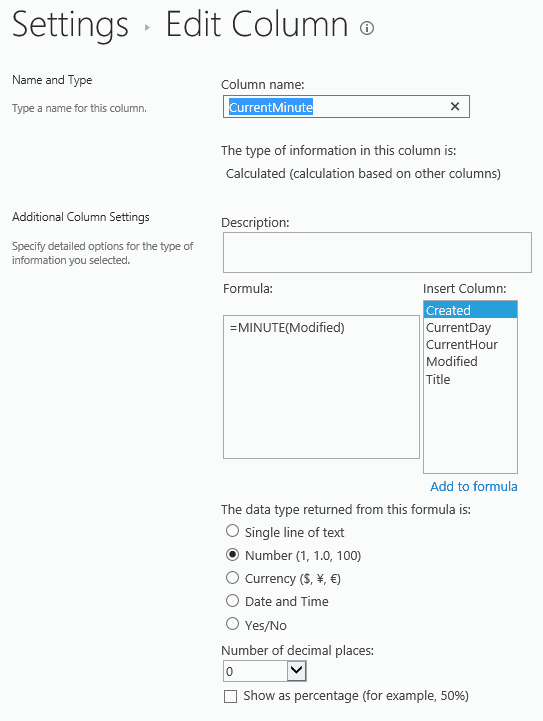
3. Three calculated fields "CurrentDay, CurrentHour, CurrentMinute" are created here.
But normally we only need one of them.
To send out email every hour, we need field “CurrentMinute”; (this is the one being used in the example above, pause for one minute each time)
To send out email every day, we need field “CurrentHour”; (pause for one hour each time)
To send out email every month, we need field “CurrentDay”.
When the value of field “Title” is set to “exit”, the
workflow will exit.
Every time when an email is sent out, a new item is created in the
same list.


[update, 2017-06-06]
The other way is to do it through OverDue Task. Two emails will be sent out, and can only be sent to the same SharePoint user group (or same user).
But normally that's fine.
Since it's much easier to configure, I believe it's a better solution.

Friday, November 25, 2016
"This item is no longer available" when trying to approve master page changes
After some minor change of a master page in SharePoint designer, I checked it in as a major version. SharePoint designer then opened the library "Master Page Gallery" ( /_catalogs/masterpage/Forms/my-sub.aspx ).
I can see the two changed master page files ( .html and .master ) in the "My submissions" list view. However, when trying to open the context menu to approve it, I got the error message "This item is no longer available".

I logged on as SharePoint farm administrator, so it should not be caused by permission issue.
Google leads me to this one, but it doesn't help.
In the end, I changed the versioning settings of this library, which fixed the problem.

Then I changed the settings back.
This is the first time I got this issue in the past 9 years. I guess it's caused by a minor bug. As alternative solution, it's good enough.
The environment is SharePoint 2016 with CU 201611.
I can see the two changed master page files ( .html and .master ) in the "My submissions" list view. However, when trying to open the context menu to approve it, I got the error message "This item is no longer available".

I logged on as SharePoint farm administrator, so it should not be caused by permission issue.
Google leads me to this one, but it doesn't help.
In the end, I changed the versioning settings of this library, which fixed the problem.

Then I changed the settings back.
This is the first time I got this issue in the past 9 years. I guess it's caused by a minor bug. As alternative solution, it's good enough.
The environment is SharePoint 2016 with CU 201611.
Wednesday, November 23, 2016
How to make Chrome support SSO, and enable CORS
Recently I migrated some SharePoint web parts from C# to JavaScript + HTML
Everything works well in IE 11 after enabling CORS.
But, when test it in Chrome 54, I got the error message below, and it constantly prompt for user name and password..
ERR_INVALID_HANDLE: "This site can’t be reached"
IIS log says it's requested by anonymous user.
After days of struggling, it turns out not as easy as it looks like. We need to do the following steps.
1. IE -> internet options -> security -> Local Intranet zone
Add SharePoint Server and the Web App Server to "Local Intranet zone". So IE and Chrome will try to use the current windows user credential to log on web server.
This enables NTLM authentication on SharePoint and Web App Server.
Reference: https://sysadminspot.com/windows/google-chrome-and-ntlm-auto-logon-using-windows-authentication/
2. Configure Delegated Security in Google Chrome
Need to add server names as below to registry table on client computer.
We can do it through Group Policy.
[HKEY_LOCAL_MACHINE\SOFTWARE\Policies\Google\Chrome]
"AuthNegotiateDelegateWhitelist"="*.DomainName.local"
"AuthSchemes"="digest,ntlm,negotiate"
"AuthServerWhitelist"="*.DomainName.local"
This enables NTLM authentication and Kerberos on SharePoint and Web App Server.
Reference: https://specopssoft.com/configuring-chrome-and-firefox-for-windows-integrated-authentication/
3. Configure Kerberos
Set up SPN for both the SharePoint Server and the Web App Server.
Reference: https://support.microsoft.com/en-au/kb/929650
4. Change Startup.cs a bit in Configure() to handle preflight requests
This is for CORS.
Reference: http://stackoverflow.com/questions/38838006/asp-net-mvc-core-cors
5. Enable Anonymous Authentication on Web App Server
This is for CORS.
6. If Kestrel Server is not running, we need to submit "GET" request first.
It cannot be started up by "Preflight Options" request. It seems like a bug.
[update 2016-11-29] 7. To make things easier, add the settings below to the web.config file of Web App Server.
This helps to enable CORS.
<httpProtocol>
<customHeaders>
<clear />
<add name="Access-Control-Allow-Origin" value="http://SharePointSiteUrl" />
<add name="Access-Control-Allow-Headers" value="Authorization, X-Requested-With, Content-Type, Origin, Accept, X-Auth-Token" />
<add name="Access-Control-Allow-Methods" value="*" />
<add name="Access-Control-Allow-Credentials" value="true" />
<add name="Access-Control-Max-Age" value="60" />
</customHeaders>
</httpProtocol>
Done.
=================
Test Environment.
Client side: Chrome 54 + JavaScript + JQuery 3.1.1
Server side: SharePoint Server 2016 CU201611 + Content Editor Web Part
Web App Server: IIS 8.5 + Asp.Net Core Web API 2 + C#
JavaScript + JQuery 3.1.1 (based on JSON, in a Content Editor Web Part)
var strUrl = "http://WebService2016dev.DomainName.local/SSO/AppTest1/api/SSOAuthentication";
var JSONObject= {"Key": "db25f36b-fa81-4c8e-9af5-9c8468ce8a79",
"UserLoginName": "domain\\UserLoginName",
"ReturnCode": "",
"ReturnValue": "",
"ReturnDetailedInfo": "" };
var jsonData = JSON.stringify(JSONObject);
$.support.cors = true;
var strMethodType = 'GET';
var strContentType = 'text/plain';
$.ajax( {
url: strUrl,
type: strMethodType,
contentType: strContentType ,
xhrFields: {
withCredentials: true
},
data: '',
dataType: "json",
async: false,
crossDomain: true,
success: function( response ) {
console.log("GET success - Data from Server: " + JSON.stringify(response));
},
error: function( request, textStatus, errorThrown ) {
console.log("GET error - You can not send Cross Domain AJAX requests: textStatus=" + textStatus + ", errorThrown=" + errorThrown);
console.log(request.responseText);
}
} );
var strMethodType = 'POST';
var strContentType = 'application/json; charset=utf-8';
$.ajax( {
url: strUrl,
type: strMethodType,
contentType: strContentType ,
xhrFields: {
withCredentials: true
},
data: jsonData,
dataType: "json",
crossDomain: true,
success: function( response ) {
console.log("POST success - Data from Server: " + JSON.stringify(response));
},
error: function( request, textStatus, errorThrown ) {
console.log("POST error - You can not send Cross Domain AJAX requests: textStatus=" + textStatus + ", errorThrown=" + errorThrown);
console.log(request.responseText);
}
} );
Everything works well in IE 11 after enabling CORS.
But, when test it in Chrome 54, I got the error message below, and it constantly prompt for user name and password..
ERR_INVALID_HANDLE: "This site can’t be reached"
IIS log says it's requested by anonymous user.
After days of struggling, it turns out not as easy as it looks like. We need to do the following steps.
1. IE -> internet options -> security -> Local Intranet zone
Add SharePoint Server and the Web App Server to "Local Intranet zone". So IE and Chrome will try to use the current windows user credential to log on web server.
This enables NTLM authentication on SharePoint and Web App Server.
Reference: https://sysadminspot.com/windows/google-chrome-and-ntlm-auto-logon-using-windows-authentication/
2. Configure Delegated Security in Google Chrome
Need to add server names as below to registry table on client computer.
We can do it through Group Policy.
[HKEY_LOCAL_MACHINE\SOFTWARE\Policies\Google\Chrome]
"AuthNegotiateDelegateWhitelist"="*.DomainName.local"
"AuthSchemes"="digest,ntlm,negotiate"
"AuthServerWhitelist"="*.DomainName.local"
[HKEY_LOCAL_MACHINE\SOFTWARE\Wow6432Node\Policies\Google\Chrome]
"AuthNegotiateDelegateWhitelist"="*.DomainName.local"
"AuthSchemes"="digest,ntlm,negotiate"
"AuthServerWhitelist"="*.DomainName.local"
"AuthSchemes"="digest,ntlm,negotiate"
"AuthServerWhitelist"="*.DomainName.local"
This enables NTLM authentication and Kerberos on SharePoint and Web App Server.
3. Configure Kerberos
Set up SPN for both the SharePoint Server and the Web App Server.
Reference: https://support.microsoft.com/en-au/kb/929650
4. Change Startup.cs a bit in Configure() to handle preflight requests
This is for CORS.
Reference: http://stackoverflow.com/questions/38838006/asp-net-mvc-core-cors
5. Enable Anonymous Authentication on Web App Server
This is for CORS.
6. If Kestrel Server is not running, we need to submit "GET" request first.
It cannot be started up by "Preflight Options" request. It seems like a bug.
[update 2016-11-29] 7. To make things easier, add the settings below to the web.config file of Web App Server.
This helps to enable CORS.
<httpProtocol>
<customHeaders>
<clear />
<add name="Access-Control-Allow-Origin" value="http://SharePointSiteUrl" />
<add name="Access-Control-Allow-Headers" value="Authorization, X-Requested-With, Content-Type, Origin, Accept, X-Auth-Token" />
<add name="Access-Control-Allow-Methods" value="*" />
<add name="Access-Control-Allow-Credentials" value="true" />
<add name="Access-Control-Max-Age" value="60" />
</customHeaders>
</httpProtocol>
=================
Test Environment.
Client side: Chrome 54 + JavaScript + JQuery 3.1.1
Server side: SharePoint Server 2016 CU201611 + Content Editor Web Part
Web App Server: IIS 8.5 + Asp.Net Core Web API 2 + C#
JavaScript + JQuery 3.1.1 (based on JSON, in a Content Editor Web Part)
var strUrl = "http://WebService2016dev.DomainName.local/SSO/AppTest1/api/SSOAuthentication";
var JSONObject= {"Key": "db25f36b-fa81-4c8e-9af5-9c8468ce8a79",
"UserLoginName": "domain\\UserLoginName",
"ReturnCode": "",
"ReturnValue": "",
"ReturnDetailedInfo": "" };
var jsonData = JSON.stringify(JSONObject);
$.support.cors = true;
var strMethodType = 'GET';
var strContentType = 'text/plain';
$.ajax( {
url: strUrl,
type: strMethodType,
contentType: strContentType ,
xhrFields: {
withCredentials: true
},
data: '',
dataType: "json",
async: false,
crossDomain: true,
success: function( response ) {
console.log("GET success - Data from Server: " + JSON.stringify(response));
},
error: function( request, textStatus, errorThrown ) {
console.log("GET error - You can not send Cross Domain AJAX requests: textStatus=" + textStatus + ", errorThrown=" + errorThrown);
console.log(request.responseText);
}
} );
var strMethodType = 'POST';
var strContentType = 'application/json; charset=utf-8';
$.ajax( {
url: strUrl,
type: strMethodType,
contentType: strContentType ,
xhrFields: {
withCredentials: true
},
data: jsonData,
dataType: "json",
crossDomain: true,
success: function( response ) {
console.log("POST success - Data from Server: " + JSON.stringify(response));
},
error: function( request, textStatus, errorThrown ) {
console.log("POST error - You can not send Cross Domain AJAX requests: textStatus=" + textStatus + ", errorThrown=" + errorThrown);
console.log(request.responseText);
}
} );
Web App Server (IIS 8.5 + Asp.Net Core Web API 2), main C# code in Startup.cs
app.Use(async (httpContext, next) =>
{
await next();
if (httpContext.Request.Path.Value.Contains(@"api/") && httpContext.Request.Method == "OPTIONS")
{
httpContext.Response.StatusCode = StatusCodes.Status204NoContent;
}
});
app.UseMvc();
Wednesday, October 5, 2016
Without backup/restore, how to change managed path of a site collection?
Based on the answer from Microsoft, backup/restore is the only way to change site collection managed path.
"backup/restore" actually copy the whole site collection to a file, then re-import it into SharePoint farm. This approach works well. But, instead of external file, we can also use a temporary database to hold the site collection data. Comparing to "backup/restore", it's much faster.
Below is the PowerShell script.
Mount-SPContentDatabase -AssignNewDatabaseId -Name SP_Content_Tmp -DatabaseServer $DatabaseServer -WebApplication $WebAppUrl
Copy-SPSite -Identity $SiteUrlSource -DestinationDatabase SP_Content_Tmp -TargetUrl $SiteUrlDest
Remove-SPSite -Identity $SiteUrlSource -confirm:$false
Get-SPTimerJob -WebApplication $WebAppUrl job-site-deletion | Start-SPTimerJob
Move-SPSite -Identity $SiteUrlDest -DestinationDatabase $ContentDatabase -Confirm:$false
Get-SPTimerJob -WebApplication $WebAppUrl job-site-deletion | Start-SPTimerJob
Dismount-SPContentDatabase -Identity SP_Content_Tmp -Confirm:$false
[update, 2016-10-19]
Windows Form program to generate PowerShell script:
https://github.com/Eric-Fang/SPSiteAdmin2013
https://github.com/Eric-Fang/SPSiteAdmin2016

"backup/restore" actually copy the whole site collection to a file, then re-import it into SharePoint farm. This approach works well. But, instead of external file, we can also use a temporary database to hold the site collection data. Comparing to "backup/restore", it's much faster.
Below is the PowerShell script.
Mount-SPContentDatabase -AssignNewDatabaseId -Name SP_Content_Tmp -DatabaseServer $DatabaseServer -WebApplication $WebAppUrl
Copy-SPSite -Identity $SiteUrlSource -DestinationDatabase SP_Content_Tmp -TargetUrl $SiteUrlDest
Remove-SPSite -Identity $SiteUrlSource -confirm:$false
Get-SPTimerJob -WebApplication $WebAppUrl job-site-deletion | Start-SPTimerJob
Move-SPSite -Identity $SiteUrlDest -DestinationDatabase $ContentDatabase -Confirm:$false
Get-SPTimerJob -WebApplication $WebAppUrl job-site-deletion | Start-SPTimerJob
Dismount-SPContentDatabase -Identity SP_Content_Tmp -Confirm:$false
[update, 2016-10-19]
Windows Form program to generate PowerShell script:
https://github.com/Eric-Fang/SPSiteAdmin2013
https://github.com/Eric-Fang/SPSiteAdmin2016
Friday, September 30, 2016
SharePoint 2016 Data Access Performance test
Four years ago, I did a simple data access performance test on SharePoint 2010 ( http://fangdahai.blogspot.com.au/2012/09/sharepoint-2010-data-access-performance.html ). Today, same test was done on SharePoint 2016.
Test environment is similar. Host machine is Ivy bridge core i7 + Samsung 840 Pro SSD + 32GB RAM, and the SharePoint 2016 virtual server is with 4 CPU cores and 12GB RAM. Most of the SP services (including Search service) are disabled. SQL Server is 2016 DEV CU2 with maximum 4GB RAM on the same virtual machine. During test, only 6GB RAM is consumed on SP server.
The test result is a bit disappointing. The only improvement is "bulk update", and others are much slower.
Plan to do a similar test on SharePoint Online in the near future, through PowerShell + CSOM. Hopefully it's more interesting.
To make it easier for comparison, SharePoint 2010 test result is copied as below.
SharePoint 2010.

Bulk, 1 thread


[update, 2016-10-19]
Windows Form program:
https://github.com/Eric-Fang/PerformanceTest
Test environment is similar. Host machine is Ivy bridge core i7 + Samsung 840 Pro SSD + 32GB RAM, and the SharePoint 2016 virtual server is with 4 CPU cores and 12GB RAM. Most of the SP services (including Search service) are disabled. SQL Server is 2016 DEV CU2 with maximum 4GB RAM on the same virtual machine. During test, only 6GB RAM is consumed on SP server.
The test result is a bit disappointing. The only improvement is "bulk update", and others are much slower.
Plan to do a similar test on SharePoint Online in the near future, through PowerShell + CSOM. Hopefully it's more interesting.
To make it easier for comparison, SharePoint 2010 test result is copied as below.
SharePoint 2010.
| Action | Single, 1 thread | Bulk, 1 thread | Single, 4 thread | Bulk, 4 thread |
|---|---|---|---|---|
| Insert | 85 | 140 | 215 | 245 |
| Update | 75 | 300 | 450 | 1150 |
| Delete | 40 | 70 | 115 | 110 |
| Retrieve | 1000 | N/A | 2000 | N/A |
Here is SharePoint 2016.
| Action | Single, 1 thread | Bulk, 1 thread | Single, 4 thread | Bulk, 4 thread |
|---|---|---|---|---|
| Insert | 43 | 59 | 169 | 85 |
| Update | 43 | 1774 | 227 | 3557 |
| Delete | 25 | 61 | 57 | 147 |
| Retrieve | 2133 | N/A | 2327 | N/A |
Single, 1 thread

Bulk, 1 thread

Single, 4 thread

Bulk, 4 thread

[update, 2016-10-19]
Windows Form program:
https://github.com/Eric-Fang/PerformanceTest
Friday, June 17, 2016
SharePoint 2016 CU installation failure: "Exception: The upgraded database schema doesn't match the TargetSchema"
After installing CU 201606 for SharePoint 2016, "SharePoint 2016 Products Configuration Wizard" threw out error:
Database is in compatibility range and upgrade is recommended
In ULS log doesn't help much, and Windows Event Viewer tell us:
Failed to upgrade SharePoint Products.
An exception of type Microsoft.SharePoint.PostSetupConfiguration.PostSetupConfigurationTaskException was thrown. Additional exception information: The upgrade command is invalid or a failure has been encountered.
Failed to upgrade SharePoint Products.
Microsoft.SharePoint.PostSetupConfiguration.PostSetupConfigurationTaskException: Exception of type 'Microsoft.SharePoint.PostSetupConfiguration.PostSetupConfigurationTaskException' was thrown.
at Microsoft.SharePoint.PostSetupConfiguration.UpgradeTask.Run()
at Microsoft.SharePoint.PostSetupConfiguration.TaskThread.ExecuteTask()
So I went to Central Admin, and then clicked "Upgrade and Migration" page:

It brings us here:
http://pdspc01:9000/upgradeandmigration.aspx

We can see that the content database "SP_Content_team80_tmp" caused the problem.
It's easy to solve the problem. Just run the PowerShell script below:
Upgrade-SPContentDatabase SP_Content_team80_tmp -NoB2BSiteUpgrade -Confirm:$false
Then, re-run "SharePoint 2016 Products Configuration Wizard".
Done.
Hope this trick save you some time :-)
[update, 2016-08-17]
One line of PS script to upgrade all content databases.
Get-SPContentDatabase | ?{$_.NeedsUpgrade –eq $true} | Upgrade-SPContentDatabase -Confirm:$false
[update, 2016-12-07]
To upgrade all content databases including Central Admin site:
Get-SPWebApplication -IncludeCentralAdministration | Get-SPContentDatabase | ?{$_.NeedsUpgrade –eq $true} | Upgrade-SPContentDatabase -Confirm:$false
[update, 2018-03-16]
PSConfig.exe -cmd upgrade -inplace b2b -force -cmd applicationcontent -install -cmd installfeatures
Then we can run the "SharePoint Products Configuration Wizard".
Database is in compatibility range and upgrade is recommended
In ULS log doesn't help much, and Windows Event Viewer tell us:
Failed to upgrade SharePoint Products.
An exception of type Microsoft.SharePoint.PostSetupConfiguration.PostSetupConfigurationTaskException was thrown. Additional exception information: The upgrade command is invalid or a failure has been encountered.
Failed to upgrade SharePoint Products.
Microsoft.SharePoint.PostSetupConfiguration.PostSetupConfigurationTaskException: Exception of type 'Microsoft.SharePoint.PostSetupConfiguration.PostSetupConfigurationTaskException' was thrown.
at Microsoft.SharePoint.PostSetupConfiguration.UpgradeTask.Run()
at Microsoft.SharePoint.PostSetupConfiguration.TaskThread.ExecuteTask()
So I went to Central Admin, and then clicked "Upgrade and Migration" page:

It brings us here:
http://pdspc01:9000/upgradeandmigration.aspx

We can see that the content database "SP_Content_team80_tmp" caused the problem.
It's easy to solve the problem. Just run the PowerShell script below:
Upgrade-SPContentDatabase SP_Content_team80_tmp -NoB2BSiteUpgrade -Confirm:$false
Then, re-run "SharePoint 2016 Products Configuration Wizard".
Done.
Hope this trick save you some time :-)
[update, 2016-08-17]
One line of PS script to upgrade all content databases.
Get-SPContentDatabase | ?{$_.NeedsUpgrade –eq $true} | Upgrade-SPContentDatabase -Confirm:$false
[update, 2016-12-07]
To upgrade all content databases including Central Admin site:
Get-SPWebApplication -IncludeCentralAdministration | Get-SPContentDatabase | ?{$_.NeedsUpgrade –eq $true} | Upgrade-SPContentDatabase -Confirm:$false
[update, 2018-03-16]
According to this link, we may need to run the script below (after running the script above):
Then we can run the "SharePoint Products Configuration Wizard".
Friday, May 20, 2016
"Invalid feature definition" error during SharePoint 2016 configuration
The error message is confusing, but easy to fix the problem: give the SQL instance more RAM.
It needs at least 3.5GB RAM.
Below is what I got when only gave SQL instance 2GB RAM.

05/20/2016 11:45:26 9 ERR An exception of type System.Xml.Schema.XmlSchemaException was thrown. Additional exception information: Feature definition with Id ca7bd552-10b1-4563-85b9-5ed1d39c962a failed validation, file 'fieldswss4.xml', line 68, character 9:
The 'ListInternal' attribute is not allowed.
System.Xml.Schema.XmlSchemaException: Feature definition with Id ca7bd552-10b1-4563-85b9-5ed1d39c962a failed validation, file 'fieldswss4.xml', line 68, character 9:
The 'ListInternal' attribute is not allowed. ---> System.Xml.Schema.XmlSchemaValidationException: The 'ListInternal' attribute is not allowed.
--- End of inner exception stack trace ---
at Microsoft.SharePoint.Administration.SPElementManifest.ElementXmlValidationCallBack(Object sender, ValidationEventArgs evtargs)
at System.Xml.Schema.XmlSchemaValidator.SendValidationEvent(String code, String arg)
at System.Xml.Schema.XmlSchemaValidator.ValidateAttribute(String lName, String ns, XmlValueGetter attributeValueGetter, String attributeStringValue, XmlSchemaInfo schemaInfo)
at System.Xml.Schema.XmlSchemaValidator.ValidateAttribute(String localName, String namespaceUri, XmlValueGetter attributeValue, XmlSchemaInfo schemaInfo)
at System.Xml.XsdValidatingReader.ValidateAttributes()
at System.Xml.XsdValidatingReader.ProcessElementEvent()
at System.Xml.XsdValidatingReader.Read()
at System.Xml.XmlReader.MoveToContent()
at System.Xml.XmlReader.IsStartElement()
at Microsoft.SharePoint.Utilities.SPUtility.XsdValidateXml(XmlTextReader xmlStreamReader, String friendlyName, String pathXsdFile, String tagExpectedRootNode, Int32 desiredPathVersion, ValidationEventHandler xsdValEventHandler)
at Microsoft.SharePoint.Administration.SPElementManifest.ValidateDefinition(String pathToFeatureAndElementManifestXsdFile)
at Microsoft.SharePoint.Administration.SPFeatureDefinition.ValidateElementManifestXml(String pathToFeatureAndElementManifestXsdFile)
at Microsoft.SharePoint.Administration.SPFeatureDefinition.ValidateDefinition(String pathToFeatureAndElementManifestXsdFile)
at Microsoft.SharePoint.Administration.SPFeatureDefinitionCollection.AddCore(SPFeatureDefinition featdef, SPSite site, String solutionHash, Boolean fForce, Boolean fDoValidation, String pathToFeatureAndElementManifestXsdFile)
at Microsoft.SharePoint.Administration.SPFarmFactory.EnsureOutOfBoxFeaturesInstalled(SPFarm farm, String[] rgsOutOfBoxFeatures, Int32 compatibilityLevel)
at Microsoft.SharePoint.Administration.SPFarmFactory.CreateBasicServices(SPFarm farm)
at Microsoft.SharePoint.Administration.SPFarmFactory.Create()
at Microsoft.SharePoint.Administration.SPFarm.Create(SqlConnectionStringBuilder configurationDatabase, SqlConnectionStringBuilder administrationContentDatabase, SqlConnectionStringBuilder siteMapDatabase, IdentityType identityType, String farmUser, SecureString farmPassword, SecureString masterPassphrase)
at Microsoft.SharePoint.PostSetupConfiguration.ConfigurationDatabaseTask.CreateOrConnectConfigDb()
at Microsoft.SharePoint.PostSetupConfiguration.ConfigurationDatabaseTask.Run()
at Microsoft.SharePoint.PostSetupConfiguration.TaskThread.ExecuteTask()
Thursday, May 12, 2016
Workflow Manager 1.0 and SharePoint 2013 server object model
(This post is for SharePoint On Premise.)
With the release of Workflow Manager 1.0, developers are encouraged to choose "Client side object model" (CSOM or JSON). The reason is simple: make SharePoint farm more stable, and easy to migrate to SharePoint Online.
But, what's the drawbacks?
1. Not easy to convert existing SharePoint 2010 workflow assemblies to the new version.
2. Client side object model is not as powerful as Server object model.
3. Learning curve for developers.
4. To improve performance & decrease network latency, may need to consider extra caching module.
All right, if, for some reason, we want to utilize the powerful Workflow Manager 1.0 and SharePoint server object model, what should we do?
One obvious options is to build web services which are hosted on SharePoint server. Then Workflow Manager can call them to get the functionalities.
That's awkard. We have to build two parts for a workflow.
Can we use Server object model in workflow CodeActivity directly, under CodeActivityContext?
The answer is YES. And, it's not too hard.
1. Install and configure Workflow Manager 1.0 on a SharePoint Server.
2. Build the activity.
Need to think about the parameters. I prefer to add 4 parameters to each activity. As the name suggested, the last one will pass in the SPListItem URL and ItemID, so we can get SPWeb and SPListItem easily.
I didn't find a way to put log into workflow history from activity, so all information need to be recorded in parameter "ReturnDetailedInfo".
"ReturnCode" tells the workflow instance whether the activity succeed or fail.
"ReturnValue" return the result.
<Parameter Name="ReturnCode" Type="System.String, mscorlib" Direction="Out" DesignerType="ParameterNames" Description="Workflow variable output" />
<Parameter Name="ReturnValue" Type="System.String, mscorlib" Direction="Out" DesignerType="ParameterNames" Description="Workflow variable output" />
<Parameter Name="ReturnDetailedInfo" Type="System.String, mscorlib" Direction="Out" DesignerType="ParameterNames" Description="Workflow variable output" />
<Parameter Name="CurrentItemUrl" Type="System.String, mscorlib" Direction="In" DesignerType="StringBuilder" />
3. Deploy the workflow (activity) assemblies and solution files to the SharePoint farm and the workflow server.
Don't forget to create/modify "AllowedTypes.xml" in "C:\Program Files\Workflow Manager\1.0\Workflow\WFWebRoot\bin" and "C:\Program Files\Workflow Manager\1.0\Workflow\Artifacts"
Need to reboot windows service "Workflow Manager Backend" during the deployment.
Reference link: https://msdn.microsoft.com/en-us/library/jj193517(v=azure.10).aspx
4. Make sure workflow service account has "SPDataAccess" rights of SharePoint Configuration database and the relevant content databases
Restore-SPSite
8. Make sure workflow service account has rights to access target site collection
We can build a X64 windows console program to test it.
RDP to the workflow server as the service account to test it.
9. Clean up Distributed Cache
Reboot all caching servers, or run the script below on all caching servers.
The script below come from here.
Get-SPServiceInstance | Where-Object { $_.TypeName -eq "Distributed Cache" } | Stop-SPServiceInstance -Confirm:$false | Out-Null
While (Get-SPServiceInstance | Where-Object { $_.TypeName -eq "Distributed Cache" -and $_.Status -ne "Disabled" }) {
Start-Sleep -Seconds 15
}
Get-SPServiceInstance | Where-Object { $_.TypeName -eq "Distributed Cache" } | Start-SPServiceInstance | Out-Null
While (Get-SPServiceInstance | Where-Object { $_.TypeName -eq "Distributed Cache" -and $_.Status -ne "Online" }) {
Start-Sleep -Seconds 15
}
10. Build and publish the workflows through SharePoint Designer;
11. IISReset on Web Front End servers
Below is the sample code.
protected override void Execute(CodeActivityContext context)
{
string strTmp = string.Empty;
SPList objSPList = null;
SPListItem objSPListItem = null;
try
{
this._ArgCurrentItemUrl = this.CurrentItemUrl.Get(context);
Uri UriCurrentItemUrl = new Uri(_ArgCurrentItemUrl);
NameValueCollection queryStrings = HttpUtility.ParseQueryString(UriCurrentItemUrl.Query);
if (queryStrings["ID"] == null)
{
strTmp = string.Format("list '{0}' doesn't exist!", _CurrentListName);
WriteErrorToHistoryLog(strTmp);
return;
}
this._ItemID = int.Parse(queryStrings.Get("ID"));
for (int i = 0; i < UriCurrentItemUrl.Segments.Length; i++)
{
if (UriCurrentItemUrl.Segments[i].Equals(@"Lists/", StringComparison.InvariantCultureIgnoreCase))
{
this._CurrentListName = UriCurrentItemUrl.Segments[i + 1];
this._CurrentListName = this._CurrentListName.Substring(0, this._CurrentListName.Length - 1);
break;
}
}
using (SPSite objSPSite = new SPSite(this._ArgCurrentItemUrl))
{
using (SPWeb objSPWeb = objSPSite.OpenWeb())
{
this._CurrentWebUrl = objSPWeb.Url;
objSPList = objSPWeb.Lists.TryGetList(this._CurrentListName);
if (objSPList == null)
{
objSPList = objSPWeb.Lists[this._CurrentListName];
if (objSPList == null)
{
strTmp = string.Format("list '{0}' doesn't exist in web '{1}'!", this._CurrentListName, this._CurrentWebUrl);
WriteErrorToHistoryLog(strTmp);
throw new Exception(strTmp);
}
this._CurrentListName = objSPList.Title;
}
objSPListItem = objSPList.GetItemById(_ItemID);
if (objSPListItem == null)
{
strTmp = string.Format("list item '{0}' doesn't exist in list '{1}', in web '{2}'!",
this._ItemID, this._CurrentListName, this._CurrentWebUrl);
WriteErrorToHistoryLog(strTmp);
return;
}
}
}
this._ArgSQLConnectionString = this.SQLConnectionString.Get(context);
this._ArgColumnMappingXml = this.ColumnMappingXml.Get(context);
this._ArgSQLSelectCommand = this.SQLSelectCommand.Get(context);
GetValueFromSQLTable(context);
}
catch (Exception ex)
{
strTmp = string.Format(@"Execute(), ex.Message={0}", ex.Message);
WriteErrorToHistoryLog(strTmp);
strTmp = string.Format(@"Execute(), ex.StackTrace={0}", ex.StackTrace);
WriteErrorToHistoryLog(strTmp);
}
finally
{
this.ReturnCode.Set(context, this._ArgReturnCode);
this.ReturnValue.Set(context, this._ArgReturnValue);
this.ReturnDetailedInfo.Set(context, this._ArgReturnDetailedInfo);
}
}
With the release of Workflow Manager 1.0, developers are encouraged to choose "Client side object model" (CSOM or JSON). The reason is simple: make SharePoint farm more stable, and easy to migrate to SharePoint Online.
But, what's the drawbacks?
1. Not easy to convert existing SharePoint 2010 workflow assemblies to the new version.
2. Client side object model is not as powerful as Server object model.
3. Learning curve for developers.
4. To improve performance & decrease network latency, may need to consider extra caching module.
All right, if, for some reason, we want to utilize the powerful Workflow Manager 1.0 and SharePoint server object model, what should we do?
One obvious options is to build web services which are hosted on SharePoint server. Then Workflow Manager can call them to get the functionalities.
That's awkard. We have to build two parts for a workflow.
Can we use Server object model in workflow CodeActivity directly, under CodeActivityContext?
The answer is YES. And, it's not too hard.
1. Install and configure Workflow Manager 1.0 on a SharePoint Server.
2. Build the activity.
Need to think about the parameters. I prefer to add 4 parameters to each activity. As the name suggested, the last one will pass in the SPListItem URL and ItemID, so we can get SPWeb and SPListItem easily.
I didn't find a way to put log into workflow history from activity, so all information need to be recorded in parameter "ReturnDetailedInfo".
"ReturnCode" tells the workflow instance whether the activity succeed or fail.
"ReturnValue" return the result.
<Parameter Name="ReturnCode" Type="System.String, mscorlib" Direction="Out" DesignerType="ParameterNames" Description="Workflow variable output" />
<Parameter Name="ReturnValue" Type="System.String, mscorlib" Direction="Out" DesignerType="ParameterNames" Description="Workflow variable output" />
<Parameter Name="ReturnDetailedInfo" Type="System.String, mscorlib" Direction="Out" DesignerType="ParameterNames" Description="Workflow variable output" />
<Parameter Name="CurrentItemUrl" Type="System.String, mscorlib" Direction="In" DesignerType="StringBuilder" />
3. Deploy the workflow (activity) assemblies and solution files to the SharePoint farm and the workflow server.
Don't forget to create/modify "AllowedTypes.xml" in "C:\Program Files\Workflow Manager\1.0\Workflow\WFWebRoot\bin" and "C:\Program Files\Workflow Manager\1.0\Workflow\Artifacts"
Need to reboot windows service "Workflow Manager Backend" during the deployment.
Reference link: https://msdn.microsoft.com/en-us/library/jj193517(v=azure.10).aspx
4. Make sure workflow service account has "SPDataAccess" rights of SharePoint Configuration database and the relevant content databases
$PrincipleName = "domainname\_WFServices"
Get-SPWebApplication | %{$_.GrantAccessToProcessIdentity($PrincipleName)}
5. Make sure workflow service account is in "WSS_WPG" local windows user group
Reboot the server after adding the service account to "WSS_WPG".
6. Confirm workflow service account has rights on c2WTS
RDP to the workflow server as the service account. The test can be done through c2WTS Tester
7. Restore the site collection to the target SharePoint farm
Restore-SPSite
8. Make sure workflow service account has rights to access target site collection
We can build a X64 windows console program to test it.
RDP to the workflow server as the service account to test it.
9. Clean up Distributed Cache
Reboot all caching servers, or run the script below on all caching servers.
The script below come from here.
Get-SPServiceInstance | Where-Object { $_.TypeName -eq "Distributed Cache" } | Stop-SPServiceInstance -Confirm:$false | Out-Null
While (Get-SPServiceInstance | Where-Object { $_.TypeName -eq "Distributed Cache" -and $_.Status -ne "Disabled" }) {
Start-Sleep -Seconds 15
}
Get-SPServiceInstance | Where-Object { $_.TypeName -eq "Distributed Cache" } | Start-SPServiceInstance | Out-Null
While (Get-SPServiceInstance | Where-Object { $_.TypeName -eq "Distributed Cache" -and $_.Status -ne "Online" }) {
Start-Sleep -Seconds 15
}
11. IISReset on Web Front End servers
Below is the sample code.
protected override void Execute(CodeActivityContext context)
{
string strTmp = string.Empty;
SPList objSPList = null;
SPListItem objSPListItem = null;
try
{
this._ArgCurrentItemUrl = this.CurrentItemUrl.Get(context);
Uri UriCurrentItemUrl = new Uri(_ArgCurrentItemUrl);
NameValueCollection queryStrings = HttpUtility.ParseQueryString(UriCurrentItemUrl.Query);
if (queryStrings["ID"] == null)
{
strTmp = string.Format("list '{0}' doesn't exist!", _CurrentListName);
WriteErrorToHistoryLog(strTmp);
return;
}
this._ItemID = int.Parse(queryStrings.Get("ID"));
for (int i = 0; i < UriCurrentItemUrl.Segments.Length; i++)
{
if (UriCurrentItemUrl.Segments[i].Equals(@"Lists/", StringComparison.InvariantCultureIgnoreCase))
{
this._CurrentListName = UriCurrentItemUrl.Segments[i + 1];
this._CurrentListName = this._CurrentListName.Substring(0, this._CurrentListName.Length - 1);
break;
}
}
using (SPSite objSPSite = new SPSite(this._ArgCurrentItemUrl))
{
using (SPWeb objSPWeb = objSPSite.OpenWeb())
{
this._CurrentWebUrl = objSPWeb.Url;
objSPList = objSPWeb.Lists.TryGetList(this._CurrentListName);
if (objSPList == null)
{
objSPList = objSPWeb.Lists[this._CurrentListName];
if (objSPList == null)
{
strTmp = string.Format("list '{0}' doesn't exist in web '{1}'!", this._CurrentListName, this._CurrentWebUrl);
WriteErrorToHistoryLog(strTmp);
throw new Exception(strTmp);
}
this._CurrentListName = objSPList.Title;
}
objSPListItem = objSPList.GetItemById(_ItemID);
if (objSPListItem == null)
{
strTmp = string.Format("list item '{0}' doesn't exist in list '{1}', in web '{2}'!",
this._ItemID, this._CurrentListName, this._CurrentWebUrl);
WriteErrorToHistoryLog(strTmp);
return;
}
}
}
this._ArgSQLConnectionString = this.SQLConnectionString.Get(context);
this._ArgColumnMappingXml = this.ColumnMappingXml.Get(context);
this._ArgSQLSelectCommand = this.SQLSelectCommand.Get(context);
GetValueFromSQLTable(context);
}
catch (Exception ex)
{
strTmp = string.Format(@"Execute(), ex.Message={0}", ex.Message);
WriteErrorToHistoryLog(strTmp);
strTmp = string.Format(@"Execute(), ex.StackTrace={0}", ex.StackTrace);
WriteErrorToHistoryLog(strTmp);
}
finally
{
this.ReturnCode.Set(context, this._ArgReturnCode);
this.ReturnValue.Set(context, this._ArgReturnValue);
this.ReturnDetailedInfo.Set(context, this._ArgReturnDetailedInfo);
}
}
Monday, May 9, 2016
The future of SharePoint development
SharePoint 2016 is finally released in GA. The astonishing thing is "SharePoint Framework".
It seems Microsoft stopped pushing "Addins (APPS)", and invented another development model. I completely understand why some SharePoint experts not happy about that.
I am OK about it, because I didn't spend much time on "Addins" model, and no plan to study "SharePoint Framework". :-)
I don't know why Microsoft keep building these complex development model. This is just like how Microsoft Vista handle the security problem: pop up a prompt window, let users decide whether accept the potential threat. If the user choose the wrong one......Microsoft doesn't need to be responsible for that, right?
Same problem with full trust farm solution. There are a lot of poor quality fully trusted code, and Microsoft's solution is simple: ban all of them. If users want the functionality, they have to run it in other application servers. If the other application servers crashed because of the poor quality code......Microsoft doesn't need to be responsible for that, right?
Client-side application is very important. I have no doubt about that. But, use it to replace server-side application? In many cases, that make things very complicated. And complexity make poor quality code much worse! And, it decreases the productivity of development, A LOT! (Think about latency, caching, stability, network bandwidth, etc.)
Kicking out the problem, is not really a solution.
What's the real solution? I have some ideas here.
Split the development into two categories: server-side and client-side.
For "server-side", put each fully trusted solution into a dedicated "container". If the code crashed, the container will crash and reset, and it doesn't affect the other parts of SharePoint. Many of the SharePoint OOTB service instances should also run in "container".
For "client-side", it's actually JavaScript running in something like Content Editor Web Part, with the help of OOTB toolbox/library. (Users can build TypeScript then turn it into JavaScript, of course)
Can we get that in SharePoint 2019? Let's wait and see.
Any comments are welcome.
PS: What is going to replace InfoPath?!
[update, 2016-05-20]
Don't get me wrong. SharePoint 2016 is good, just not so friendly to developers. :-)
It seems Microsoft stopped pushing "Addins (APPS)", and invented another development model. I completely understand why some SharePoint experts not happy about that.
I am OK about it, because I didn't spend much time on "Addins" model, and no plan to study "SharePoint Framework". :-)
I don't know why Microsoft keep building these complex development model. This is just like how Microsoft Vista handle the security problem: pop up a prompt window, let users decide whether accept the potential threat. If the user choose the wrong one......Microsoft doesn't need to be responsible for that, right?
Same problem with full trust farm solution. There are a lot of poor quality fully trusted code, and Microsoft's solution is simple: ban all of them. If users want the functionality, they have to run it in other application servers. If the other application servers crashed because of the poor quality code......Microsoft doesn't need to be responsible for that, right?
Client-side application is very important. I have no doubt about that. But, use it to replace server-side application? In many cases, that make things very complicated. And complexity make poor quality code much worse! And, it decreases the productivity of development, A LOT! (Think about latency, caching, stability, network bandwidth, etc.)
Kicking out the problem, is not really a solution.
What's the real solution? I have some ideas here.
Split the development into two categories: server-side and client-side.
For "server-side", put each fully trusted solution into a dedicated "container". If the code crashed, the container will crash and reset, and it doesn't affect the other parts of SharePoint. Many of the SharePoint OOTB service instances should also run in "container".
For "client-side", it's actually JavaScript running in something like Content Editor Web Part, with the help of OOTB toolbox/library. (Users can build TypeScript then turn it into JavaScript, of course)
Can we get that in SharePoint 2019? Let's wait and see.
Any comments are welcome.
PS: What is going to replace InfoPath?!
[update, 2016-05-20]
Don't get me wrong. SharePoint 2016 is good, just not so friendly to developers. :-)
Wednesday, February 3, 2016
Let's remove all the grasses and shrubs, and only leave trees there
So, the free SharePoint Foundation Server is removed from SharePoint Server 2016.
That reminds me of an old story: a king hates all the bugs, worms and snakes, so he ordered his soldiers to remove all grasses and shrubs in the forest. "Anyway, we only need wood, right?"
What happened to the forest in the end?!
[update, 2016-02-17]
There are so many free alternatives. If Microsoft doesn't provide the free SharePoint Foundation Server, potential users will choose those platforms. Then, eventually, SharePoint will get less and less developers, administrators and users. So, its competitors will get bigger and bigger market share!
That reminds me of an old story: a king hates all the bugs, worms and snakes, so he ordered his soldiers to remove all grasses and shrubs in the forest. "Anyway, we only need wood, right?"
What happened to the forest in the end?!
[update, 2016-02-17]
There are so many free alternatives. If Microsoft doesn't provide the free SharePoint Foundation Server, potential users will choose those platforms. Then, eventually, SharePoint will get less and less developers, administrators and users. So, its competitors will get bigger and bigger market share!
Thursday, August 27, 2015
SharePoint 2016 is good!
After two days of playing on it, I like it!
New and improved features are listed here. In general, it's like the upgrading from Windows XP to Windows 7. The main functionalities and UI are same, but got improved everywhere.
My main concerns are:
1. How's the "Add-ins" model get improved?
2. What's going to replace InfoPath?
3. Any AI (Artificial intelligence) in it?
4. Can we put a service (such as "Microsoft SharePoint Foundation Web Application" or "User Profile Synchronization Service") into a Container?
Hopefully we can figure that out in the next six months.
Some screenshots here.


SharePoint Designer 2016 CTP is not released yet, but version 2013 seems still support it, althought the version number is not recognized correctly.

New and improved features are listed here. In general, it's like the upgrading from Windows XP to Windows 7. The main functionalities and UI are same, but got improved everywhere.
My main concerns are:
1. How's the "Add-ins" model get improved?
2. What's going to replace InfoPath?
3. Any AI (Artificial intelligence) in it?
4. Can we put a service (such as "Microsoft SharePoint Foundation Web Application" or "User Profile Synchronization Service") into a Container?
Hopefully we can figure that out in the next six months.
Some screenshots here.


SharePoint Designer 2016 CTP is not released yet, but version 2013 seems still support it, althought the version number is not recognized correctly.

Monday, May 18, 2015
SharePoint is on the wrong way
SharePoint 2016 is coming. Tons of new features.
But none of them really make business users excited.
Actually, in my opinion, even the cloud version "SharePoint Online" is not so attractive.
Let me share my thoughts a bit here.
SharePoint is designed for enterprise collaboration. It helps users to organize information. It's so flexible and UI friendly, SharePoint 2007 was really impressive.
A big bonus is the integration with MS Office suite. We can contribute and manage information at the same platform.
But that's it. After that, I don't see any GREAT feature.
"Wait!", you might ask, "What about the new features of SharePoint 2010 and SharePoint 2013?"
Yes, there are a lot of new features, but none of them are GREAT.
Here is an analogy. Upgrading file system from FAT32 to NTFS, we can get enormous advantages, but that doesn't mean much to business users.
Same to "cloud computing". If it works fine, do users really care whether the system is based on cloud or on-premise? They don't.
I agree that Windows 8 is much better than Windows XP, But, let's face it. If Windows XP still had main stream support, then millions of companies would stick to it. Why? Because there is no GREAT new feature in Windows 8!
What features that SharePoint really needs? The first three features appeared in my mind are: Calendar. Trello. Slack.
There is calendar list in SharePoint, but, it's too hard to combine it with "information management".
Same with Trello and Slack. SharePoint has similar basic elements, but it's too hard to use the OOTB functionality to replace Trello or Slack.
In one word: Microsoft need to focus on "business feature" instead of "technical feature".
I wish SharePoint 2016 can give the world more surprise!
(Any comments are welcome.)
But none of them really make business users excited.
Actually, in my opinion, even the cloud version "SharePoint Online" is not so attractive.
Let me share my thoughts a bit here.
SharePoint is designed for enterprise collaboration. It helps users to organize information. It's so flexible and UI friendly, SharePoint 2007 was really impressive.
A big bonus is the integration with MS Office suite. We can contribute and manage information at the same platform.
But that's it. After that, I don't see any GREAT feature.
"Wait!", you might ask, "What about the new features of SharePoint 2010 and SharePoint 2013?"
Yes, there are a lot of new features, but none of them are GREAT.
Here is an analogy. Upgrading file system from FAT32 to NTFS, we can get enormous advantages, but that doesn't mean much to business users.
Same to "cloud computing". If it works fine, do users really care whether the system is based on cloud or on-premise? They don't.
I agree that Windows 8 is much better than Windows XP, But, let's face it. If Windows XP still had main stream support, then millions of companies would stick to it. Why? Because there is no GREAT new feature in Windows 8!
What features that SharePoint really needs? The first three features appeared in my mind are: Calendar. Trello. Slack.
There is calendar list in SharePoint, but, it's too hard to combine it with "information management".
Same with Trello and Slack. SharePoint has similar basic elements, but it's too hard to use the OOTB functionality to replace Trello or Slack.
In one word: Microsoft need to focus on "business feature" instead of "technical feature".
I wish SharePoint 2016 can give the world more surprise!
(Any comments are welcome.)
Subscribe to:
Posts (Atom)