Showing posts with label Workflow. Show all posts

Friday, April 5, 2019

PowerApps - save list item into list folder

We know that PowerApps doesn't support folder in SharePoint list. And Workflow 2013 doesn't support it either. As they are both triggered from remote PowerApps or Workflow server, I believe they both use REST API to communicate with SharePoint Online. And the REST API does not have complete support for folders.

So we have to use workflow to "move" the saved item into folder.

Lucky Workflow 2010 is still there, so we can use it to create list item in folder. However, we cannot create a list item from workflow 2010 instance, if the workflow is triggered by item creation.

The only choice is List Workflow 2013 + Site Workflow 2010.

When item is saved into list root folder by PowerApps form, it triggers the list workflow 2013 instance, which change the primary key field (to avoid the conflict with the forthcoming new item in the folder), then start the site workflow 2010 instance.


Pass ItemId to the site workflow parameter list.


In the site workflow, check to create folder if necessary, then create the item in the folder (specify folder name in the folder field), then delete the original item in the root folder.


The List Workflow 2013 instance will not be triggered if the item is created by workflow 2010 instance.

All these steps will be executed in less than 30 seconds during my test, so users need a little bit patience to see the result in the relevant folder.

Done.


Monday, January 7, 2019

Resolved - PowerShell script only works in Console, but not in ISE?

I'd like to collect workflow information from SPO. But the script below only works in Console, not in ISE.

$WfServicesManager = New-Object Microsoft.SharePoint.Client.WorkflowServices.WorkflowServicesManager($ctx,$Web)

The error message: Cannot find an overload for "WorkflowServicesManager" and the argument count: "2"

Below is how I did the trouble shooting.

1. Compare the PowerShell environment version information.

$PSVersionTable shows everything is same in Console and ISE.

2. Make sure the class exist in both environment.


$ClassName = "Microsoft.SharePoint.Client.WorkflowServices.WorkflowServicesManager"
if ($ClassName -as [type]) {
"$ClassName is already loaded"
}
else{
"$ClassName is not loaded"
}

Yes, the class is loaded.

3. Check how many relevant assemblies are loaded.


[appdomain]::currentdomain.getassemblies() | ?{$_.CodeBase -match "WorkflowServices"}

Here I noticed that ISE loaded a PnP assembly which also contains "Microsoft.SharePoint.Client.WorkflowServices.WorkflowServicesManager"

Obviously this is the root cause.

I think this is caused by old version PnP, so just removed/uninstalled these assemblies first.

Uninstall-Module SharePointPnPPowerShellOnline -AllVersions -Confirm

Then reinstalled the latest version.

Done.


Monday, July 16, 2018

"Access denied" - the problem caused by bug fixing when accessing SharePoint Online User Profile from Workflow 2013

Need to retrieve User Profile from SharePoint Online in workflow?

Easy. There are plenty post regarding this classic scenario, such as:

http://www.cleverworkarounds.com/2014/02/05/tips-for-using-spd-workflows-to-talk-to-3rd-party-web-services/

https://www.credera.com/blog/technology-insights/microsoft-solutions/sharepoint-2013-online-accessing-user-profile-properties-in-a-designer-workflow/

https://www.c-sharpcorner.com/article/get-user-profile-properties-data-in-sharepoint-designer-2013-workflow/

The solutions are all similar.
  • Grant permission to workflow
<AppPermissionRequests>
  <AppPermissionRequest Scope="http://sharepoint/social/tenant" Right="Read" />
</AppPermissionRequests>
  • Build the Request Header dictionary variable.
Name Type Value
Accept String application/json;odata=verbose
Content-Type String application/json;odata=verbose
Authorization String
  • Build the RESTful API URL.
https://CompanyName.sharepoint.com/sites/SiteName/_api/SP.UserProfiles.PeopleManager/GetUserProfilePropertyFor(accountName=@v,propertyName='PersonalSpace')?@v='i:0%23.f%7Cmembership%7CUserLoginName@CompanyName.org'
  • Get the value from ResponseContent by path "d/GetUserProfilePropertyFor"

Easy! But, I still got authorization issue:


{"error":{"code":"-2147024891, System.UnauthorizedAccessException","message":{"lang":"en-US","value":"Access denied. You do not have permission to perform this action or access this resource."}}}


After bumping head on wall for hours, it turns out that Microsoft fixed a previous bug: we don't need to overwrite "Authorization" in request header anymore......

Without it, everything works well.

Monday, July 2, 2018

The way to debug workflow 2013 from SharePoint Online

Thanks for the post from Andrew Connell, we got basic concept of workflow 2013 debugging.

As more and more enterprises migrating their SharePoint to Office 365, we cannot rely on "workflow history list" on debugging.

What's the solution?

So far, the only choice is "replication". Replicating the Online Site collection to On-Premise Dev environment, then test it there through Fiddler.

As Andrew Connell mentioned, we need to build the On-Premise Dev environment carefully, but it's possible to replicate the whole site through third-party migration tool, such as ShareGate, then debug from there.

ShareGate is still expensive (although it's possible the cheapest one comparing to other competent). But it should be all right for medium to large enterprise. It's not such a big number comparing to Office 365 subscription fee of the whole company, anyway.


Thursday, June 21, 2018

Missing properties in workflow 2013 definition

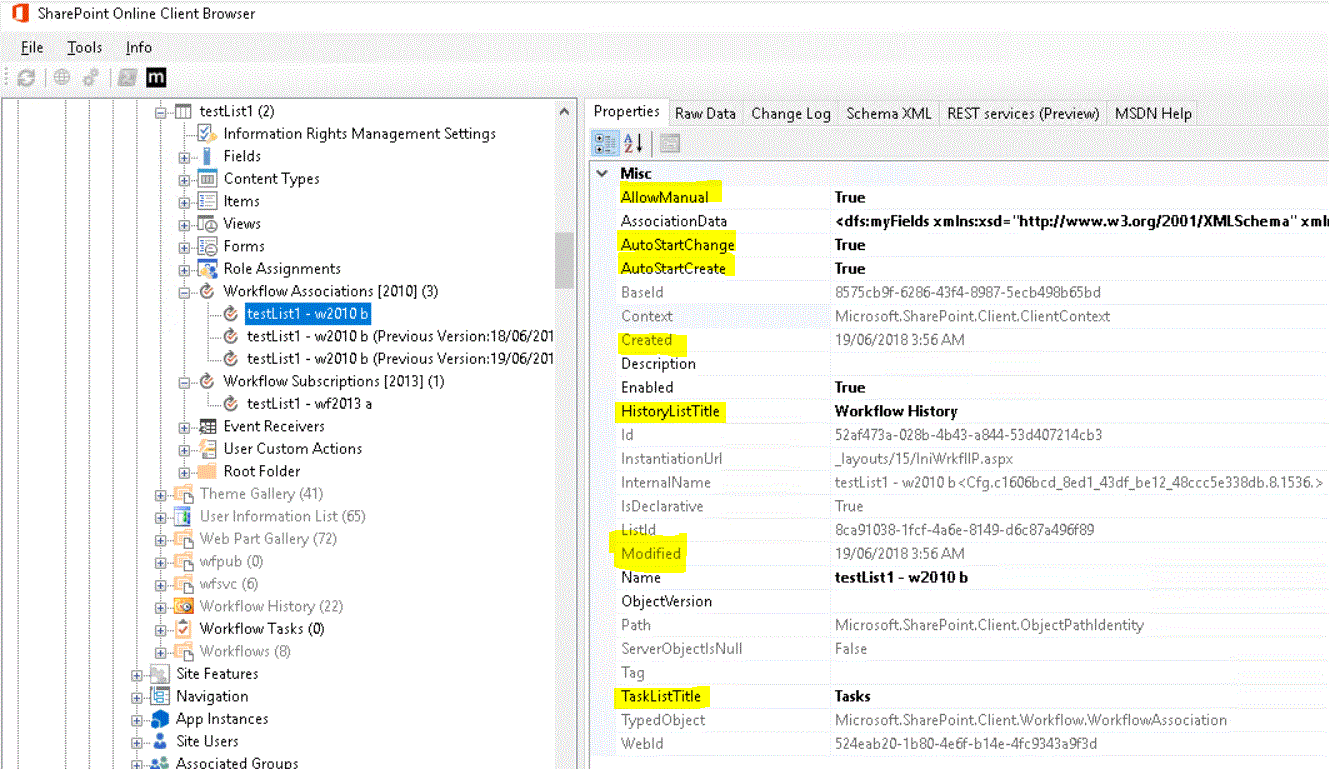
On SharePoint workflow 2010 platform, we can get some properties straightaway from list.WorkflowAssociations, such as "AllowManual, AutoStartChange, AutoStartCreate, HistoryListTitle, TaskListTitle, Created, Modified".


However, they are not there in Workflow 2013.


Here is the tip: all properties are still there, but in different place.

Below is the PowerShell script based on SharePoint Online and CSOM.

We can get the values from "SubscriptionCollection"

$WfServicesManager = New-Object Microsoft.SharePoint.Client.WorkflowServices.WorkflowServicesManager($ctx,$Web)
$WfSubscriptionService = $WfServicesManager.GetWorkflowSubscriptionService()
$WfSubscriptionCollection = $WfSubscriptionService.EnumerateSubscriptions()

$ctx.Load($WfServicesManager)
$ctx.Load($WfSubscriptionService)
$ctx.Load($WfSubscriptionCollection)

$ctx.ExecuteQuery()

ForEach ($WfObj in $WfSubscriptionCollection.GetEnumerator()){
$ManualStart = $WfObj.PropertyDefinitions["SharePointWorkflowContext.Subscription.EventType"] -Match "WorkflowStart#;"

$AutoStartChange = $WfObj.PropertyDefinitions["SharePointWorkflowContext.Subscription.EventType"] -Match "ItemUpdated#;"

$AutoStartCreate = $WfObj.PropertyDefinitions["SharePointWorkflowContext.Subscription.EventType"] -Match "ItemAdded#;"

$HistoryListId = $WfObj.PropertyDefinitions["HistoryListId"]

$TaskListId = $WfObj.PropertyDefinitions["TaskListId"]

$Created = $WfObj.PropertyDefinitions["SharePointWorkflowContext.Subscription.CreatedDate"]

$Modified = $WfObj.PropertyDefinitions["SharePointWorkflowContext.Subscription.ModifiedDate"]
}

=====================
Or, we can get the values from "DefinitionCollection"

$WfServicesManager = New-Object Microsoft.SharePoint.Client.WorkflowServices.WorkflowServicesManager($ctx,$Web) $WfDeploymentService = $WfServicesManager.GetWorkflowDeploymentService() $WfDefinitionCollection = $WfDeploymentService.EnumerateDefinitions($false)

$ctx.Load($WfServicesManager)
$ctx.Load($WfDeploymentService)
$ctx.Load($WfDefinitionCollection)

$ctx.ExecuteQuery()

ForEach ($WfObj in $WfDefinitionCollection.GetEnumerator()){
 $ManualStart = [System.Convert]::ToBoolean($WfObj.Properties["SPDConfig.StartManually"])   $AutoStartChange = [System.Convert]::ToBoolean($WfObj.Properties["SPDConfig.StartOnChange"])
 $AutoStartCreate = [System.Convert]::ToBoolean($WfObj.Properties["SPDConfig.StartOnCreate"])
 $HistoryListId = $WfObj.Properties["HistoryListId"].Trim("{","}")
 $TaskListId = $WfObj.Properties["TaskListId"].Trim("{","}")

 $Created = $WfObj.Properties["Definition.CreatedDate"]
 $Modified = $WfObj.Properties["Definition.ModifiedDate"]
 $AutosetStatusToStageName = [System.Convert]::ToBoolean($WfObj.Properties["AutosetStatusToStageName"])
}

Monday, October 16, 2017

Some thoughts about Microsoft FLOW

After watching Deep dive: Advanced workflow automation with Microsoft Flow, I have to admit that FLOW is much more powerful than I thought. It can replace SharePoint workflows in most of the cases!

However, as it is designed for power users, I smelled something bad.

1. Now I start to understand that why "everyone needs to learn coding". Simple coding(or drag and drop style software development) allows users to do much more work efficiently.

2. We will get millions of worst "software programmers" to build billions of FLOW modules. These FLOW modules may run very slow, may consume a lot of hardware resource, and almost no one can maintain them. Because these FLOW modules are running in Azure, clients need to pay much higher fee than normal. (Microsoft will be very happy about that, and we cannot blame Microsoft)

3. No user would write document for the FLOW functionalities they build.

4. Fix/improve those FLOW modules is not easy, and troubleshooting on those modules would be nightmare.

5. Who is going to test the FLOW modules built by users? A module may accidentally delete a lot of data (which may not be able of recovering), or send out thousands of emails.

6. For most of the FLOW functionalities, if a developer can do it through C# in one day, he/she may need 3 days to do it through "drag and drop". And it's pretty hard to maintain those functionalities. It would take much more time to make minor changes.

7. Not sure how many security issues it will cause if we allow users to build their own FLOW modules.

8. If Microsoft decides to change/upgrade/obsolete some API/function, who is going to upgrade existing customized FLOW modules?

Conclusion: FLOW is too powerful, so it is not for power users but for developers. Normal power users can use it, but only for very simple functionality, especially when some system other than SharePoint is involved. Only in those cases, FLOW is useful to power users and can improve productivity.

Wednesday, May 31, 2017

Pause workflow instances between 8pm to 6am

Servers are busy at midnight. Data backup, data synchronization, report building ...... keep the storage system and network busy, and databases may get locked up from time to time..

That's bad to those SharePoint workflows being triggered at night. Sometimes they would simply stop working and throw out errors.

Below is how I resolve this problem in Workflow 2010 and 2013.


Tuesday, May 30, 2017

Workflow(2010) need to be triggered twice after being published or after SharePoint server (2013) is rebooted

There are more than 200 site collections in Production environment. Many of them have SharePoint Designer workflows (declarative workflows). No customized activity get involved.

Recently users reported that a few workflows could not get triggered. But this problem only happened intermittently, and only 2010 workflow have this issue..

I did some test. They were right: I have to trigger the workflow twice to make it work, if the workflow got re-published, of if the SharePoint Server 2013 is rebooted.

There was not specific error message in ULS or Windows Events log, and the problem only appears in two site collections.

That's hard for trouble shooting.

My first guess: some site collection level feature is corrupted. The feature should be related to Workflow 2010. The most famous one is "Microsoft Office Server workflows" ("OffWFCommon", c9c9515d-e4e2-4001-9050-74f980f93160).

The PowerShell script below shows that the feature is activated properly.

$site = get-spsite $url
Get-SPFeature -Site $site -Limit All |?{$_.DisplayName -match "OffWFCommon"} | select *

What the problem could be? After hours of struggling, finally I found how to fix it: disable this site collection feature, and then rebuild the workflow.

(Thanks for the "copy and paste" functionality in SharePoint Designer, to rebuild a workflow is not as hard as before.)

Once the feature is disabled, we cannot modify the workflow initialization form any more. But, in most of cases, that’s not a problem.

Why this can fix the problem? I have no idea.

Please share your insight in comments if you know the root cause.  Many thanks!

PS: In SharePoint 2010, if this feature is disabled, then workflow will not be triggered. I haven't test it in SharePoint 2016 yet.

Monday, May 1, 2017

Simple Email Reminder through SharePoint Workflow 2013

For SharePoint reminder, my first thoughts is "scheduled PowerShell script". Three years ago, I posted how to do that. But that needs SharePoint administrator to get involved.

Can business users do it by themselves? Yes, they can, but the workflow is a bit complicated.

Thanks for the "Loop" functionality from SharePoint Workflow 2013, we get much simpler solution.

But it's not as simple as it should be, due to lack of "DateTime" relevant functions.

Anyway, only one workflow and one list is needed.

1. Workflow.

2. Three variables are needed in the workflow. ("create" is automatically created by Designer)


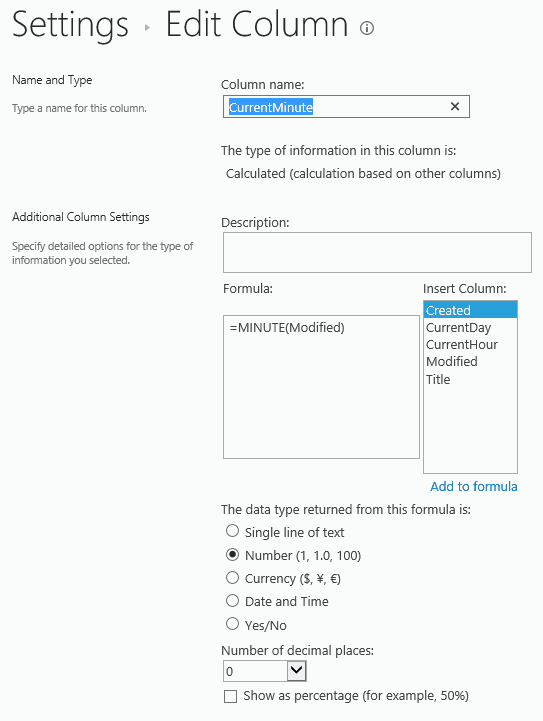
3. Three calculated fields "CurrentDay, CurrentHour, CurrentMinute" are created here.

But normally we only need one of them.

To send out email every hour, we need field “CurrentMinute”; (this is the one being used in the example above, pause for one minute each time)

To send out email every day, we need field “CurrentHour”; (pause for one hour each time)

To send out email every month, we need field “CurrentDay”. (pause for one day each time)

When the value of field “Title” is set to “exit”, the workflow will exit.

Every time when an email is sent out, a new item is created in the same list.


[update, 2017-06-06]

The other way is to do it through OverDue Task. Two emails will be sent out, and can only be sent to the same SharePoint user group (or same user).

But normally that's fine.

Since it's much easier to configure, I believe it's a better solution.


Thursday, April 13, 2017

Claims Authentication error: Trusted provider is missing. Provider: '00000003-0000-0ff1-ce00-000000000000'

Some end users reported missing emails from workflows, but they could not reproduce the problem, and me either. So I put it on hold.

A few weeks later, the same issue happened again.

The error messages in ULS are:

04/11/2017 10:14:30.55 w3wp.exe (0x2A3C) 0x6E48 SharePoint Foundation Claims Authentication amcbl Medium Trusted provider is missing. Provider: '00000003-0000-0ff1-ce00-000000000000' 97c8e69d-f945-3099-c843-9153fa257c74

04/11/2017 10:14:30.60 w3wp.exe (0x2A3C) 0x6E48 InfoPath Forms Services Runtime m0ib Medium Not persisting state for request due to previous errors. Form Template: urn:schemas-microsoft-com:office:infopath:workflowInitAssoc:-AutoGen-2017-04-07T00:12:12:113Z 97c8e69d-f945-3099-c843-9153fa257c74


After some investigation, I finally found how to reproduce the error.

Every time when SharePoint server is rebooted (for windows OS patching or something else), or after re-publishing the workflow, the workflow instances would not be triggered. Users have to trigger it again (manually or through a item level event) to make it work.

It only happened on 2010 version workflows.

That's interesting.

I replicated the site collection to DEV environment, and then tried it there. Same.

I created a new site collection in DEV, and built a new workflow there. The workflow worked well.

I compared all settings at different level (site collection, site, list, workflow, etc.), and could not find the problem.

SharePoint 2013 CU201703 is installed, but that doesn't help.

In the end, as the error mentioned that it's throw out by "InfoPath Forms Services", I decided to switch the workflow URL from

{Site URL}/_layouts/IniWrkflIP.aspx?List={List ID}&ID={Item ID}&TemplateID={Template ID}

to

{Site URL}/Workflows/{Workflow Name}/{Workflow Initiation Form Page}?List={List ID}&ID={Item ID}

The first one, by default, is used by SharePoint Standard and Enterprise edition; the latter is used by SharePoint Foundation server. Of course InfoPath form provides much more functionalities to the workflow initiation form. But in my case, we don't customise any workflow form.

The change can be done by the PowerShell script below:

Get-SPSite $SiteUrl | %{ Get-SPFeature -Site $_ |?{$_.DisplayName -eq "OffWFCommon"} | Disable-SPFeature -URL $SiteUrl}

Then, we have to rebuilt the workflow. (Thanks God, we can copy & paste workflow activities in SharePoint Designer now)

That's it.

If any one knows the root cause of this problem, could you please share it here?

Thursday, May 12, 2016

Workflow Manager 1.0 and SharePoint 2013 server object model

(This post is for SharePoint On Premise.)

With the release of Workflow Manager 1.0, developers are encouraged to choose "Client side object model" (CSOM or JSON).  The reason is simple: make SharePoint farm more stable, and easy to migrate to SharePoint Online.

But, what's the drawbacks?

1. Not easy to convert existing SharePoint 2010 workflow assemblies to the new version.

2. Client side object model is not as powerful as Server object model.

3. Learning curve for developers.

4. To improve performance & decrease network latency, may need to consider extra caching module.

All right, if, for some reason, we want to utilize the powerful Workflow Manager 1.0 and SharePoint server object model, what should we do?

One obvious options is to build web services which are hosted on SharePoint server. Then Workflow Manager can call them to get the functionalities.

That's awkard. We have to build two parts for a workflow.

Can we use Server object model in workflow CodeActivity directly, under CodeActivityContext?

The answer is YES. And, it's not too hard.

1. Install and configure Workflow Manager 1.0 on a SharePoint Server.

2. Build the activity.

Need to think about the parameters. I prefer to add 4 parameters to each activity. As the name suggested, the last one will pass in the SPListItem URL and ItemID, so we can get SPWeb and SPListItem easily.

I didn't find a way to put log into workflow history from activity, so all information need to be recorded in parameter "ReturnDetailedInfo".

"ReturnCode" tells the workflow instance whether the activity succeed or fail.
"ReturnValue" return the result.

<Parameter Name="ReturnCode"  Type="System.String, mscorlib" Direction="Out" DesignerType="ParameterNames" Description="Workflow variable output" />
<Parameter Name="ReturnValue"  Type="System.String, mscorlib" Direction="Out" DesignerType="ParameterNames" Description="Workflow variable output" />
<Parameter Name="ReturnDetailedInfo"  Type="System.String, mscorlib" Direction="Out" DesignerType="ParameterNames" Description="Workflow variable output" />
<Parameter Name="CurrentItemUrl" Type="System.String, mscorlib" Direction="In" DesignerType="StringBuilder" />


3. Deploy the workflow (activity) assemblies and solution files to the SharePoint farm and the  workflow server.

Don't forget to create/modify "AllowedTypes.xml" in "C:\Program Files\Workflow Manager\1.0\Workflow\WFWebRoot\bin" and "C:\Program Files\Workflow Manager\1.0\Workflow\Artifacts"

Need to reboot windows service "Workflow Manager Backend" during the deployment.

Reference link: https://msdn.microsoft.com/en-us/library/jj193517(v=azure.10).aspx 

4. Make sure workflow service account has "SPDataAccess" rights of SharePoint Configuration database and the relevant content databases

$PrincipleName = "domainname\_WFServices"
Get-SPWebApplication | %{$_.GrantAccessToProcessIdentity($PrincipleName)}

5. Make sure workflow service account is in "WSS_WPG" local windows user group
Reboot the server after adding the service account to "WSS_WPG".

6. Confirm workflow service account has rights on c2WTS

RDP to the workflow server as the service account. The test can be done through c2WTS Tester

7. Restore the site collection to the target SharePoint farm

Restore-SPSite

8. Make sure workflow service account has rights to access target site collection

We can build a X64 windows console program to test it.
RDP to the workflow server as the service account to test it.

9. Clean up Distributed Cache

Reboot all caching servers, or run the script below on all caching servers.
The script below come from here.

Get-SPServiceInstance | Where-Object { $_.TypeName -eq "Distributed Cache" } | Stop-SPServiceInstance -Confirm:$false | Out-Null
While (Get-SPServiceInstance | Where-Object { $_.TypeName -eq "Distributed Cache" -and $_.Status -ne "Disabled" }) {
    Start-Sleep -Seconds 15
}

Get-SPServiceInstance | Where-Object { $_.TypeName -eq "Distributed Cache" } | Start-SPServiceInstance | Out-Null
While (Get-SPServiceInstance | Where-Object { $_.TypeName -eq "Distributed Cache" -and $_.Status -ne "Online" }) {
    Start-Sleep -Seconds 15
}

10. Build and publish the workflows through SharePoint Designer;

11. IISReset on Web Front End servers

Below is the sample code.

        protected override void Execute(CodeActivityContext context)
        {
            string strTmp = string.Empty;

            SPList objSPList = null;
            SPListItem objSPListItem = null;

            try
            {
                this._ArgCurrentItemUrl = this.CurrentItemUrl.Get(context);
                Uri UriCurrentItemUrl = new Uri(_ArgCurrentItemUrl);
                NameValueCollection queryStrings = HttpUtility.ParseQueryString(UriCurrentItemUrl.Query);
                if (queryStrings["ID"] == null)
                {
                    strTmp = string.Format("list '{0}' doesn't exist!", _CurrentListName);
                    WriteErrorToHistoryLog(strTmp);
                    return;
                }
                this._ItemID = int.Parse(queryStrings.Get("ID"));

                for (int i = 0; i < UriCurrentItemUrl.Segments.Length; i++)
                {
                    if (UriCurrentItemUrl.Segments[i].Equals(@"Lists/", StringComparison.InvariantCultureIgnoreCase))
                    {
                        this._CurrentListName = UriCurrentItemUrl.Segments[i + 1];
                        this._CurrentListName = this._CurrentListName.Substring(0, this._CurrentListName.Length - 1);
                        break;
                    }
                }
                using (SPSite objSPSite = new SPSite(this._ArgCurrentItemUrl))
                {
                    using (SPWeb objSPWeb = objSPSite.OpenWeb())
                    {
                        this._CurrentWebUrl = objSPWeb.Url;
                        objSPList = objSPWeb.Lists.TryGetList(this._CurrentListName);
                        if (objSPList == null)
                        {
                            objSPList = objSPWeb.Lists[this._CurrentListName];
                            if (objSPList == null)
                            {
                                strTmp = string.Format("list '{0}' doesn't exist in web '{1}'!", this._CurrentListName, this._CurrentWebUrl);
                                WriteErrorToHistoryLog(strTmp);
                                throw new Exception(strTmp);
                            }
                            this._CurrentListName = objSPList.Title;
                        }
                        objSPListItem = objSPList.GetItemById(_ItemID);
                        if (objSPListItem == null)
                        {
                            strTmp = string.Format("list item '{0}' doesn't exist in list '{1}', in web '{2}'!",
                                this._ItemID, this._CurrentListName, this._CurrentWebUrl);
                            WriteErrorToHistoryLog(strTmp);
                            return;
                        }
                    }
                }

                this._ArgSQLConnectionString = this.SQLConnectionString.Get(context);
                this._ArgColumnMappingXml = this.ColumnMappingXml.Get(context);
                this._ArgSQLSelectCommand = this.SQLSelectCommand.Get(context);

                GetValueFromSQLTable(context);
            }
            catch (Exception ex)
            {
                strTmp = string.Format(@"Execute(), ex.Message={0}", ex.Message);
                WriteErrorToHistoryLog(strTmp);
                strTmp = string.Format(@"Execute(), ex.StackTrace={0}", ex.StackTrace);
                WriteErrorToHistoryLog(strTmp);
            }
            finally
            {
                this.ReturnCode.Set(context, this._ArgReturnCode);
                this.ReturnValue.Set(context, this._ArgReturnValue);
                this.ReturnDetailedInfo.Set(context, this._ArgReturnDetailedInfo);
            }
        }

Friday, February 12, 2016

Error: "WorkflowServiceStore is not a Farm Level Feature and is not found in a Site level defined by the Url"

When I saw the classic message "SharePoint 2013 Workflow platform is not available" in SharePoint 2013 Designer, I thought it's easy to fix.

1. Confirm Workflow Manager Client is installed on all SharePoint servers.
2. Register workflow service for the farm.
3. Enable "WorkflowServiceStore" feature on the site.

However, the script "Enable-SPFeature -Identity WorkflowServiceStore -url $webUrl -Force" throw out the error message below:

Enable-SPFeature : The Feature is not a Farm Level Feature and is not found in a Site level defined by the Url $webUrl.
At line:1 char:1
+ Enable-SPFeature -Identity WorkflowServiceStore -url $webUrl ...
+ ~~~~~~~~~~~~~~~~~~~~~~~~~~~~~~~~~~~~~~~~~~~~~~~~~~~~~~~~~~~~~~~~~~~
    + CategoryInfo          : InvalidData: (Microsoft.Share...etEnableFeature:
   SPCmdletEnableFeature) [Enable-SPFeature], SPCmdletException
    + FullyQualifiedErrorId : Microsoft.SharePoint.PowerShell.SPCmdletEnableFeature

After 30 minutes struggling, finally I realized that the site was still in "SharePoint 2010 mode", so the SPWeb level feature "WorkflowServiceStore" doesn't exist!

The error is quite obvious, but, I wish SharePoint 2013 Designer could provide more informative message  :-(

Tuesday, April 21, 2015

Problem: Workflow is not started by the first event

The workflow is not started by the first event ("item created" or "item changed"), after that it works well.

It only happens in one site collection.

Soon I found the error message in ULS: "The requested workflow task content type was not found on the SPWeb"

Google search leads to this post. But re-creating Tasks list didn't resolve the problem in my case. The other posts all recommend to reactivate "OffWFCommon" feature. But it still didn't help.

Then I realized where the problem is.

SharePoint structure is based on "template". From the error message in ULS, it's easy to guess that the site content type "Tasks" is corrupted somewhere. Reactivating "OffWFCommon" feature only fixes the site content type template, not the content type instance in the Tasks list.

So the solution is simple.

1. Reactivate "OffWFCommon" feature

stsadm -o deactivatefeature -filename OffWFCommon\feature.xml -url http://sp.domain.local/sites/site1
stsadm -o activatefeature -filename OffWFCommon\feature.xml -url http://sp.domain.local/sites/site1

2. Rebuild "Tasks" list


Any comments welcome!

[update, 2016-07-21]

PowerShell script:

$siteUrl = "http://sp.domain.local/sites/site"

disable-spfeature -identity "OFFWfCommon" –url $siteUrl
enable-spfeature –identify "OffWfCommon" –url $siteUrl

https://blogs.technet.microsoft.com/sharepoint_scott/2012/10/05/intermittent-workflow-failures-the-workflow-failed-to-start-due-to-an-internal-error/

Wednesday, October 1, 2014

How to stop duplicate entries based on two or more columns in a SharePoint list?

Well, there is no OOTB support of that.

Quick search leads to two solutions: coding (event receiver) or InfoPath rule.

The cost of "coding" is high. We need developer to build it, need someone to manage the source code, and need to upgrade the assembly when upgrading SharePoint. And, the deployment will cause farm outage!

InfoPath solution also has its own problem: it is always with expensive "license" fee.

So, is there simple approach to resolve the problem?  Below is how I did it, with a simple declarative workflow.

The workflow doesn't prevent "duplicate entries", but can generate warning message, so users can fix the invalid data after the remind. That's good enough in most of the cases.


  • The structure of the test list (CombinedKey = Title & ProjectCode)


  •  Declarative workflow triggered by "new item" and "edit item" event


  •  Test result

Any comments are welcome!

Friday, August 29, 2014

The substitute of farm solutions

We all know SharePoint 2013 provides "Apps mode". Microsoft encourages all developers to build "Apps" instead of classic solutions. However, there are many jobs Apps can't do. (Andrew Connell has some brilliant thoughts about that.)

In my opinion, there is one tool been seriously underestimated: PowerShell.

PowerShell helps administrators to automate jobs. It helps developers to manage SharePoint environment. Besides that, it can replace all routinely triggered customized workflows and timer jobs!

I didn't build any SharePoint Timer Job for production (but have two open source projects for fun: Simple Reminder and Workflow Timer). Comparing to a scheduled windows task (see the screenshot below), it's not easy. Really.


How about workflow or workflow activity/action? They also need SharePoint developer to build it. I can build them, but unless the business requirement is extremely complex, I prefer to build something even normal administrators can maintain and do simple modification.

In my experience, most of the business requirements are small, simple but urgent. Besides, non-software company don't want to manage the source code of hundreds of visual studio projects!

PowerShell script doesn't include any unnecessary xml or definition file. It simply focuses on business logic, which make it short and easy understand.

One of the complain about PowerShell is about the supporting tools, such as Visual Studio and ISE. There is no full intellisense during editing at the moment(Auguest 2014). Comparing to C#, the debugging is hard.

However, in my opinion, the critical issue is the lack of client side API. Like "Apps", we don't want to run PS scripts on SharePoint server. Is it possible to run the script on an application server with no SharePoint installed? Currently, CSOM and Restful API are supported, but, comparing to server object model, there are too much restriction. Actually we can only do basic read/write (CRUD) operations at client side.

That's far from enough. Any thing we can do through "server object model", we need to be able to do through "client object model".

This sounds like a balance between "security" and "functionality", and Microsoft needs to find a way to meet the ends.

[update, 2014-10-09]

To configure Task Scheduler in Failover Cluster, we can follow this one for Windows Server 2012. Only Windows Server 2012+ support "Clustered Tasks".

Monday, March 24, 2014

SharePoint 2013 - don't try to run workflow as system account

On SharePoint 2010 or MOSS 2007 with SP1, we cannot trigger workflow automatically as system account. But, if we want, we can manually force the workflow to run under system account.  This is useful in Development environment.

But for SharePoint 2013, it's different.

We still can manually run "SharePoint 2010" edition workflow on SharePoint 2013, but, for "SharePoint 2013" edition workflow, once the workflow is triggered, the "Internal Status" of the workflow instance is first changed to "Started", then end as "Suspended".

So, we have to run workflow as "non-system account", even in Development environment.

Thursday, February 27, 2014

The best approach to schedule workflow in SharePoint

You can choose freeware HareP​oint Workflow ​Scheduler to do the job. It's a full-trusted solution and there is no source code. I didn't deploy it to any production environment, but it looks nice.

Or, if you are a developer, you may build a similar module like what I did 3 years ago. You have full control of all features, but, it's not something can be done in a couple of hours.

Recently I switched to PowerShell script and Windows Task Scheduler.

Use Windows Task Scheduler to run PowerShell script which triggers workflows is a simple solution with many extra benefit.

1. Don't need the help from developers, and there is no outage during deployment.

2. No extra license cost.

3. Easy to maintain, easy to extend.

4. Easy to schedule workflows remotely.

5. No outage during maintenance.

etc.

Any drawback? You need to understand PowerShell :-)

Below is the script I built to run workflows.  If you found any bug in it, please let me know.

Thanks for the post from Levente Rög, which saved me a lot of time.

---------------------------------

Add-PSSnapin Microsoft.SharePoint.PowerShell -ErrorAction "SilentlyContinue"
cls

#rm function:/StartSiteWorkflow
function StartSiteWorkflow([string]$siteURL, [string]$siteWorkflow)
{
    Write-Host "StartSiteWorkflow start, ......" -ForegroundColor Green
    Write-Host "siteURL=$siteURL, siteWorkflow=$siteWorkflow" -ForegroundColor Green

    $site = Get-SPSite $siteURL
    $culture = [System.Globalization.CultureInfo]::InvariantCulture
    $wfAssociation = $site.RootWeb.WorkflowAssociations.GetAssociationByName($siteWorkflow, $culture)

    if ( $wfAssociation )
    {
        $assocData = $wfAssociation.AssociationData

        $wfRunOption = [Microsoft.SharePoint.Workflow.SPWorkflowRunOptions]::Synchronous
        $site.WorkflowManager.StartWorkflow($site, $wfAssociation, $assocData, $wfRunOption)
    }
    else
    {
        Write-Error "Workflow association '$siteWorkflow' not found on target web site '$siteURL'."
    }
}

function StartListWorkflows([string]$webURL, [string]$listName, [string]$listWorkflow)
{
    Write-Host "StartListWorkflows start, ......" -ForegroundColor Green
    Write-Host "webURL=$webURL, listName=$listName, listWorkflow=$listWorkflow" -ForegroundColor Green

    $web = Get-SPWeb -Identity $webURL
    $manager = $web.Site.WorkFlowManager

    $list = $web.Lists[$listName]
    if ($list -ne $null)
    {
        $culture = [System.Globalization.CultureInfo]::InvariantCulture
        $assoc = $list.WorkflowAssociations.GetAssociationByName($listWorkflow, $culture)
        if ($assoc -ne $null)
        {
            $data = $assoc.AssociationData

            $items = $list.Items
            $myArrayList = New-object System.Collections.Generic.List[int]
            Write-Host ""
            Write-Host "Collecting item id......"
            foreach($item in $items)
            {
                Write-Host -NoNewline ".";
                $myArrayList.add($item.ID)
            }  

            $arraycount = $myArrayList.Count;
            Write-Host ""
            Write-Host "Trigger all " $arraycount " workflows......"
            for ($i = 0; $i -lt $arraycount; $i++)
            {
                Write-Host -NoNewline "s";
                $itemCurrent = $list.GetItemById($myArrayList[$i])

                $itemCurrent["Action"] = "Update"    #may not need this step
                $itemCurrent.SystemUpdate()          #may not need this step

                $itemCurrent = $list.GetItemById($myArrayList[$i])
                $wfRunOption = [Microsoft.SharePoint.Workflow.SPWorkflowRunOptions]::Synchronous
                $wf = $manager.StartWorkFlow($itemCurrent,$assoc,$data,$wfRunOption)
                Write-Host -NoNewline "e";
            }
            Write-Host ""
            Write-Host ""
        }
        else
        {
            Write-Host "invalid workflow name." -ForegroundColor Red
        }
    }
    else
    {
        Write-Host "invalid list." -ForegroundColor Red
    }

    $manager.Dispose()
    $web.Dispose()
}

StartSiteWorkflow "http://SharePointServer/sites/site1" "Site Workflow Name"

StartListWorkflows "http://SharePointServer/sites/site1" "ListName" "List Workflow Name"

Friday, January 24, 2014

Error "failed to start" when start workflow programmatically

When trying to start list workflow instance from a site workflow, I got an error "failed to start".

It doesn't happen all the time. For some list item, the list workflow instance was started successfully, but in 90% of cases, it just "failed to start".

However, if I cancel the workflow instance and then start it manually, it works well.

If I trigger the workflow through list item data change, it works well.

Quite annoying.

ULS doesn't help much. There are some unexpected error messages as below. But, why the workflow works well if not triggered by site workflow?

In the end, the problem disappeared after rebooting the SharePoint servers......


RunWorkflow: Microsoft.SharePoint.SPException:     at Microsoft.SharePoint.Workflow.SPNoCodeXomlCompiler.LoadXomlAssembly(SPWorkflowAssociation association, SPWeb web)     at Microsoft.SharePoint.Workflow.SPWinOeHostServices.LoadDeclarativeAssembly(SPWorkflowAssociation association, Boolean fallback)     at Microsoft.SharePoint.Workflow.SPWinOeHostServices.CreateInstance(SPWorkflow workflow)     at Microsoft.SharePoint.Workflow.SPWinOeEngine.RunWorkflow(SPWorkflowHostService host, SPWorkflow workflow, Collection`1 events, TimeSpan timeOut)     at Microsoft.SharePoint.Workflow.SPWorkflowManager.RunWorkflowElev(SPWorkflow workflow, C... 9c581dc6-197c-45ec-8777-2672890c0827
...ollection`1 events, SPWorkflowRunOptionsInternal runOptions) 9c581dc6-197c-45ec-8777-2672890c0827
Microsoft.SharePoint.SPException:     at Microsoft.SharePoint.Workflow.SPNoCodeXomlCompiler.LoadXomlAssembly(SPWorkflowAssociation association, SPWeb web)     at Microsoft.SharePoint.Workflow.SPWinOeHostServices.LoadDeclarativeAssembly(SPWorkflowAssociation association, Boolean fallback)     at Microsoft.SharePoint.Workflow.SPWinOeHostServices.CreateInstance(SPWorkflow workflow)     at Microsoft.SharePoint.Workflow.SPWinOeEngine.RunWorkflow(SPWorkflowHostService host, SPWorkflow workflow, Collection`1 events, TimeSpan timeOut)     at Microsoft.SharePoint.Workflow.SPWorkflowManager.RunWorkflowElev(SPWorkflow workflow, Collection`1 e... 9c581dc6-197c-45ec-8777-2672890c0827
...vents, SPWorkflowRunOptionsInternal runOptions) 9c581dc6-197c-45ec-8777-2672890c0827

RunWorkflow: Microsoft.SharePoint.SPException:     at Microsoft.SharePoint.Workflow.SPNoCodeXomlCompiler.LoadXomlAssem... 0add4c43-ff4e-440e-a01e-6bf3c5559cf9
...bly(SPWorkflowAssociation association, SPWeb web)     at Microsoft.SharePoint.Workflow.SPWinOeHostServices.LoadDeclarativeAssembly(SPWorkflowAssociation association, Boolean fallback)     at Microsoft.SharePoint.Workflow.SPWinOeHostServices.CreateInstance(SPWorkflow workflow)     at Microsoft.SharePoint.Workflow.SPWinOeEngine.RunWorkflow(SPWorkflowHostService host, SPWorkflow workflow, Collection`1 events, TimeSpan timeOut)     at Microsoft.SharePoint.Workflow.SPWorkflowManager.RunWorkflowElev(SPWorkflow workflow, Collection`1 events, SPWorkflowRunOptionsInternal runOptions) 0add4c43-ff4e-440e-a01e-6bf3c5559cf9
Microsoft.SharePoint.SPException:     at Microsoft.SharePoint.Workflow.SPNoCodeXomlCompiler.LoadXomlAssembly(SPWorkflo... 0add4c43-ff4e-440e-a01e-6bf3c5559cf9
...wAssociation association, SPWeb web)     at Microsoft.SharePoint.Workflow.SPWinOeHostServices.LoadDeclarativeAssembly(SPWorkflowAssociation association, Boolean fallback)     at Microsoft.SharePoint.Workflow.SPWinOeHostServices.CreateInstance(SPWorkflow workflow)     at Microsoft.SharePoint.Workflow.SPWinOeEngine.RunWorkflow(SPWorkflowHostService host, SPWorkflow workflow, Collection`1 events, TimeSpan timeOut)     at Microsoft.SharePoint.Workflow.SPWorkflowManager.RunWorkflowElev(SPWorkflow workflow, Collection`1 events, SPWorkflowRunOptionsInternal runOptions) 0add4c43-ff4e-440e-a01e-6bf3c5559cf9

Tuesday, December 17, 2013

How to cancel a workflow from custom workflow activity

When things go wrong, quite often we don't want to let SharePoint workflow engine to handle the exception. Instead of the "Error Occurred" result, it's better to cancel the workflow instance so site owners don't need to get involved to cancel it manually.

But how? "return ActivityExecutionStatus.Canceling;" doesn't work, because workflow engine knows that something is wrong, and it still end the workflow instance with "Error Occurred" status.

Actually, we cannot cancel a workflow instance from custom workflow activity, and we should not do that.

This is easy to understand. Application should not "Log Off" or "Restart" Windows OS directly. If it's necessary, the application should "tell" the users to do that. The relationship between "Workflow Activity" and "Workflow Instance" is just like the one between "Application" and "Windows".

Once this is clear, it's easy to implement the feature properly.

We should add a column such as "ActivityStatus" to the target list. After executing a workflow activity, the workflow can check this field. If the value is "Cancelled", then the workflow can cancel the workflow instance. This normally can be done through SharePoint Designer.

        //this is done through RESTful API
        private void UpdateResult(WorkflowContext __Context, string strActivityStatus, string strComments)
        {
            try
            {
                SharePointAdministrationDataContext ctx = new SharePointAdministrationDataContext(new Uri(string.Format(@"{0}/_vti_bin/listdata.svc/", __Context.CurrentWebUrl)));
                ctx.MergeOption = MergeOption.OverwriteChanges;
                ctx.Credentials = CredentialCache.DefaultCredentials;
                ModulesItem oItem = (ModulesItem)ctx.Modules.Where(i => i.Id == __Context.ItemId).FirstOrDefault();
                oItem.Comments = strComments;
                oItem.ActivityStatus = strActivityStatus;

                ctx.UpdateObject(oItem);
                ctx.SaveChanges();

            }
            catch (Exception ex)
            {
                WriteInfoToHistoryLog(__Context.Web, __Context.WorkflowInstanceId, @"ex.Message=" + ex.Message);
                WriteInfoToHistoryLog(__Context.Web, __Context.WorkflowInstanceId, @"ex.StackTrace=" + ex.StackTrace);
            }
        }

        public static void WriteInfoToHistoryLog(SPWeb web, Guid workflow, string description)
        {
            TimeSpan ts = new TimeSpan();
            SPSecurity.RunWithElevatedPrivileges(delegate()
            {
                SPWorkflow.CreateHistoryEvent(web, workflow, 0, web.CurrentUser, ts, "information", description, string.Empty);
            });
        }

Now we can catch and process the exception in workflow activity properly.

            catch (Exception ex)
            {
                WriteInfoToHistoryLog(__Context.Web, __Context.WorkflowInstanceId, @"ex.Message=" + ex.Message);
                WriteInfoToHistoryLog(__Context.Web, __Context.WorkflowInstanceId, @"ex.StackTrace=" + ex.StackTrace);
                UpdateResult(__Context, _ActivityStatus_Canceled, @"ex.Message=" + ex.Message);
                return ActivityExecutionStatus.Canceling;
            }

Tuesday, May 28, 2013

Error: The specified module 'WorkflowManager' was not loaded because no valid module file was found in any module directory

All of sudden, on one of the development server, the "Workflow Manager PowerShell" stopped working.  When trying to start it, I got the error message below.

Import-Module : The specified module 'WorkflowManager' was not loaded because no valid module file was found in any module directory.
At C:\Program Files\Workflow Manager\1.0\Scripts\ImportWorkflowModule.ps1:20
char:1
+ Import-Module WorkflowManager
+ ~~~~~~~~~~~~~~~~~~~~~~~~~~~~~
    + CategoryInfo          : ResourceUnavailable: (WorkflowManager:String) [Import-Module], FileNotFoundException
    + FullyQualifiedErrorId : Modules_ModuleNotFound,Microsoft.PowerShell.Comm
   ands.ImportModuleCommand

Lucky I have another workflow server which works well. It turns out the "AppFabric server" or "Workflow Manager 1.0" installation & uninstallation caused this issue. The window environment variable "PSModulePath" was changed from

C:\Windows\system32\WindowsPowerShell\v1.0\Modules\;C:\Program Files (x86)\Microsoft SQL Server\110\Tools\PowerShell\Modules\;C:\Program Files\Service Bus\1.0\;C:\Program Files\Workflow Manager\1.0

to

C:\Windows\system32\WindowsPowerShell\v1.0\Modules\;C:\Program Files (x86)\Microsoft SQL Server\110\Tools\PowerShell\Modules\;C:\Program Files\Service Bus\1.0\;C:\Program Files\Workflow Manager\1.0"

After removing the double quote at the end of the environment variable value, "Workflow Manager PowerShell" is recovered!


PS: if got error message below during the installation of AppFabric server, possibly we just need to do the same change to window environment variable "PSModulePath".

Call to OpenService(...,SERVICE_START | SERVICE_QUERY_STATUS | SERVICE_STOP | SERVICE_PAUSE_CONTINUE) function to get handle to the service failed (0X424=1060)