Showing posts with label PowerShell. Show all posts

Monday, December 9, 2019

The possibly best way to return value from function in PowerShell

"Return value" from function is tricky in PowerShell.

By default, PowerShell functions work so that when executed, they write to the $Result array all the values that were displayed during the function’s operation.

This makes "Return value" useless.

How should we handle "return value" of function then? I don't want to use global variable, so, reference variable seems the only choice, as it chooses the correct data type automatically.

Below are some sample code. Please let me know if you have better idea!

  • Sample code 1
Function TestFunctionReturnValue{
    [cmdletbinding()]
    param(
        [Parameter(Mandatory=$true)][AllowEmptyString()][string]$Para1,
        [ref]$ParaReturnObject
    )
    $ParaReturnObject.Value = $false
    if ($Para1){
        $ParaReturnObject.Value  = $true
    }
}

$testResult1 = $null
$testResult2 = $null

TestFunctionReturnValue "hello" ([ref]$testResult1)
TestFunctionReturnValue "" ([ref]$testResult2)

Write-Host "testResult1 = $testResult1"
Write-Host "testResult2 = $testResult2"

$testResult1.GetType().FullName
$testResult2.GetType().FullName

Result:
  • Sample code 2
Function TestFunctionReturnValue2{
    [cmdletbinding()]
    param(
        [Parameter(Mandatory=$true)][AllowEmptyString()][string]$Para1,
        [ref]$ParaReturnObject
    )
    $ParaReturnObject.Value = 100
    if ($Para1){
        $ParaReturnObject.Value  = 200
    }
}

$testResult1 = $null
$testResult2 = $null

TestFunctionReturnValue2 "hello" ([ref]$testResult1)
TestFunctionReturnValue2 "" ([ref]$testResult2)

Write-Host "testResult1 = $testResult1"
Write-Host "testResult2 = $testResult2"

$testResult1.GetType().FullName
$testResult2.GetType().FullName

Result:

Friday, May 31, 2019

(fixed) Import-Module: The specified module was not loaded because no valid module file was found in any module directory

I tried to load module 'CredentialManager' through the script below:

Import-Module CredentialManager -DisableNameChecking

And got error:

Import-Module: The specified module "CredentialManager" was not loaded because no valid module file was found in any module directory

Then I ran "Get-InstalledModule" to check it.

No problem, the module was installed. Then why I cannot import it?

$env:PSModulePath shows:

C:\Users\username\AppData\Local\Apps\SharePointPnPPowerShellOnline;C:\Program Files\WindowsPowerShell\Modules;C:\WINDOWS\system32\WindowsPowerShell
\v1.0\Modules;C:\Program Files\SharePoint Online Management Shell\

Emmm...."C:\Users\username\Documents\WindowsPowerShell\Modules
C:\Program Files\WindowsPowerShell\Modules" is not there.

I can fix the problem by adding this path to PSModulePath environment variable. But, I believe the better way is to re-install "CredentialManager".

Uninstall-Module CredentialManager
Install-Module CredentialManager

After the re-installation, this module appeared in "C:\Program Files\WindowsPowerShell\Modules"

Great!

Friday, April 12, 2019

Quickly delete list items in batch, through CSOM and PowerShell

"Manage Site Content and Structure" in SharePoint Online had gone. So, we cannot manually delete the items easily, anymore.

If there is less than 5000 items in the list, things are much easier: we can save the list template, then delete the list, and rebuild it through the list template. But, if there are more than 10,000 items, it's time consuming.

Here is a simple solution: Using PowerShell to load all items into an array variable, then delete the items one by one, and then commit the requests in batch.

During my test, to delete 48622 items from one list, it took around 6300 seconds. So it's around 7.7 items per second.

If you know any way to improve the performance, please let me know.

Below is the major part of the PowerShell script.

$i = 0
$iItemId = 0

$web = $ctx.Web
$lists =$web.Lists
$listTarget = $lists.GetByTitle($strListName)
$ctx.Load($web)
$ctx.Load($lists)
$ctx.Load($listTarget)

$ctx.ExecuteQuery()

$viewFields = ""
$caml = "$viewFields1000"
$caml += '
'$position = $null
$allItems = @()

Do{
    $camlQuery = New-Object Microsoft.SharePoint.Client.CamlQuery
    $camlQuery.ViewXml = $caml
    $camlQuery.ListItemCollectionPosition = $position

    $listItems = $listTarget.getItems($camlQuery)
    $ctx.Load($listItems)
    $ctx.ExecuteQuery()

    $position = $listItems.ListItemCollectionPosition
    $allItems += $listItems
}
Until($position -eq $null)

if ($allItems.Count -lt 1){
    Write-Host "$(__FILE__), No item needs to be deleted. caml=$caml"
    return 0
}

$iItemCount = $allItems.Count
$progressBarTitle = "$(__FILE__), Scan list '$strListName', iItemCount=$iItemCount, deleteSubFolders=$deleteSubFolders, DaysOfDataToKeep=$DaysOfDataToKeep, ReadOnly=$ReadOnly"
foreach($item in $allItems){
    $i++
    Write-Progress -Activity $progressBarTitle -PercentComplete (($i/$iItemCount)*100) -Status "Working"
 
    $iItemId = $item.Id
    if($item.FileSystemObjectType -eq "File" -or ($item.FileSystemObjectType -eq "Folder" -and $deleteSubFolders)){
        $listTarget.getitembyid($iItemId).Recycle() > $null
    }
    else{
        Write-Host "Invalid FileSystemObjectType, item(FSObjType: $($item.FileSystemObjectType), FileRef: $($item.FieldValues.FileRef))."
        Continue
    }
    if ($i % 1000 -eq 0){
        $ctx.ExecuteQuery()
    }
    Write-Verbose "item(FSObjType: $($item.FieldValues.FSObjType), FileRef: $($item.FieldValues.FileRef)) is deleted."
}
$ctx.ExecuteQuery()

Monday, January 14, 2019

Sorting Array and Hashtable in PowerShell

It's different, but both are quite simple.


  • Array

$array=@()
Get-Service -PipelineVariable Service | %{
$arrayItem = [pscustomobject]@{
DisplayName = $Service.DisplayName
Name = $Service.Name
}
$array += $arrayItem

$array | Sort-Object displayname

"Measure-Command {$array | Sort-Object displayname}" took around 3 milliseconds, for 203 items.

Or,

Get-Service | Sort-Object -Property DisplayName | %{
  [pscustomobject]@{
    DisplayName = $_.DisplayName
    Name = $_.Name
  }


  • Hashtable

$hashtable = @{}
Get-Service -PipelineVariable Service | %{
$hashtable[$Service.Name] = $Service.DisplayName
$hashtable.GetEnumerator() | sort -Property value

"Measure-Command {$hashtable.GetEnumerator() | sort -Property value}" took around 5 milliseconds, for 203 items.


Thursday, January 10, 2019

The quickest way to learn PowerShell as a software developer


PowerShell itself is simple. No much difference from C#.

However, it's really full of Pitfalls. There is always unexpected issues.

Below are the resources of PowerShell pitfalls. Through them, we can learn this language quickly!

 is awesome!!

  • The Poster of the Plethora of PowerShell Pitfalls


https://www.simple-talk.com/sysadmin/powershell/a-plethora-of-powershell-pitfalls/

https://www.red-gate.com/simple-talk/sysadmin/powershell/a-plethora-of-powershell-pitfalls-part-2/

https://www.red-gate.com/simple-talk/sysadmin/powershell/the-poster-of-the-plethora-of-powershell-pitfalls/


  • Practical PowerShell Unit-Testing: Getting Started


https://www.red-gate.com/simple-talk/sysadmin/powershell/practical-powershell-unit-testing-getting-started/


  • The Big Book of PowerShell Gotchas

https://devops-collective-inc.gitbook.io/the-big-book-of-powershell-gotchas/

Monday, January 7, 2019

Resolved - PowerShell script only works in Console, but not in ISE?

I'd like to collect workflow information from SPO. But the script below only works in Console, not in ISE.

$WfServicesManager = New-Object Microsoft.SharePoint.Client.WorkflowServices.WorkflowServicesManager($ctx,$Web)

The error message: Cannot find an overload for "WorkflowServicesManager" and the argument count: "2"

Below is how I did the trouble shooting.

1. Compare the PowerShell environment version information.

$PSVersionTable shows everything is same in Console and ISE.

2. Make sure the class exist in both environment.


$ClassName = "Microsoft.SharePoint.Client.WorkflowServices.WorkflowServicesManager"
if ($ClassName -as [type]) {
"$ClassName is already loaded"
}
else{
"$ClassName is not loaded"
}

Yes, the class is loaded.

3. Check how many relevant assemblies are loaded.


[appdomain]::currentdomain.getassemblies() | ?{$_.CodeBase -match "WorkflowServices"}

Here I noticed that ISE loaded a PnP assembly which also contains "Microsoft.SharePoint.Client.WorkflowServices.WorkflowServicesManager"

Obviously this is the root cause.

I think this is caused by old version PnP, so just removed/uninstalled these assemblies first.

Uninstall-Module SharePointPnPPowerShellOnline -AllVersions -Confirm

Then reinstalled the latest version.

Done.


Tuesday, November 27, 2018

SharePoint Online Data Access Performance test - CSOM and PowerShell / C#

Two years ago, I did a similar test on SharePoint 2016. That's through server-side API.

Now, it's time to test SharePoint Online through client side CSOM + PowerShell.

SharePoint Online as access threshold for one user, which make it hard to test "multiple thread" performance.

However, we still can test "ExecuteQuery for each item" and "ExecuteQuery for a batch of items".

I assume the SharePoint Online host center is quite close to where I am, as the network latency is less than 3 ms for tenant 1, and less than 15 ms for tenant 2.

* The test is based on two different tenants and 100 list items.
* The unit in the table below is "items per second".
* There is no "Bulk commit" for Delete, Recycle and Retrieve.
* 5 single-line text fields in the test list.

ActionSingle, tenant 1Single, tenant 2Bulk, tenant 1Bulk, tenant 2
Insert7.16.614.112.7
Update8.67.121.313.5
Delete5.86.310.410.4
Retrieve11.913.310001000

For single item "insert", it takes around 140 ms.

The performance is around 25% of SharePoint 2016 (local server). This is disappointing, even if we exclude the 15 ms consumed on the traffic.

So, it's fast for "read-only" access on SharePoint Online, but pretty slow for any "write" access.

[update, 2018-12-07]

PowerShell script is slower than C#, so I did some other test by C#

Run the C# code remotely

ActionSingle, test 1Single, test 2Bulk, test 1Bulk, test 2
Insert6.906.097.7912.91
Update7.946.4219.4917.25
Delete6.016.005.786.34
Recycle6.466.596.377.10
Retrieve1307.851183.34807.41746.23


Run the C# code from Azure API Apps

ActionSingle, test 1Single, test 2Bulk, test 1Bulk, test 2
Insert8.177.147.1412.35
Update10.638.168.1614.93
Delete7.696.416.417.12
Recycle9.086.766.766.68
Retrieve2133.051600.181600.181280.42

Not much difference.

Monday, July 16, 2018

"Access denied" - the problem caused by bug fixing when accessing SharePoint Online User Profile from Workflow 2013

Need to retrieve User Profile from SharePoint Online in workflow?

Easy. There are plenty post regarding this classic scenario, such as:

http://www.cleverworkarounds.com/2014/02/05/tips-for-using-spd-workflows-to-talk-to-3rd-party-web-services/

https://www.credera.com/blog/technology-insights/microsoft-solutions/sharepoint-2013-online-accessing-user-profile-properties-in-a-designer-workflow/

https://www.c-sharpcorner.com/article/get-user-profile-properties-data-in-sharepoint-designer-2013-workflow/

The solutions are all similar.
  • Grant permission to workflow
<AppPermissionRequests>
  <AppPermissionRequest Scope="http://sharepoint/social/tenant" Right="Read" />
</AppPermissionRequests>
  • Build the Request Header dictionary variable.
Name Type Value
Accept String application/json;odata=verbose
Content-Type String application/json;odata=verbose
Authorization String
  • Build the RESTful API URL.
https://CompanyName.sharepoint.com/sites/SiteName/_api/SP.UserProfiles.PeopleManager/GetUserProfilePropertyFor(accountName=@v,propertyName='PersonalSpace')?@v='i:0%23.f%7Cmembership%7CUserLoginName@CompanyName.org'
  • Get the value from ResponseContent by path "d/GetUserProfilePropertyFor"

Easy! But, I still got authorization issue:


{"error":{"code":"-2147024891, System.UnauthorizedAccessException","message":{"lang":"en-US","value":"Access denied. You do not have permission to perform this action or access this resource."}}}


After bumping head on wall for hours, it turns out that Microsoft fixed a previous bug: we don't need to overwrite "Authorization" in request header anymore......

Without it, everything works well.

Thursday, June 21, 2018

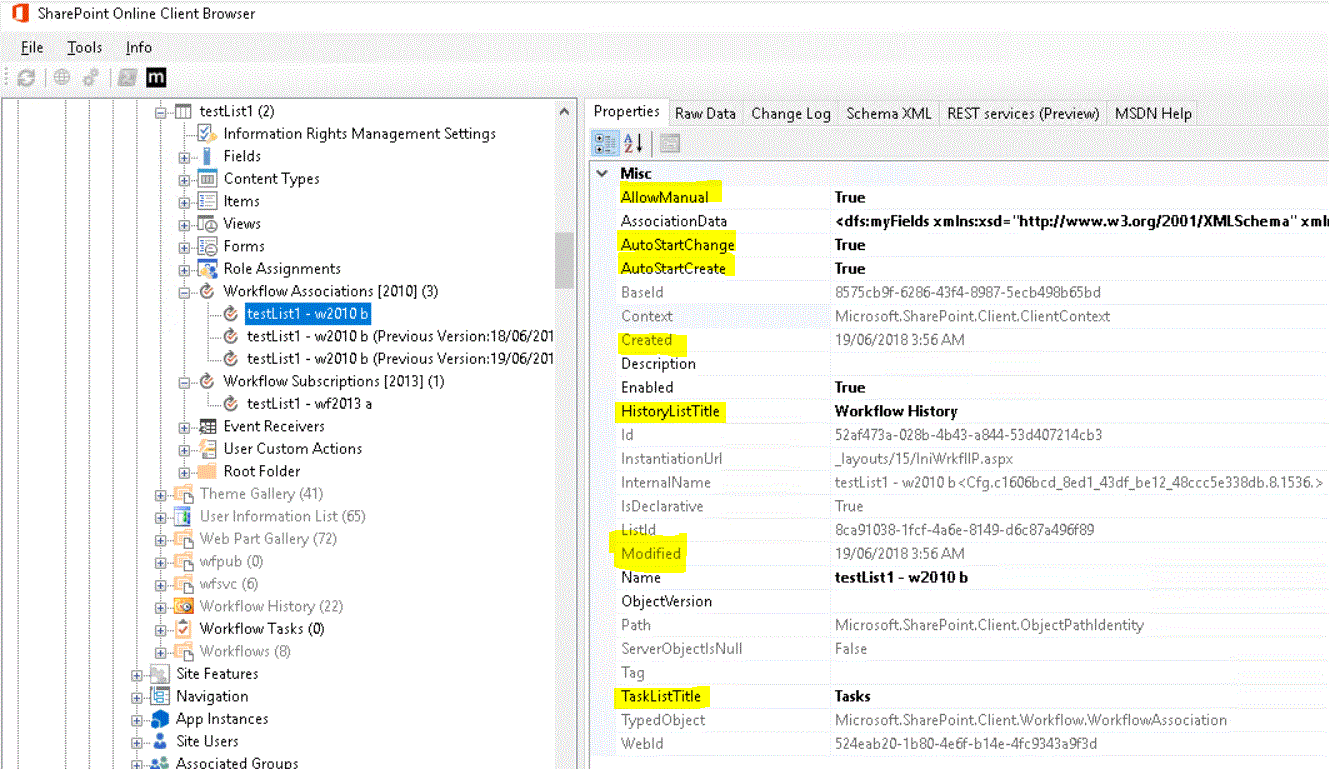
Missing properties in workflow 2013 definition

On SharePoint workflow 2010 platform, we can get some properties straightaway from list.WorkflowAssociations, such as "AllowManual, AutoStartChange, AutoStartCreate, HistoryListTitle, TaskListTitle, Created, Modified".


However, they are not there in Workflow 2013.


Here is the tip: all properties are still there, but in different place.

Below is the PowerShell script based on SharePoint Online and CSOM.

We can get the values from "SubscriptionCollection"

$WfServicesManager = New-Object Microsoft.SharePoint.Client.WorkflowServices.WorkflowServicesManager($ctx,$Web)
$WfSubscriptionService = $WfServicesManager.GetWorkflowSubscriptionService()
$WfSubscriptionCollection = $WfSubscriptionService.EnumerateSubscriptions()

$ctx.Load($WfServicesManager)
$ctx.Load($WfSubscriptionService)
$ctx.Load($WfSubscriptionCollection)

$ctx.ExecuteQuery()

ForEach ($WfObj in $WfSubscriptionCollection.GetEnumerator()){
$ManualStart = $WfObj.PropertyDefinitions["SharePointWorkflowContext.Subscription.EventType"] -Match "WorkflowStart#;"

$AutoStartChange = $WfObj.PropertyDefinitions["SharePointWorkflowContext.Subscription.EventType"] -Match "ItemUpdated#;"

$AutoStartCreate = $WfObj.PropertyDefinitions["SharePointWorkflowContext.Subscription.EventType"] -Match "ItemAdded#;"

$HistoryListId = $WfObj.PropertyDefinitions["HistoryListId"]

$TaskListId = $WfObj.PropertyDefinitions["TaskListId"]

$Created = $WfObj.PropertyDefinitions["SharePointWorkflowContext.Subscription.CreatedDate"]

$Modified = $WfObj.PropertyDefinitions["SharePointWorkflowContext.Subscription.ModifiedDate"]
}

=====================
Or, we can get the values from "DefinitionCollection"

$WfServicesManager = New-Object Microsoft.SharePoint.Client.WorkflowServices.WorkflowServicesManager($ctx,$Web) $WfDeploymentService = $WfServicesManager.GetWorkflowDeploymentService() $WfDefinitionCollection = $WfDeploymentService.EnumerateDefinitions($false)

$ctx.Load($WfServicesManager)
$ctx.Load($WfDeploymentService)
$ctx.Load($WfDefinitionCollection)

$ctx.ExecuteQuery()

ForEach ($WfObj in $WfDefinitionCollection.GetEnumerator()){
 $ManualStart = [System.Convert]::ToBoolean($WfObj.Properties["SPDConfig.StartManually"])   $AutoStartChange = [System.Convert]::ToBoolean($WfObj.Properties["SPDConfig.StartOnChange"])
 $AutoStartCreate = [System.Convert]::ToBoolean($WfObj.Properties["SPDConfig.StartOnCreate"])
 $HistoryListId = $WfObj.Properties["HistoryListId"].Trim("{","}")
 $TaskListId = $WfObj.Properties["TaskListId"].Trim("{","}")

 $Created = $WfObj.Properties["Definition.CreatedDate"]
 $Modified = $WfObj.Properties["Definition.ModifiedDate"]
 $AutosetStatusToStageName = [System.Convert]::ToBoolean($WfObj.Properties["AutosetStatusToStageName"])
}

Tuesday, May 1, 2018

Coding on CSOM - Performance

Server Object Model is really quite different from Client Object Model. In my opinion, one of the the major difference is "latency".

When migrate the same functionality from SharePoint on-premise Server Object Model to SharePoint Online Client Object Model, it's much slower. However, we can change the "pattern" to make it much faster.

Below is what I do for most of the functionalities in PowerShell. Other languages should be similar.

1. Download relevant data from remote data source (such as SharePoint Online lists) to hash table variables.

2. Process the data.

3. Upload (sync) the changed data back to the remote data source.

For the unchanged data, we can skip them to improve performance.

4. Delete the data from the remote data source as needed.

After migrating a few modules from SOM to COM, I realized that it's not hard at all. The best part: I don't need to worry about "SharePoint memory leaks" any more.

Wednesday, April 4, 2018

"TypeError: Unable to get property '{GUID}' of undefined or null reference" on Access Request list

Some site owners reported that they could not approve or reject "access requests". When they tried to click "ellipsis" button from http://SiteUrl/sites/SiteName/Access%20Requests/pendingreq.aspx , they got error message: "TypeError: Unable to get property '{GUID}' of undefined or null reference"

I checked it. In the field "permission" of the request item, it says "Can't display permissions in this view".

It seems someone (accidently) deleted the system list "access requests". This list is re-created automatically when new request arrives, but, something is wrong.

It's not so easy to trouble shoot. In the end, when I deleted the "access requests" list and then sent out a new request, I got the error message from ULS log.

To fix it is easy. We need to delete the relevant web properties after deleting the "access requests" list. Or else, it caused error "key is already in the web property bag", which stopped the remaining steps. This list could be deleted from SharePoint designer.

Below is the PowerShell script to delete those two web properties.

$WebURL = "http://SiteUrl/sites/SiteName"
$key1 = "_VTI_ACCESSREQUESTSLISTID"
$key2 = "_VTI_PENDINGREQUESTSVIEWID"

$Web = Get-SPWeb -Identity $WebURL
$Web.AllowUnsafeUpdates = $true
$Web.AllProperties.Remove($key1)
$Web.AllProperties.Remove($key2)

$Web.Update()
$Web.Dispose()

Friday, March 2, 2018

How to implement "GetItemsWithUniquePermissions" through PowerShell and CSOM

In C# or JavaScript, it's easy. As this link shows, we can do it through the script below:

var items = list.GetItems(CamlQuery.CreateAllItemsQuery());
ctx.Load(items, col => col.Include(i => i.HasUniqueRoleAssignments));
ctx.ExecuteQuery();
int itemCount = items.Where(i => i.HasUniqueRoleAssignments).Count;


However, can we do similar thing in PowerShell by ONE "ctx.ExecuteQuery()" submit?

The answer is YES.

Below is the script.

$query = [Microsoft.SharePoint.Client.CamlQuery]::CreateAllItemsQuery()
$items = $list.GetItems($query)

$items | %{
$_.Retrieve("HasUniqueRoleAssignments")
$ctx.Load($_)
$ctx.Load($_.RoleAssignments)
}
$ctx.ExecuteQuery()

foreach($item in $items){
if ($item.HasUniqueRoleAssignments){
# your code here
}
}


If there are too many items in the list, we may see the error message:

"The request message is too big. The server does not allow messages larger than 2097152 bytes"

Based on my test, 1000 items is fine. In that case, we need to do it in batches. Below is the script.

$Global:_BatchRowLimit = 1000
$caml = ""
$viewFields = ""
$position = $null
$allItems = @()

Do{
$camlQuery = New-Object Microsoft.SharePoint.Client.CamlQuery
$camlQuery.ViewXml = "$caml$viewFields$Global:_BatchRowLimit"
$camlQuery.ListItemCollectionPosition = $position

$listItems = $list.getItems($camlQuery)
$ctx.Load($listItems)
$ctx.ExecuteQuery()

$listItems | %{
$_.Retrieve("HasUniqueRoleAssignments")
$ctx.Load($_)
}
$ctx.ExecuteQuery()

$position = $listItems.ListItemCollectionPosition
$allItems += $listItems
}
Until($position -eq $null) 

Friday, February 16, 2018

SharePoint 2016 patch installation failure caused by Custom Tiles

During the installation of the latest patch, The Configuration Wizard throw out an error as below:

--------------

Failed to upgrade SharePoint Products.
An exception of type Microsoft.SharePoint.PostSetupConfiguration.PostSetupConfigurationTaskException was thrown.  Additional exception information: 
Feature upgrade action 'CustomUpgradeAction.AddSwitchField' threw an exception upgrading Feature 'CustomTiles' (Id: 15/'68642d38-a556-4384-888c-082844fbf224') in WebApplication 'SharePoint - 80': List |0

Feature upgrade incomplete for Feature 'CustomTiles' (Id: 15/'68642d38-a556-4384-888c-082844fbf224') in WebApplication 'SharePoint - 80'. Exception: List |0

Feature upgrade action 'CustomUpgradeAction.AddSwitchField' threw an exception upgrading Feature 'CustomTiles' (Id: 15/'68642d38-a556-4384-888c-082844fbf224') in WebApplication 'SharePoint - SPTest': List |0

Feature upgrade incomplete for Feature 'CustomTiles' (Id: 15/'68642d38-a556-4384-888c-082844fbf224') in WebApplication 'SharePoint - SPTest'. Exception: List |0

Upgrade completed with errors.  Review the upgrade log file located in C:\Program Files\Common Files\microsoft shared\Web Server Extensions\16\LOGS\Upgrade-20180216-083525-624-c026758ad0924bb8ae1431288b75f172.log.  The number of errors and warnings is listed


Microsoft.SharePoint.PostSetupConfiguration.PostSetupConfigurationTaskException: Exception of type 'Microsoft.SharePoint.PostSetupConfiguration.PostSetupConfigurationTaskException' was thrown.
   at Microsoft.SharePoint.PostSetupConfiguration.UpgradeTask.Run()
   at Microsoft.SharePoint.PostSetupConfiguration.TaskThread.ExecuteTask()

--------------

Google quickly leads me to this link, which says:

"CustomTiles is a standard SharePoint Feature. It's neither missing nor faulty. It seems that the feature upgrade code has a bug though. The upgrade doesn't work if the hidden CustomTiles lists have never been created. These lists get created when you enable the feature. So what you have to do is enabling the CustomTiles feature on every web application in your farm.
You can do so using Powershell: Enable-SPFeature -Identity CustomTiles -Url UrlOfYourWebApplication -Force 
After enabling the feature (which creates the hidden list) the upgrade worked for us without any errors. 
If you want to know more about CustomTiles before enabling the feature see this TechNet article: https://technet.microsoft.com/en-us/library/mt790697(v=office.16).aspx "

Now things are easy to handle. I wrote some PowerShell script to resolve it:

# resolve the "Custom Tiles" error
$WebApplicationUrlObjects = @(Get-SPWebApplication -IncludeCentralAdministration | Select Url)
foreach ($url in $WebApplicationUrlObjects){
    Enable-SPFeature -Identity CustomTiles -Url $url.Url -Force
}

# upgrade content database schema
Get-SPWebApplication -IncludeCentralAdministration | Get-SPContentDatabase | ?{$_.NeedsUpgrade –eq $true} | Upgrade-SPContentDatabase -Confirm:$false

This script needs to be run between the installation of the new patch and "SharePoint 2016 Products Configuration Wizard".

Thursday, February 8, 2018

How to handle "429" error in PowerShell

Sometimes we got error "The remote server returned an error: (429) Too Many Requests", when accessing SharePoint Online through PowerShell script.

Below is how I handle it:

$Global:_retryCount = 1000
$Global:_retryInterval = 10

for($retryAttempts=0; $retryAttempts -lt $Global:_retryCount; $retryAttempts++){
Try{
$ctx.ExecuteQuery()
break
}
Catch [system.exception]{
Start-Sleep -s $Global:_retryInterval
}
}

Friday, January 19, 2018

Simple way to get absolute URL of a list object through PowerShell and CSOM

There is no absolute URL property in list object.

Below is the relevant attribute values:

$oList.RootFolder.ServerRelativeUrl: /sites/SPAdmin/Lists/testList1
$oWeb.Url: https://company.sharepoint.com/sites/SPAdmin
$oList.ParentWebUrl: /sites/SPAdmin

So, we can get the url here:

$url = $oWeb.Url + $oList.RootFolder.ServerRelativeUrl.Replace($oList.ParentWebUrl, "")

The result is:

https://company.sharepoint.com/sites/SPAdmin/Lists/testList1


Hope this script saves you a few minutes.

[update 20180123]

If the user account has SharePoint admin rights, we can do it through tenant "RootSiteUrl" property.

$oTenant = New-Object Microsoft.Online.SharePoint.TenantAdministration.Tenant($ctx)
$Global:_RootSiteUrl = $oTenant.RootSiteUrl
$url = $Global:_RootSiteUrl + $oList.RootFolder.ServerRelativeUrl

Friday, November 3, 2017

How to check available properties of CSOM client object in PowerShell?

The script is quite simple, but it took me quite a while to figure it out.

The variable "$obj" could be any client object, such as "web", "content type", etc.

$obj.psobject.properties | ?{$obj.IsPropertyAvailable($_.Name)} | %{
 Write-Host "$($_.Name): $($_.Value)"
}

Wednesday, October 18, 2017

Change DocumentID prefix through PowerShell script

Four and a half years ago, I submitted a post about how to change DocumentID prefix manually for a single document.

Eventually I realised it's convenient to use site collection path name as the DocumentID prefix. However, if users want to change the site collection name, then we have to refresh the DocumentID for all documents.

Here is about how to do that through PowerShell for multiple site collections.


$ver = $host | select version
if ($ver.Version.Major -gt 1)  {$Host.Runspace.ThreadOptions = "ReuseThread"}
Add-PSSnapin Microsoft.SharePoint.PowerShell -ErrorAction SilentlyContinue
Add-PSSnapin Microsoft.Office.DocumentManagement -ErrorAction SilentlyContinue

Set-StrictMode -Version Latest
$ErrorActionPreference="Continue"

# https://gallery.technet.microsoft.com/scriptcenter/Write-Log-PowerShell-999c32d0
# Write-Log -Message 'Log message'
# Write-Log -Message 'Restarting Server.'
# Write-Log -Message 'Folder does not exist.' -Level Error
$Global:LogFile = "E:\DailyBackup\Log\ResetDocumentID." + (Get-Date).ToString("yyyyMMdd-HHmmss") + ".txt"

function Write-Log{
    [CmdletBinding()]
    Param
    (
        [Parameter(Mandatory=$true, ValueFromPipelineByPropertyName=$true)]
        [ValidateNotNullOrEmpty()]
        [Alias("LogContent")]
        [string]$Message,

        [Parameter(Mandatory=$false)]
        [ValidateSet("Error","Warn","Info","HighLight")]
        [string]$Level="Info"
    )

    Begin{
        $VerbosePreference = 'Continue'
    }
    Process{
        #if (!(Test-Path $LogFile)) {
        #    Write-Verbose "Creating $LogFile."
        #    $NewLogFile = New-Item $LogFile -Force -ItemType File
        #}

        $FormattedDate = Get-Date -Format "yyyy-MM-dd HH:mm:ss"

        switch ($Level) {
            'Error' {
                $LevelText = 'ERROR:'
                $MessageColor = [System.ConsoleColor]::Red
            }
            'Warn' {
                $LevelText = 'WARNING:'
                $MessageColor = [System.ConsoleColor]::Yellow
            }
            'Info' {
                $LevelText = 'INFO:'
                $MessageColor = [System.ConsoleColor]::DarkGreen
            }
            'HighLight' {
                $LevelText = 'HIGHLIGHT:'
                $MessageColor = [System.ConsoleColor]::Green
            }
        }
        Write-Host $Message -f $MessageColor

        $MessageContent = "$FormattedDate $LevelText $Message"
        $MessageContent | Out-File -FilePath $Global:LogFile -Append
        #$opts = @{ForegroundColor=$MessageColor; BackgroundColor="black"; object=$MessageContent}
        #Write-Log $opts
    }
    End{
    }
}

function GetWebAppUrlFromSiteUrl([string]$SiteUrl){
#Write-Log -Message "GetWebAppUrlFromSiteUrl(), start......SiteUrl=$SiteUrl" -Level HighLight
    $site = Get-SPSite -Identity $SiteUrl
    $WebAppUrl = $site.WebApplication.GetResponseUri([Microsoft.SharePoint.Administration.SPUrlZone]::Default).AbsoluteUri
    if ($WebAppUrl.EndsWith("/","CurrentCultureIgnoreCase")){
        $WebAppUrl = $WebAppUrl.Substring(0, $WebAppUrl.Length - 1)
    }
    $site.Dispose()

#Write-Log -Message "GetWebAppUrlFromSiteUrl(), complete. WebAppUrl=$WebAppUrl" -Level HighLight
    return $WebAppUrl
}

function GetSiteNameFromSiteUrl([string]$SiteUrl){
# Write-Log -Message "GetSiteNameFromSiteUrl(), start......SiteUrl=$SiteUrl"
    if ($SiteUrl.EndsWith("/","CurrentCultureIgnoreCase")){
        $SiteUrl = $SiteUrl.Substring(0, $SiteUrl.Length - 1)
    }
$iPos = $SiteUrl.LastIndexOf('/')
$SiteUrl = $SiteUrl.Substring($iPos + 1)

# Write-Log -Message "GetSiteNameFromSiteUrl(), complete. SiteUrl=$SiteUrl"
    return $SiteUrl
}

function StartTimerJob([string]$WebAppUrl, [string]$JobName){
Write-Log -Message "StartTimerJob(), start......WebAppUrl=$WebAppUrl, JobName=$JobName"
$job = Get-SPTimerJob -WebApplication $WebAppUrl $JobName
if (!$job){
Write-Log -Message "StartTimerJob(), No valid timer job found, WebAppUrl=$WebAppUrl, JobName=$JobName" -Level Error
return
}
$startTime = $job.LastRunTime

Start-SPTimerJob $job
while (($startTime) -eq $job.LastRunTime)
{
Write-Host -NoNewLine "."
Start-Sleep -Seconds 2
}

Write-Log "Timer Job '$JobName' has completed on $WebAppUrl."

# Write-Log -Message "StartTimerJob(), complete. SiteUrl=$SiteUrl"
    return
}

# https://blogs.perficient.com/microsoft/2015/01/set-up-document-id-prefix-in-sharepoint-2013-programmatically/
function ResetDocumentID([string]$startSPSiteUrl){
    Write-Log -Message "ResetDocumentID(), startSPSiteUrl=$startSPSiteUrl"
    $SiteUrlPrevious = ""
    $SiteUrl = ""
    $WebAppUrl = ""
    $WebAppUrlPrevious = ""

$rootweb = $null
    $SiteCount = 0
    $i = 0

$sites = @(Get-SPSite -Limit ALL | ?{$_.ServerRelativeUrl -notmatch "Office_Viewing_Service_Cache" `
-and $_.Url.Startswith($startSPSiteUrl, "CurrentCultureIgnoreCase") `
-and $_.Url -notmatch "SearchCenter" `
-and $_.Url -notmatch "IPForm " `
-and $_.Url -notmatch "SPTest" `
-and $_.Url -notmatch "mysite"})
$SiteCount = $sites.count
if ($SiteCount -eq 0){
Write-Log -Message "No valid SPSite found, startSPSiteUrl=$startSPSiteUrl" -Level Error
return
}
else{
Write-Log -Message "sites.count=$SiteCount"
}

$progressBarTitle = "ResetDocumentID(), Scan SPSites, SiteCount=$SiteCount, startSPSiteUrl=$startSPSiteUrl"
foreach ($site in $sites){
$i++
Write-Progress -Activity $progressBarTitle -PercentComplete (($i/$SiteCount)*100) -Status "Working"

$SiteUrl = $site.Url
$WebApplicationUrl =

Write-Log "ResetDocumentID(), SiteUrl=$SiteUrl"
if ($site.ReadOnly){
Write-Log "ResetDocumentID(), Site($SiteUrl) is read-only. Skip." -Level Warn
Continue
}

$WebAppUrl = GetWebAppUrlFromSiteUrl $SiteUrl
if ($WebAppUrl.EndsWith(".local","CurrentCultureIgnoreCase") -eq $false){
Write-Log -Message "ResetDocumentID(), skip web application: WebAppUrl=$WebAppUrl"
continue
}

Try{
$SiteName = GetSiteNameFromSiteUrl $SiteUrl
Write-Log "ResetDocumentID(), DocumentID=$SiteName"

[Microsoft.Office.DocumentManagement.DocumentID]::EnableAssignment($site,$false)   #First disable, then enable DocID assignment
[Microsoft.Office.DocumentManagement.DocumentID]::EnableAssignment($site,$true)
$rootweb=$site.rootweb
$rootweb.properties["docid_msft_hier_siteprefix"]= $SiteName  # This is the property holding the Document ID Prefix which we use to ensure uniqueness
$rootweb.properties.Update()
$rootweb.Update()
[Microsoft.Office.DocumentManagement.DocumentID]::EnableAssignment($site,$true,$true,$true)  # now we can force all Document IDs to be reissued
}
Catch [system.exception]{
$strTmp = [string]::Format("ResetDocumentID(), startSPSiteUrl={0}, SiteUrl={1}, ex.Message={2}", $startSPSiteUrl, $SiteUrl, $Error[0].Exception.Message)
Write-Log $strTmp -Level Error
Write-Log $_.Exception -Level Error
}
Finally{
if ($rootweb){
$rootweb.Dispose()
}
if ($site){
$site.Dispose()
}
}
if ([string]::IsNullOrEmpty($SiteUrlPrevious)){
$SiteUrlPrevious = $SiteUrl
$WebAppUrlPrevious = $WebAppUrl
}
if ($WebAppUrl.Equals($WebAppUrlPrevious, [StringComparison]::InvariantCultureIgnoreCase) -eq $false){
StartTimerJob $WebAppUrl "DocIdEnable"
StartTimerJob $WebAppUrl "DocIdAssignment"

$WebAppUrlPrevious = $WebAppUrl
}

Write-Log -Message "ResetDocumentID(), completed"
}

StartTimerJob $WebAppUrl "DocIdEnable"
StartTimerJob $WebAppUrl "DocIdAssignment"
}

cls

# $_SiteNameSuffix = '2016DEV'
# $_SiteNameSuffix = '2013DEV'
$_SiteNameSuffix = ''

# $_SiteUrl = ""
$_SiteUrl = "http://team$_SiteNameSuffix.SharePointServer.local/sites/SiteCollectionName"

ResetDocumentID $_SiteUrl

Write-Log -Message "Finished! Press enter key to exit."
#Read-Host

Friday, September 29, 2017

Hashtable, export to and import from CSV file

There are built-in functions, "Import-Csv" and "Export-Csv", to handle this request. But it's not as simple as it looks like.

Let's run some test script first.

$csvFile = "E:\test.csv"
$HashTable1 = @{}
$HashTable1.Add("aa", "11")
$HashTable1.Add("bb", "22")
($HashTable1).GetEnumerator() | Sort-Object -Property Value `
| %{new-object psobject -Property @{Value=$_.Value;Name = $_.Name}} `
| Export-Csv $csvFile -NoTypeInformation


$HashTable2 = @{}
$HashTable2.GetType()

$HashTable2 = Import-Csv $csvFile
$HashTable2.GetType()


We can see that we didn't get "HashTable" from "Import-Csv" command. Instead, we got "Array" object.

$HashTable2 = @{}
$Array.Clear()
$HashTable2.Clear()
$Array = Import-Csv $csvFile
$Array | %{$HashTable2.Add($_.Name,$_.Value)}
$HashTable2.GetType()
$HashTable2


That's how we get the HashTable back.

Tuesday, September 19, 2017

PowerShell Runbook to auto start and shut down Azure VM in a resource management group

Last post listed the sample code to start and shut down Azure VM remotely.

Here is the PowerShell runbook script which can be scheduled in Azure.

This is more stable, simpler and easier to manage.


$Conn = Get-AutomationConnection -Name AzureRunAsConnection
Add-AzureRMAccount -ServicePrincipal -Tenant $Conn.TenantID `
  -ApplicationId $Conn.ApplicationID -CertificateThumbprint $Conn.CertificateThumbprint

Write-Output "Connection established."

$vmname = 'AZ532-test1'
$VMDetail = Get-AzureRMVM -ResourceGroupName $ResourceGroupName -Name $VmName -Status
$vmPowerstate = $VMDetail[1].Code
Write-Verbose "vmPowerstate: $vmPowerstate"

if ($vmPowerstate -like "PowerState/running"){
write-host "VM '$vmname' is ""$vmPowerstate"". Skip."
}
else{
write-host "Starting VM '$vmname'"
Start-AzureRMVM -ResourceGroupName $ResourceGroupName -Name $VmName -Verbose
}

if ($vmPowerstate -like "PowerState/running"){
write-host "Stopping VM '$vmname'"
Stop-AzureRMVM -ResourceGroupName $ResourceGroupName -Name $VmName -Verbose -Force
# }
# else{
write-host "VM '$vmname' is ""$vmPowerstate"". Skip."
# }

Write-Output "VM $vmname is started."

==============

Azure classic VM is similar:

$ConnectionAssetName = "AzureClassicRunAsConnection"
$connection = Get-AutomationConnection -Name $connectionAssetName        
Write-Verbose "Get connection asset: $ConnectionAssetName" -Verbose
$Conn = Get-AutomationConnection -Name $ConnectionAssetName
if ($Conn -eq $null)
{
    throw "Could not retrieve connection asset: $ConnectionAssetName. Assure            that this asset exists in the Automation account."
}

Write-Output "Connection established."

$CertificateAssetName = $Conn.CertificateAssetName
Write-Verbose "Getting the certificate: $CertificateAssetName" -Verbose
$AzureCert = Get-AutomationCertificate -Name $CertificateAssetName
if ($AzureCert -eq $null)
{
    throw "Could not retrieve certificate asset: $CertificateAssetName.       Assure that this asset exists in the Automation account."
}

Write-Verbose "Authenticating to Azure with certificate." -Verbose
Set-AzureSubscription -SubscriptionName $Conn.SubscriptionName -SubscriptionId $Conn.SubscriptionID -Certificate $AzureCert 
Select-AzureSubscription -SubscriptionId $Conn.SubscriptionID

$vmname = 'hvEF4'
$vm = Get-AzureVM | Where-Object { $_.Name -eq $vmname }
write-host "AzureVM: "
$vm | fl *

# if ($vm.PowerState -eq "Started"){
# write-host "Stopping VM '$vmname'"
# $vm | Stop-AzureVM -Force
# }
# else{
# write-host "VM '$vmname' is ""$($vm.PowerState)"". Skip."
# }

if ($vm.PowerState -eq "Started"){
write-host "VM '$vmname' is ""$($vm.PowerState)"". Skip."
}
else{
write-host "Starting VM '$vmname'"
$vm | Start-AzureVM
}

write-host "done."

Thursday, September 14, 2017

PowerShell script sample code to auto start and shut down Azure VM in a resource management group

There are quite a lot of changes in RMVM access API in the last two years. Here is some sample code which works well at the moment (2017-09-14).

Hopefully they can save you some time.


1. Install AzureRM module

script: Install-Module -Name AzureRM

2. Check PowerShell version and AzureRM module version

script: $PSVersionTable.PSVersion

Major  Minor  Build  Revision
-----  -----  -----  --------
5      1      14393  1715

script: (get-module azurerm).Version

Major  Minor  Build  Revision
-----  -----  -----  --------
4      3      1      -1

3. Import AzureRM module

script: Import-Module AzureRM

4. Log in without prompt window

First we need to create a file to store the context information.

Login-AzureRmAccount

$Global:_ContextFilePath = "c:\azure.user.ericfang@outlook.com.ctx"
Save-AzureRmContext -Path $Global:_ContextFilePath -Force 

Then we can import the context file to avoid input user name and password manually.

Import-AzureRmContext -Path $Global:_ContextFilePath

5. Get the RM VM

$vmname = 'vm name'
$VMDetail = Get-AzureRmVM -ResourceGroupName $ResourceGroupName -Name $VmName -Status | Select-Object -ExpandProperty StatusesText | convertfrom-json
$vmPowerstate = $VMDetail[1].Code

6. Start VM

if ($vmPowerstate -like "PowerState/running"){
write-host "VM '$vmname' is ""$vmPowerstate"". Skip."
}
else{
write-host "Starting VM '$vmname'"
Start-AzureRMVM -ResourceGroupName $ResourceGroupName -Name $VmName -Verbose
}

7. Or, shut it down (deallocate it)

if ($vm.PowerState -like "PowerState/running"){
write-host "Stopping VM '$vmname'"
Stop-AzureRMVM -ResourceGroupName $ResourceGroupName -Name $VmName -Verbose -Force
}
else{
write-host "VM '$vmname' is ""$vmPowerstate"". Skip."
}

Done.

PS: I scheduled the script in windows task scheduler to shut down all dev VMs in the evening. That can save a lot in case I forgot to shut them down manually.

PS 2:

Below is the script to start or stop classic Azure VM.

Import-Module "C:\Program Files (x86)\Microsoft SDKs\Azure\PowerShell\ServiceManagement\Azure\Azure.psd1"

# Get-AzurePublishSettingsFile

$publishsettings = 'e:\EricFang\Visual Studio Ultimate with MSDN-9-16-2016-credentials.publishsettings'

write-host "AzureSubscription: "
Import-AzurePublishSettingsFile $publishsettings

Select-AzureSubscription -SubscriptionId "YOUR SUBSCRIPTION GUID STRING"

$vmname = 'hvEF4'
$vm = Get-AzureVM | Where-Object { $_.Name -eq $vmname }
write-host "AzureVM: "
$vm | fl *

if ($vm.PowerState -eq "Started"){
write-host "VM '$vmname' is ""$($vm.PowerState)"". Skip."
}
else{
write-host "Starting VM '$vmname'"
$vm | Start-AzureVM
}

# $vm | Stop-AzureVM -Force

write-host "done."