Showing posts with label SharePoint 2013. Show all posts

Thursday, May 30, 2019

When to use folder in SharePoint list/library?

Just read a nice article. I agree with Joanne Klein, but I only see two practical reasons to use folder.

1. Permission control.
2. Too many items in one list/library.

So, if there is choices, go for metadata!

Monday, July 2, 2018

The way to debug workflow 2013 from SharePoint Online

Thanks for the post from Andrew Connell, we got basic concept of workflow 2013 debugging.

As more and more enterprises migrating their SharePoint to Office 365, we cannot rely on "workflow history list" on debugging.

What's the solution?

So far, the only choice is "replication". Replicating the Online Site collection to On-Premise Dev environment, then test it there through Fiddler.

As Andrew Connell mentioned, we need to build the On-Premise Dev environment carefully, but it's possible to replicate the whole site through third-party migration tool, such as ShareGate, then debug from there.

ShareGate is still expensive (although it's possible the cheapest one comparing to other competent). But it should be all right for medium to large enterprise. It's not such a big number comparing to Office 365 subscription fee of the whole company, anyway.


The confusion when a user just moved from Shared Folder to SharePoint

Traditionally, how a user write a document?
  1. Launch a MS Office Program, such as MS Word;
  2. Give the document a topic;
  3. Put content into it;
  4. Save.
The problem with SharePoint is the 4th step: "Save". "How can I save the document to SharePoint?" This is one of the most common questions.


One option is to map a SharePoint document library to local network mapped folder:

For SharePoint On-Premise:


For SharePoint Online:


Then users can save the document to that Shared Drive directly, just like what they did with "Shared Folder".

That works, but then we lost most of the benefit from SharePoint.

"SharePoint" means team work. So if a user wants to write a document, below are the steps.
  1. Ask themselves the question: Where should I store this document, so other users can find it easily?
  2. Who should have rights to view it, and who should be able to modify it?
  3. What kind of metadata should this document has? So users can get the basic information without opening it, such as "due date, document owner, project name, etc.".
  4. Go to the SharePoint document library in web browser (IE 11 is recommended at the moment), then click "new" button.
If we want to get thousands of documents to be organised well, please think about the document management (as a team) with each of the documents.

SharePoint cannot do that by itself.

PS: Thanks for the reminding from my colleague Andrew Warland, nowadays, users can save the document to SharePoint sites with the help from the latest MS Office. That saves a lot of trouble.

It's still better to think more for other team members at the very beginning.


Wednesday, April 4, 2018

"TypeError: Unable to get property '{GUID}' of undefined or null reference" on Access Request list

Some site owners reported that they could not approve or reject "access requests". When they tried to click "ellipsis" button from http://SiteUrl/sites/SiteName/Access%20Requests/pendingreq.aspx , they got error message: "TypeError: Unable to get property '{GUID}' of undefined or null reference"

I checked it. In the field "permission" of the request item, it says "Can't display permissions in this view".

It seems someone (accidently) deleted the system list "access requests". This list is re-created automatically when new request arrives, but, something is wrong.

It's not so easy to trouble shoot. In the end, when I deleted the "access requests" list and then sent out a new request, I got the error message from ULS log.

To fix it is easy. We need to delete the relevant web properties after deleting the "access requests" list. Or else, it caused error "key is already in the web property bag", which stopped the remaining steps. This list could be deleted from SharePoint designer.

Below is the PowerShell script to delete those two web properties.

$WebURL = "http://SiteUrl/sites/SiteName"
$key1 = "_VTI_ACCESSREQUESTSLISTID"
$key2 = "_VTI_PENDINGREQUESTSVIEWID"

$Web = Get-SPWeb -Identity $WebURL
$Web.AllowUnsafeUpdates = $true
$Web.AllProperties.Remove($key1)
$Web.AllProperties.Remove($key2)

$Web.Update()
$Web.Dispose()

Wednesday, October 18, 2017

Change DocumentID prefix through PowerShell script

Four and a half years ago, I submitted a post about how to change DocumentID prefix manually for a single document.

Eventually I realised it's convenient to use site collection path name as the DocumentID prefix. However, if users want to change the site collection name, then we have to refresh the DocumentID for all documents.

Here is about how to do that through PowerShell for multiple site collections.


$ver = $host | select version
if ($ver.Version.Major -gt 1)  {$Host.Runspace.ThreadOptions = "ReuseThread"}
Add-PSSnapin Microsoft.SharePoint.PowerShell -ErrorAction SilentlyContinue
Add-PSSnapin Microsoft.Office.DocumentManagement -ErrorAction SilentlyContinue

Set-StrictMode -Version Latest
$ErrorActionPreference="Continue"

# https://gallery.technet.microsoft.com/scriptcenter/Write-Log-PowerShell-999c32d0
# Write-Log -Message 'Log message'
# Write-Log -Message 'Restarting Server.'
# Write-Log -Message 'Folder does not exist.' -Level Error
$Global:LogFile = "E:\DailyBackup\Log\ResetDocumentID." + (Get-Date).ToString("yyyyMMdd-HHmmss") + ".txt"

function Write-Log{
    [CmdletBinding()]
    Param
    (
        [Parameter(Mandatory=$true, ValueFromPipelineByPropertyName=$true)]
        [ValidateNotNullOrEmpty()]
        [Alias("LogContent")]
        [string]$Message,

        [Parameter(Mandatory=$false)]
        [ValidateSet("Error","Warn","Info","HighLight")]
        [string]$Level="Info"
    )

    Begin{
        $VerbosePreference = 'Continue'
    }
    Process{
        #if (!(Test-Path $LogFile)) {
        #    Write-Verbose "Creating $LogFile."
        #    $NewLogFile = New-Item $LogFile -Force -ItemType File
        #}

        $FormattedDate = Get-Date -Format "yyyy-MM-dd HH:mm:ss"

        switch ($Level) {
            'Error' {
                $LevelText = 'ERROR:'
                $MessageColor = [System.ConsoleColor]::Red
            }
            'Warn' {
                $LevelText = 'WARNING:'
                $MessageColor = [System.ConsoleColor]::Yellow
            }
            'Info' {
                $LevelText = 'INFO:'
                $MessageColor = [System.ConsoleColor]::DarkGreen
            }
            'HighLight' {
                $LevelText = 'HIGHLIGHT:'
                $MessageColor = [System.ConsoleColor]::Green
            }
        }
        Write-Host $Message -f $MessageColor

        $MessageContent = "$FormattedDate $LevelText $Message"
        $MessageContent | Out-File -FilePath $Global:LogFile -Append
        #$opts = @{ForegroundColor=$MessageColor; BackgroundColor="black"; object=$MessageContent}
        #Write-Log $opts
    }
    End{
    }
}

function GetWebAppUrlFromSiteUrl([string]$SiteUrl){
#Write-Log -Message "GetWebAppUrlFromSiteUrl(), start......SiteUrl=$SiteUrl" -Level HighLight
    $site = Get-SPSite -Identity $SiteUrl
    $WebAppUrl = $site.WebApplication.GetResponseUri([Microsoft.SharePoint.Administration.SPUrlZone]::Default).AbsoluteUri
    if ($WebAppUrl.EndsWith("/","CurrentCultureIgnoreCase")){
        $WebAppUrl = $WebAppUrl.Substring(0, $WebAppUrl.Length - 1)
    }
    $site.Dispose()

#Write-Log -Message "GetWebAppUrlFromSiteUrl(), complete. WebAppUrl=$WebAppUrl" -Level HighLight
    return $WebAppUrl
}

function GetSiteNameFromSiteUrl([string]$SiteUrl){
# Write-Log -Message "GetSiteNameFromSiteUrl(), start......SiteUrl=$SiteUrl"
    if ($SiteUrl.EndsWith("/","CurrentCultureIgnoreCase")){
        $SiteUrl = $SiteUrl.Substring(0, $SiteUrl.Length - 1)
    }
$iPos = $SiteUrl.LastIndexOf('/')
$SiteUrl = $SiteUrl.Substring($iPos + 1)

# Write-Log -Message "GetSiteNameFromSiteUrl(), complete. SiteUrl=$SiteUrl"
    return $SiteUrl
}

function StartTimerJob([string]$WebAppUrl, [string]$JobName){
Write-Log -Message "StartTimerJob(), start......WebAppUrl=$WebAppUrl, JobName=$JobName"
$job = Get-SPTimerJob -WebApplication $WebAppUrl $JobName
if (!$job){
Write-Log -Message "StartTimerJob(), No valid timer job found, WebAppUrl=$WebAppUrl, JobName=$JobName" -Level Error
return
}
$startTime = $job.LastRunTime

Start-SPTimerJob $job
while (($startTime) -eq $job.LastRunTime)
{
Write-Host -NoNewLine "."
Start-Sleep -Seconds 2
}

Write-Log "Timer Job '$JobName' has completed on $WebAppUrl."

# Write-Log -Message "StartTimerJob(), complete. SiteUrl=$SiteUrl"
    return
}

# https://blogs.perficient.com/microsoft/2015/01/set-up-document-id-prefix-in-sharepoint-2013-programmatically/
function ResetDocumentID([string]$startSPSiteUrl){
    Write-Log -Message "ResetDocumentID(), startSPSiteUrl=$startSPSiteUrl"
    $SiteUrlPrevious = ""
    $SiteUrl = ""
    $WebAppUrl = ""
    $WebAppUrlPrevious = ""

$rootweb = $null
    $SiteCount = 0
    $i = 0

$sites = @(Get-SPSite -Limit ALL | ?{$_.ServerRelativeUrl -notmatch "Office_Viewing_Service_Cache" `
-and $_.Url.Startswith($startSPSiteUrl, "CurrentCultureIgnoreCase") `
-and $_.Url -notmatch "SearchCenter" `
-and $_.Url -notmatch "IPForm " `
-and $_.Url -notmatch "SPTest" `
-and $_.Url -notmatch "mysite"})
$SiteCount = $sites.count
if ($SiteCount -eq 0){
Write-Log -Message "No valid SPSite found, startSPSiteUrl=$startSPSiteUrl" -Level Error
return
}
else{
Write-Log -Message "sites.count=$SiteCount"
}

$progressBarTitle = "ResetDocumentID(), Scan SPSites, SiteCount=$SiteCount, startSPSiteUrl=$startSPSiteUrl"
foreach ($site in $sites){
$i++
Write-Progress -Activity $progressBarTitle -PercentComplete (($i/$SiteCount)*100) -Status "Working"

$SiteUrl = $site.Url
$WebApplicationUrl =

Write-Log "ResetDocumentID(), SiteUrl=$SiteUrl"
if ($site.ReadOnly){
Write-Log "ResetDocumentID(), Site($SiteUrl) is read-only. Skip." -Level Warn
Continue
}

$WebAppUrl = GetWebAppUrlFromSiteUrl $SiteUrl
if ($WebAppUrl.EndsWith(".local","CurrentCultureIgnoreCase") -eq $false){
Write-Log -Message "ResetDocumentID(), skip web application: WebAppUrl=$WebAppUrl"
continue
}

Try{
$SiteName = GetSiteNameFromSiteUrl $SiteUrl
Write-Log "ResetDocumentID(), DocumentID=$SiteName"

[Microsoft.Office.DocumentManagement.DocumentID]::EnableAssignment($site,$false)   #First disable, then enable DocID assignment
[Microsoft.Office.DocumentManagement.DocumentID]::EnableAssignment($site,$true)
$rootweb=$site.rootweb
$rootweb.properties["docid_msft_hier_siteprefix"]= $SiteName  # This is the property holding the Document ID Prefix which we use to ensure uniqueness
$rootweb.properties.Update()
$rootweb.Update()
[Microsoft.Office.DocumentManagement.DocumentID]::EnableAssignment($site,$true,$true,$true)  # now we can force all Document IDs to be reissued
}
Catch [system.exception]{
$strTmp = [string]::Format("ResetDocumentID(), startSPSiteUrl={0}, SiteUrl={1}, ex.Message={2}", $startSPSiteUrl, $SiteUrl, $Error[0].Exception.Message)
Write-Log $strTmp -Level Error
Write-Log $_.Exception -Level Error
}
Finally{
if ($rootweb){
$rootweb.Dispose()
}
if ($site){
$site.Dispose()
}
}
if ([string]::IsNullOrEmpty($SiteUrlPrevious)){
$SiteUrlPrevious = $SiteUrl
$WebAppUrlPrevious = $WebAppUrl
}
if ($WebAppUrl.Equals($WebAppUrlPrevious, [StringComparison]::InvariantCultureIgnoreCase) -eq $false){
StartTimerJob $WebAppUrl "DocIdEnable"
StartTimerJob $WebAppUrl "DocIdAssignment"

$WebAppUrlPrevious = $WebAppUrl
}

Write-Log -Message "ResetDocumentID(), completed"
}

StartTimerJob $WebAppUrl "DocIdEnable"
StartTimerJob $WebAppUrl "DocIdAssignment"
}

cls

# $_SiteNameSuffix = '2016DEV'
# $_SiteNameSuffix = '2013DEV'
$_SiteNameSuffix = ''

# $_SiteUrl = ""
$_SiteUrl = "http://team$_SiteNameSuffix.SharePointServer.local/sites/SiteCollectionName"

ResetDocumentID $_SiteUrl

Write-Log -Message "Finished! Press enter key to exit."
#Read-Host

Wednesday, May 31, 2017

Pause workflow instances between 8pm to 6am

Servers are busy at midnight. Data backup, data synchronization, report building ...... keep the storage system and network busy, and databases may get locked up from time to time..

That's bad to those SharePoint workflows being triggered at night. Sometimes they would simply stop working and throw out errors.

Below is how I resolve this problem in Workflow 2010 and 2013.


Tuesday, May 30, 2017

Workflow(2010) need to be triggered twice after being published or after SharePoint server (2013) is rebooted

There are more than 200 site collections in Production environment. Many of them have SharePoint Designer workflows (declarative workflows). No customized activity get involved.

Recently users reported that a few workflows could not get triggered. But this problem only happened intermittently, and only 2010 workflow have this issue..

I did some test. They were right: I have to trigger the workflow twice to make it work, if the workflow got re-published, of if the SharePoint Server 2013 is rebooted.

There was not specific error message in ULS or Windows Events log, and the problem only appears in two site collections.

That's hard for trouble shooting.

My first guess: some site collection level feature is corrupted. The feature should be related to Workflow 2010. The most famous one is "Microsoft Office Server workflows" ("OffWFCommon", c9c9515d-e4e2-4001-9050-74f980f93160).

The PowerShell script below shows that the feature is activated properly.

$site = get-spsite $url
Get-SPFeature -Site $site -Limit All |?{$_.DisplayName -match "OffWFCommon"} | select *

What the problem could be? After hours of struggling, finally I found how to fix it: disable this site collection feature, and then rebuild the workflow.

(Thanks for the "copy and paste" functionality in SharePoint Designer, to rebuild a workflow is not as hard as before.)

Once the feature is disabled, we cannot modify the workflow initialization form any more. But, in most of cases, that’s not a problem.

Why this can fix the problem? I have no idea.

Please share your insight in comments if you know the root cause.  Many thanks!

PS: In SharePoint 2010, if this feature is disabled, then workflow will not be triggered. I haven't test it in SharePoint 2016 yet.

Thursday, May 18, 2017

MIM 2016 - Trouble Shooting - All users are filtered?

After the installation and configuration of MIM 2016 following this link, I noticed that no users can be synced from AD to SharePoint User Profile store. The Synchronization Service Manager shows the screenshot below.


All users fall into "Connectors without Flow Updates", and got filtered during syncing.

To fix that is easy: add a join rule for "user"("Data Source Object Type").


I am quite surprised that this is not added to the Step By Step Installation User Guide.

MIM 2016 - ADMA - AD Replication error 8453: "Replication access was denied"

I am pretty sure that the ADMA service account "_SPSyncUp" have been granted "Replicating Directory Changes" permission of the AD, because it had been used by SharePoint built-in "User Profile Sync Service" for years.

But, the AD Replication error 8453 still appeared.

The error log in Windows Event Viewer doesn't help much. Below is the error message:

The management agent "ADMA" failed on run profile "FullImport" because of connectivity issues.

The management agent "ADMA" failed on run profile "FullImport" because a partition specified in the configuration could not be located.


The DCDIAG Replication test (DCDIAG /TEST:NCSecDesc) reports that everything is OK.

So, what is wrong?

It turns out that MIM 2016 asks for more access rights than SharePoint built-in "User Profile Sync Service". As the screenshot below shows, we have to grant "Replicating Directory Changes" permission of the AD configuration partition to ADMA service account.


That can be done through "adsiedit.msc".


Monday, May 1, 2017

Simple Email Reminder through SharePoint Workflow 2013

For SharePoint reminder, my first thoughts is "scheduled PowerShell script". Three years ago, I posted how to do that. But that needs SharePoint administrator to get involved.

Can business users do it by themselves? Yes, they can, but the workflow is a bit complicated.

Thanks for the "Loop" functionality from SharePoint Workflow 2013, we get much simpler solution.

But it's not as simple as it should be, due to lack of "DateTime" relevant functions.

Anyway, only one workflow and one list is needed.

1. Workflow.

2. Three variables are needed in the workflow. ("create" is automatically created by Designer)


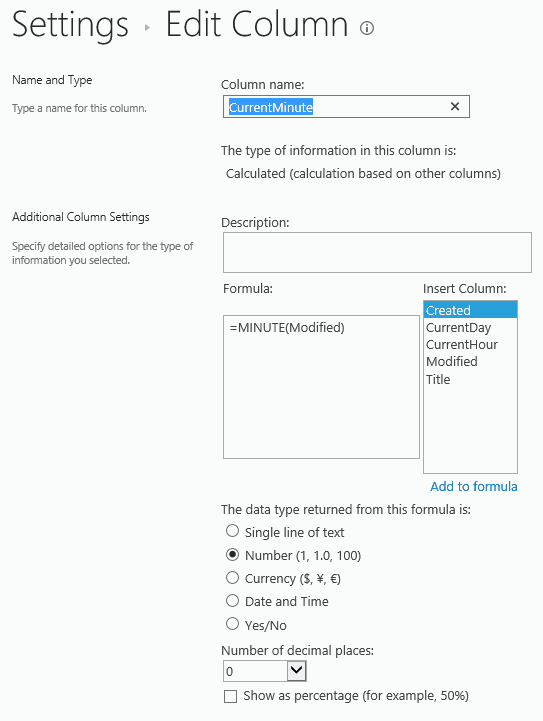
3. Three calculated fields "CurrentDay, CurrentHour, CurrentMinute" are created here.

But normally we only need one of them.

To send out email every hour, we need field “CurrentMinute”; (this is the one being used in the example above, pause for one minute each time)

To send out email every day, we need field “CurrentHour”; (pause for one hour each time)

To send out email every month, we need field “CurrentDay”. (pause for one day each time)

When the value of field “Title” is set to “exit”, the workflow will exit.

Every time when an email is sent out, a new item is created in the same list.


[update, 2017-06-06]

The other way is to do it through OverDue Task. Two emails will be sent out, and can only be sent to the same SharePoint user group (or same user).

But normally that's fine.

Since it's much easier to configure, I believe it's a better solution.


Thursday, April 13, 2017

Claims Authentication error: Trusted provider is missing. Provider: '00000003-0000-0ff1-ce00-000000000000'

Some end users reported missing emails from workflows, but they could not reproduce the problem, and me either. So I put it on hold.

A few weeks later, the same issue happened again.

The error messages in ULS are:

04/11/2017 10:14:30.55 w3wp.exe (0x2A3C) 0x6E48 SharePoint Foundation Claims Authentication amcbl Medium Trusted provider is missing. Provider: '00000003-0000-0ff1-ce00-000000000000' 97c8e69d-f945-3099-c843-9153fa257c74

04/11/2017 10:14:30.60 w3wp.exe (0x2A3C) 0x6E48 InfoPath Forms Services Runtime m0ib Medium Not persisting state for request due to previous errors. Form Template: urn:schemas-microsoft-com:office:infopath:workflowInitAssoc:-AutoGen-2017-04-07T00:12:12:113Z 97c8e69d-f945-3099-c843-9153fa257c74


After some investigation, I finally found how to reproduce the error.

Every time when SharePoint server is rebooted (for windows OS patching or something else), or after re-publishing the workflow, the workflow instances would not be triggered. Users have to trigger it again (manually or through a item level event) to make it work.

It only happened on 2010 version workflows.

That's interesting.

I replicated the site collection to DEV environment, and then tried it there. Same.

I created a new site collection in DEV, and built a new workflow there. The workflow worked well.

I compared all settings at different level (site collection, site, list, workflow, etc.), and could not find the problem.

SharePoint 2013 CU201703 is installed, but that doesn't help.

In the end, as the error mentioned that it's throw out by "InfoPath Forms Services", I decided to switch the workflow URL from

{Site URL}/_layouts/IniWrkflIP.aspx?List={List ID}&ID={Item ID}&TemplateID={Template ID}

to

{Site URL}/Workflows/{Workflow Name}/{Workflow Initiation Form Page}?List={List ID}&ID={Item ID}

The first one, by default, is used by SharePoint Standard and Enterprise edition; the latter is used by SharePoint Foundation server. Of course InfoPath form provides much more functionalities to the workflow initiation form. But in my case, we don't customise any workflow form.

The change can be done by the PowerShell script below:

Get-SPSite $SiteUrl | %{ Get-SPFeature -Site $_ |?{$_.DisplayName -eq "OffWFCommon"} | Disable-SPFeature -URL $SiteUrl}

Then, we have to rebuilt the workflow. (Thanks God, we can copy & paste workflow activities in SharePoint Designer now)

That's it.

If any one knows the root cause of this problem, could you please share it here?

ULS error: Could not load file or assembly 'Microsoft.AnalysisServices.SPAddin"

After uninstalling PowerPivot, the error below keep popping up in ULS log.

Event manager error: Could not load file or assembly 'Microsoft.AnalysisServices.SPAddin, Version=12.0.0.0, Culture=neutral, PublicKeyToken=89845dcd8080cc91' or one of its dependencies. The system cannot find the file specified.

My first thought is that there are some obsoleted features not getting uninstalled properly. That turns out correct. I removed the two features below through PowerShell script here.

e8389ec7-70fd-4179-a1c4-6fcb4342d7a0 ReportServer
1a33a234-b4a4-4fc6--96c2-8bdb56388bd5 PowerPivot Feature Integration for Site Collections

However, the error message is still there.

After quite a while trouble shooting, I finally found the problem: it is caused by obsoleted event handlers. They are supposed to be uninstalled with those features, but for unknown reason they are still there.

So, again, I removed them through PowerShell


Assembly: 'Microsoft.AnalysisServices.SPAddin, Version=12.0.0.0, Culture=neutral, PublicKeyToken=89845dcd8080cc91', Class: Microsoft.AnalysisServices.SPAddin.ReportGallery.ReportGalleryEventHandler, Type: ItemUpdated

Assembly: 'Microsoft.AnalysisServices.SPAddin, Version=12.0.0.0, Culture=neutral, PublicKeyToken=89845dcd8080cc91', Class: Microsoft.AnalysisServices.SPAddin.ReportGallery.ReportGalleryEventHandler, Type: ItemAdded


Finally, the SharePoint farm back to peace.

Thursday, January 19, 2017

Resolved - Failed to configure MIIS post database

After installing SharePoint 2013 SP1 CU 201609 on DEV server, "User Profile Synchronization Service" stopped working. ULS log shows the error message below.

UserProfileApplication.SynchronizeMIIS: Failed to configure MIIS post database, will attempt during next rerun. Exception: System.Configuration.ConfigurationErrorsException: ERR_START_SERVICE    
 at Microsoft.Office.Server.UserProfiles.Synchronization.ILMPostSetupConfiguration.ValidateConfigurationResult(UInt32 result)    
 at Microsoft.Office.Server.Administration.UserProfileApplication.SetupSynchronizationService(ProfileSynchronizationServiceInstance profileSyncInstance).

I tried all possible solutions through online research, but, none of them works.

In the end, I submitted a Microsoft support ticket.  It turns out that we have to remove "Forefront Identity Manager Service" from the dependency of windows service "FIMSynchronizationService"


Create a ".reg" file, then add the text below to it, then merge this reg file into the Windows of SharePoint server.

Windows Registry Editor Version 5.00

[HKEY_LOCAL_MACHINE\SYSTEM\CurrentControlSet\Services\FIMSynchronizationService]
"DependOnService"=hex(7):57,00,69,00,6e,00,6d,00,67,00,6d,00,74,00,00,00,00,00

Then reboot the server. Below is the result.


Now we can start the SharePoint service instance "User Profile Synchronization Service".

I hope this post can save you some headache.


PS: Microsoft support team said they never got this issue before. So I assume it only happens when SharePoint and Database are installed on the same server.

Tuesday, December 20, 2016

Move SharePoint 2013 search server in one go

There are many posts about how to move search components from one server to another. But I cannot find a complete version to do that in one go.

It's frustrating to keep "waiting" for the current step to complete, so we can start next step. That's why I build one as below. This one assumes that the farm only has one search server which hosts all search components. And it moves all search components from the current server to a new SharePoint server.

The whole process may take more than 20 minutes.

Most of these PowerShell scripts are copied from here, thanks for the hard work of Matt Milsark.


function MoveSPSearchComponents([string]$SearchServerNameOld, [string]$SearchServerNameNew)
{
    Write-Host "$(get-date -UFormat '%Y%m%d %H:%M:%S') - All 6 Search components are going to be moved from server '$SearchServerNameOld' to '$SearchServerNameNew'" -f DarkYellow
    # START THE SEARCH SERVICE ON THE NEW SERVER
    $ssa = Get-SPEnterpriseSearchServiceApplication
    $active = Get-SPEnterpriseSearchTopology -SearchApplication $ssa –Active
    $clone = New-SPEnterpriseSearchTopology -SearchApplication $ssa -Clone –SearchTopology $active

    $instances = @(Get-SPEnterpriseSearchServiceInstance -Identity $SearchServerNameNew | Where-Object {$_.Status -eq "Online"})
    if ($instances.Count -eq 0)
    {
        Start-SPEnterpriseSearchServiceInstance -Identity $SearchServerNameNew
     
        do
        {
            $instances = @(Get-SPEnterpriseSearchServiceInstance -Identity $SearchServerNameNew | Where-Object {$_.Status -eq "Online"})
            Write-Host "." -NoNewLine
            Start-Sleep -s 1
        } until ($instances.Count -gt 0)
        Write-Host "Search instance on server '$SearchServerNameNew' is Online now" -f DarkGreen
    }

    $SearchComponents = @(Get-SPEnterpriseSearchComponent -SearchTopology $clone | Where-Object {$_.ServerName -eq $SearchServerNameNew})
    $SearchComponents
    $SearchComponents | Remove-SPEnterpriseSearchComponent -SearchTopology $clone -confirm:$false
    Set-SPEnterpriseSearchTopology -Identity $clone

    do
    {
        Write-Host "." -NoNewLine
        Start-Sleep -s 1
        $SearchComponents = @(Get-SPEnterpriseSearchComponent -SearchTopology $clone | Where-Object {$_.ServerName -eq $SearchServerNameNew})
    } until ($SearchComponents.Count -eq 0)
    Write-Host "$(get-date -UFormat '%Y%m%d %H:%M:%S') - Search components on server '$SearchServerNameNew' is cleaned up" -f DarkGreen
 
    # CREATE NEW SEARCH COMPONENTS ON THE NEW SEARCH SERVER
    $active = Get-SPEnterpriseSearchTopology -SearchApplication $ssa -Active
    $clone = New-SPEnterpriseSearchTopology -SearchApplication $ssa -Clone –SearchTopology $active
 
    New-SPEnterpriseSearchQueryProcessingComponent -SearchTopology $clone -SearchServiceInstance $SearchServerNameNew
    New-SPEnterpriseSearchAnalyticsProcessingComponent -SearchTopology $clone -SearchServiceInstance $SearchServerNameNew
    New-SPEnterpriseSearchContentProcessingComponent -SearchTopology $clone -SearchServiceInstance $SearchServerNameNew
    New-SPEnterpriseSearchCrawlComponent -SearchTopology $clone -SearchServiceInstance $SearchServerNameNew
    New-SPEnterpriseSearchIndexComponent -SearchTopology $clone -IndexPartition 0 -SearchServiceInstance $SearchServerNameNew

    Set-SPEnterpriseSearchTopology -Identity $clone

    do
    {
        Write-Host "." -NoNewLine
        Start-Sleep -s 1
        $SearchComponents = @(Get-SPEnterpriseSearchComponent -SearchTopology $clone | Where-Object {$_.ServerName -eq $SearchServerNameNew})
    } until ($SearchComponents.Count -eq 5)
    Write-Host "$(get-date -UFormat '%Y%m%d %H:%M:%S') - 5 Search components are created on server '$SearchServerNameNew' in the clone topology" -f DarkGreen

    # REMOVE COMPONENTS FROM ORGINAL SEARCH SERVER
    $active = Get-SPEnterpriseSearchTopology -SearchApplication $ssa -Active
    $clone = New-SPEnterpriseSearchTopology -SearchApplication $ssa -Clone –SearchTopology $active

    $SearchComponents = @(Get-SPEnterpriseSearchComponent -SearchTopology $clone | Where-Object {$_.ServerName -eq $SearchServerNameOld -and $_.Name -NotMatch 'AdminComponent'})
    $SearchComponents | Remove-SPEnterpriseSearchComponent -SearchTopology $clone -confirm:$false
 
    Set-SPEnterpriseSearchTopology -Identity $clone
 
    do
    {
        Write-Host "." -NoNewLine
        Start-Sleep -s 1
        $SearchComponents = @(Get-SPEnterpriseSearchComponent -SearchTopology $clone | Where-Object {$_.ServerName -eq $SearchServerNameOld -and $_.Name -NotMatch 'AdminComponent'})
    } until ($SearchComponents.Count -eq 0)
    Write-Host "$(get-date -UFormat '%Y%m%d %H:%M:%S') - Search components on server '$SearchServerNameOld' are removed (except the admin component)" -f DarkGreen
 
    # START AN ADMIN COMPONENT ON THE NEW SERVER
    $active = Get-SPEnterpriseSearchTopology -SearchApplication $ssa –Active
    $clone = New-SPEnterpriseSearchTopology -SearchApplication $ssa -Clone –SearchTopology $active

    #$NewServer = Get-SPEnterpriseSearchServiceInstance -Identity $SearchServerNameNew
    New-SPEnterpriseSearchAdminComponent -SearchTopology $clone -SearchServiceInstance $SearchServerNameNew
    Set-SPEnterpriseSearchTopology -Identity $clone
 
    do
    {
        Write-Host "." -NoNewLine
        Start-Sleep -s 1
        $SearchComponents = @(Get-SPEnterpriseSearchComponent -SearchTopology $clone | Where-Object {$_.ServerName -eq $SearchServerNameNew -and $_.Name -match 'AdminComponent'})
    } until ($SearchComponents.Count -eq 1)
    Write-Host "$(get-date -UFormat '%Y%m%d %H:%M:%S') - Search Admin components on server '$SearchServerNameNew' is created" -f DarkGreen
 
    # DELETE THE OLD ADMIN COMPONENT
    $active = Get-SPEnterpriseSearchTopology -SearchApplication $ssa -Active
    $clone = New-SPEnterpriseSearchTopology -SearchApplication $ssa -Clone –SearchTopology $active

    $SearchComponents = @(Get-SPEnterpriseSearchComponent -SearchTopology $clone | Where-Object {$_.ServerName -eq $SearchServerNameOld -and $_.Name -match 'AdminComponent'})
    $SearchComponents | Remove-SPEnterpriseSearchComponent -SearchTopology $clone -confirm:$false
    Set-SPEnterpriseSearchTopology -Identity $clone

    do
    {
        Write-Host "." -NoNewLine
        Start-Sleep -s 1
        $SearchComponents = @(Get-SPEnterpriseSearchComponent -SearchTopology $clone | Where-Object {$_.ServerName -eq $SearchServerNameOld -and $_.Name -match 'AdminComponent'})
    } until ($SearchComponents.Count -eq 0)
    Write-Host "$(get-date -UFormat '%Y%m%d %H:%M:%S') - Search Admin components on server '$SearchServerNameOld' is removed" -f DarkGreen

    Write-Host "$(get-date -UFormat '%Y%m%d %H:%M:%S') - All 6 Search components are moved from server '$SearchServerNameOld' to '$SearchServerNameNew'" -f DarkYellow
}

$SearchServerNameNew = $env:COMPUTERNAME
MoveSPSearchComponents "OldSearchServerName" $SearchServerNameNew

Monday, December 12, 2016

Best simple guide about SharePoint search

Found an excellent post about SharePoint Search

It covers all major parts, and can be read through in a few minutes.

Strongly recommend it!

All credit goes to icansharepoint


Wednesday, November 23, 2016

How to make Chrome support SSO, and enable CORS

Recently I migrated some SharePoint web parts from C# to JavaScript + HTML

Everything works well in IE 11 after enabling CORS.

But, when test it in Chrome 54, I got the error message below, and it constantly prompt for user name and password..

ERR_INVALID_HANDLE: "This site can’t be reached"

IIS log says it's requested by anonymous user.

After days of struggling, it turns out not as easy as it looks like.  We need to do the following steps.

1. IE -> internet options -> security -> Local Intranet zone

Add SharePoint Server and the Web App Server to "Local Intranet zone". So IE and Chrome will try to use the current windows user credential to log on web server.

This enables NTLM authentication on SharePoint and Web App Server.

Reference: https://sysadminspot.com/windows/google-chrome-and-ntlm-auto-logon-using-windows-authentication/

2. Configure Delegated Security in Google Chrome

Need to add server names as below to registry table on client computer.

We can do it through Group Policy.

[HKEY_LOCAL_MACHINE\SOFTWARE\Policies\Google\Chrome]
"AuthNegotiateDelegateWhitelist"="*.DomainName.local"
"AuthSchemes"="digest,ntlm,negotiate"
"AuthServerWhitelist"="*.DomainName.local"

[HKEY_LOCAL_MACHINE\SOFTWARE\Wow6432Node\Policies\Google\Chrome]
"AuthNegotiateDelegateWhitelist"="*.DomainName.local"
"AuthSchemes"="digest,ntlm,negotiate"
"AuthServerWhitelist"="*.DomainName.local"

This enables NTLM authentication and Kerberos on SharePoint and Web App Server.

Reference: https://specopssoft.com/configuring-chrome-and-firefox-for-windows-integrated-authentication/

3. Configure Kerberos

Set up SPN for both the SharePoint Server and the Web App Server.

Reference: https://support.microsoft.com/en-au/kb/929650

4. Change Startup.cs a bit in Configure() to handle preflight requests

This is for CORS.

Reference: http://stackoverflow.com/questions/38838006/asp-net-mvc-core-cors

5. Enable Anonymous Authentication on Web App Server

This is for CORS.

6. If Kestrel Server is not running, we need to submit "GET" request first.

It cannot be started up by "Preflight Options" request. It seems like a bug.

[update 2016-11-29] 7. To make things easier, add the settings below to the web.config file of Web App Server. 

This helps to enable CORS.

<httpProtocol>
  <customHeaders>
<clear />
<add name="Access-Control-Allow-Origin" value="http://SharePointSiteUrl" />
<add name="Access-Control-Allow-Headers" value="Authorization, X-Requested-With, Content-Type, Origin, Accept, X-Auth-Token" />
<add name="Access-Control-Allow-Methods" value="*" />
<add name="Access-Control-Allow-Credentials" value="true" />
<add name="Access-Control-Max-Age" value="60" />
  </customHeaders>
</httpProtocol>


Done.

=================

Test Environment.

Client side: Chrome 54 + JavaScript + JQuery 3.1.1

Server side: SharePoint Server 2016 CU201611 + Content Editor Web Part

Web App Server: IIS 8.5 + Asp.Net Core Web API 2 + C#

JavaScript + JQuery 3.1.1 (based on JSON, in a Content Editor Web Part)

var strUrl = "http://WebService2016dev.DomainName.local/SSO/AppTest1/api/SSOAuthentication";

var JSONObject= {"Key": "db25f36b-fa81-4c8e-9af5-9c8468ce8a79",
   "UserLoginName": "domain\\UserLoginName",
   "ReturnCode": "",
   "ReturnValue": "",
   "ReturnDetailedInfo": "" };
var jsonData = JSON.stringify(JSONObject);

$.support.cors = true;

var strMethodType = 'GET';
var strContentType = 'text/plain';

$.ajax( {
url: strUrl,
type: strMethodType,
contentType: strContentType ,
xhrFields: {
withCredentials: true
},
data: '',
dataType: "json",
async: false,
crossDomain: true,
success: function( response ) {
console.log("GET success - Data from Server: " + JSON.stringify(response));
},
error: function( request, textStatus, errorThrown ) {
console.log("GET error - You can not send Cross Domain AJAX requests: textStatus=" + textStatus + ", errorThrown=" + errorThrown);
console.log(request.responseText);
}
} );

var strMethodType = 'POST';
var strContentType = 'application/json; charset=utf-8';

$.ajax( {
url: strUrl,
type: strMethodType,
contentType: strContentType ,
xhrFields: {
withCredentials: true
},
data: jsonData,
dataType: "json",
crossDomain: true,
success: function( response ) {
console.log("POST success - Data from Server: " + JSON.stringify(response));
},
error: function( request, textStatus, errorThrown ) {
console.log("POST error - You can not send Cross Domain AJAX requests: textStatus=" + textStatus + ", errorThrown=" + errorThrown);
console.log(request.responseText);
}
} );

Web App Server (IIS 8.5 + Asp.Net Core Web API 2), main C# code in Startup.cs

app.Use(async (httpContext, next) =>
{
await next();
if (httpContext.Request.Path.Value.Contains(@"api/") && httpContext.Request.Method == "OPTIONS")
{
httpContext.Response.StatusCode = StatusCodes.Status204NoContent;
}
});

app.UseMvc();

Thursday, October 27, 2016

Making a Link to a Document in SharePoint 2013 Open in client program

When we go to a Document Library list view, we can open the document in client program directly if:

1. In the library settings, the default open behavior is "open in the client application"


2. In Central Admin -> Manage web application -> General Settings -> Browser File Handling -> Permissive


However, if we want to add the document link to a page, then user may get prompt message from IE as below, when clicking that link:


That means the document will be downloaded to local hard drive first, then be opened from there.

What if we want to open the document in the SharePoint library directly?

If "Office Web Apps" ("Office Online Server") is available, we can follow this link to open the document in web browser. Or else, we need the help of JavaScript. Insert a Content Editor Web Part to that page, then add the script below to it.  Done!

/sites/SiteCollectionName/DocumentLibraryName/DocumentName.FileExtensionName
" rel="sp_DialogLinkNavigate">Document Link Label

Wednesday, October 5, 2016

Without backup/restore, how to change managed path of a site collection?

Based on the answer from Microsoft, backup/restore is the only way to change site collection managed path.

"backup/restore" actually copy the whole site collection to a file, then re-import it into SharePoint farm. This approach works well. But, instead of external file, we can also use a temporary database to hold the site collection data. Comparing to "backup/restore", it's much faster.

Below is the PowerShell script.


Mount-SPContentDatabase -AssignNewDatabaseId -Name SP_Content_Tmp -DatabaseServer $DatabaseServer -WebApplication $WebAppUrl

Copy-SPSite -Identity $SiteUrlSource -DestinationDatabase SP_Content_Tmp -TargetUrl $SiteUrlDest

Remove-SPSite -Identity $SiteUrlSource -confirm:$false

Get-SPTimerJob -WebApplication $WebAppUrl job-site-deletion | Start-SPTimerJob

Move-SPSite -Identity $SiteUrlDest -DestinationDatabase $ContentDatabase -Confirm:$false

Get-SPTimerJob -WebApplication $WebAppUrl job-site-deletion | Start-SPTimerJob

Dismount-SPContentDatabase -Identity SP_Content_Tmp -Confirm:$false

[update, 2016-10-19]

Windows Form program to generate PowerShell script:

https://github.com/Eric-Fang/SPSiteAdmin2013

https://github.com/Eric-Fang/SPSiteAdmin2016


Tuesday, October 4, 2016

Copy-SPSite and 404 error

[Background]

"Copy-SPSite" is a new command available from SharePoint 2013. In theory, we can generate a identical site collection with different Site ID and URL.

However, when trying to open the new site from web browser, I got "404" Page Not Found error. I am not the only one who got this problem.

[Error Message]

Error message in web page:

This error (HTTP 404 Not Found) means that Internet Explorer was able to connect to the website, but the page you wanted was not found. It’s possible that the webpage is temporarily unavailable. Alternatively, the website might have changed or removed the webpage.

Error message in ULS:

Exception trying get context compatibility level: System.NullReferenceException: Object reference not set to an instance of an object.  
 at Microsoft.SharePoint.SPSite.PreinitializeServer(SPRequest request)  
 at Microsoft.SharePoint.SPSite.GetSPRequest()  
 at Microsoft.SharePoint.SPSite.InitSite()  
 at Microsoft.SharePoint.ApplicationRuntime.SPRequestModule.GetContextCompatibilityLevel(Uri requestUri)

[Trouble Shooting]

Initially, I thought I just need to specify a new content database for the new site, but, that didn't help.

Not sure what went wrong. I guess there is a bug in the command implementation.

Cumulative Updates (until CU201609) haven't mentioned this issue.

Do we have to switch back to "Backup-SPSite and Restore-SPSite"? The real problem is, SharePoint doesn't allow duplicated SiteID in a farm.

[Fix]

Luckily, I found a way to make it work. Below is the script. Hopefully it can save you some time.


Mount-SPContentDatabase -AssignNewDatabaseId -Name $databaseNameTmp -DatabaseServer $databaseServer -WebApplication http://$webAppSource$envSuffix/

Copy-SPSite http://$webAppSource$envSuffix/sites/$siteNameSource -DestinationDatabase $databaseNameTmp -TargetUrl http://$webAppSource$envSuffix/sites/$siteNameDest

Move-SPSite http://$webAppSource$envSuffix/sites/$siteNameDest -DestinationDatabase $databaseNameSource -Confirm:$false

Dismount-SPContentDatabase -Identity $databaseNameTmp -Confirm:$false


The script above generate a new site in the same web application.  To copy site to different web application is similar.

Mount-SPContentDatabase -AssignNewDatabaseId -Name $databaseNameTmp -DatabaseServer $databaseServer -WebApplication http://$webAppSource$envSuffix/

Copy-SPSite http://$webAppSource$envSuffix/sites/$siteNameSource -DestinationDatabase $databaseNameTmp -TargetUrl http://$webAppSource$envSuffix/sites/$siteNameDest

Move-SPSite http://$webAppSource$envSuffix/sites/$siteNameDest -DestinationDatabase $databaseNameSource -Confirm:$false

Dismount-SPContentDatabase -Identity $databaseNameTmp -Confirm:$false

Mount-SPContentDatabase -AssignNewDatabaseId -Name $databaseNameTmp -DatabaseServer $databaseServer -WebApplication http://$webAppDest$envSuffix/

Move-SPSite http://$webAppDest$envSuffix/sites/$siteNameDest -DestinationDatabase $databaseNameDest -Confirm:$false

Dismount-SPContentDatabase -Identity $databaseNameTmp -Confirm:$false

Friday, May 27, 2016

SharePoint Online - replace Server-side programming with Client-side programming

Finally, with the help of WebHooks, we can use Client-side programming to replace Server-side programming in SharePoint. ( http://www.paitgroup.com/microsoft-renews-its-vows-with-sharepoint/ )

But, does it really resolve the problem of customization on SharePoint Online sites?

In many cases, YES, but we need to be very careful. Because "data communication" is moved from RAM-RAM to Computer-Computer.

1. Hardware Latency

Latency of communication between different processes on the same machine, is totally different from the one between different machines. Let's check it here ( https://gist.github.com/jboner/2841832 ). "Main memory reference" consumes around 100 ns, and "Round trip within same data center" takes around 500 us, which means the latter is 5000 times slower.

For external servers (not in the same data center), "Round trip" may take more than 30 ms. That's 300,000 times slower.

Caching doesn't help much in many cases.

2. Stability

Let's assume that all servers are in the same data center. Is the network in a data center as robust as the RAM on one computer?

3. Extra hardware overhead

How much work it needs to handle a web service request? Please check here for "IIS Architectures" http://www.iis.net/learn/get-started/introduction-to-iis/introduction-to-iis-architecture

How much extra CPU, Memory Access, DISK IO, Network IO will be consumed for each request? Do we need to pay for that?

A data center may handle one million concurrent users easily, but, when one user open a customized page, it may cause many HTTP(s) requests by the JavaScript on that page. And, each triggered workflow instance may also submit many HTTP(s) requests!

4. Development and trouble shooting

To move a workflow activity from "Server Object model" to "Client object model", for me, it's painful.

SharePoint 2013 CSOM APIs are powerful, but, because there is one more layer, it's more complex. However, this post suggests to utilize mature third-party APIs instead of "reinventing wheels". I totally don't agree about that, because of "Reliability".

5. Reliability

If everything is on-premise, for a normal middle size enterprise, they may utilize 10,000 APIs(through assemblies) from 20 different software vendors. That's fine. Everything is fully tested before deploying to production servers. Any update/patch will also be fully tested on non-production servers.

But, if there are 10,000 APIs(through Web Services) from 20 different vendors, how can we keep the whole systems stable? If, on average, each API is upgraded/changed every 10 years, then there will be 3 APIs(Web Services) being changed every day. And not likely the changes can get fully tested on non-production environment first.

In general, the quality of Microsoft products is pretty good, but, how many times Microsoft recalled updates of their products? Can we expect the software/service/APIs from those 20 vendors are all as good as the one from Microsoft? How much we need to pay for these APIs every year?

In summary, we can move everything into cloud, just need to be cautious.